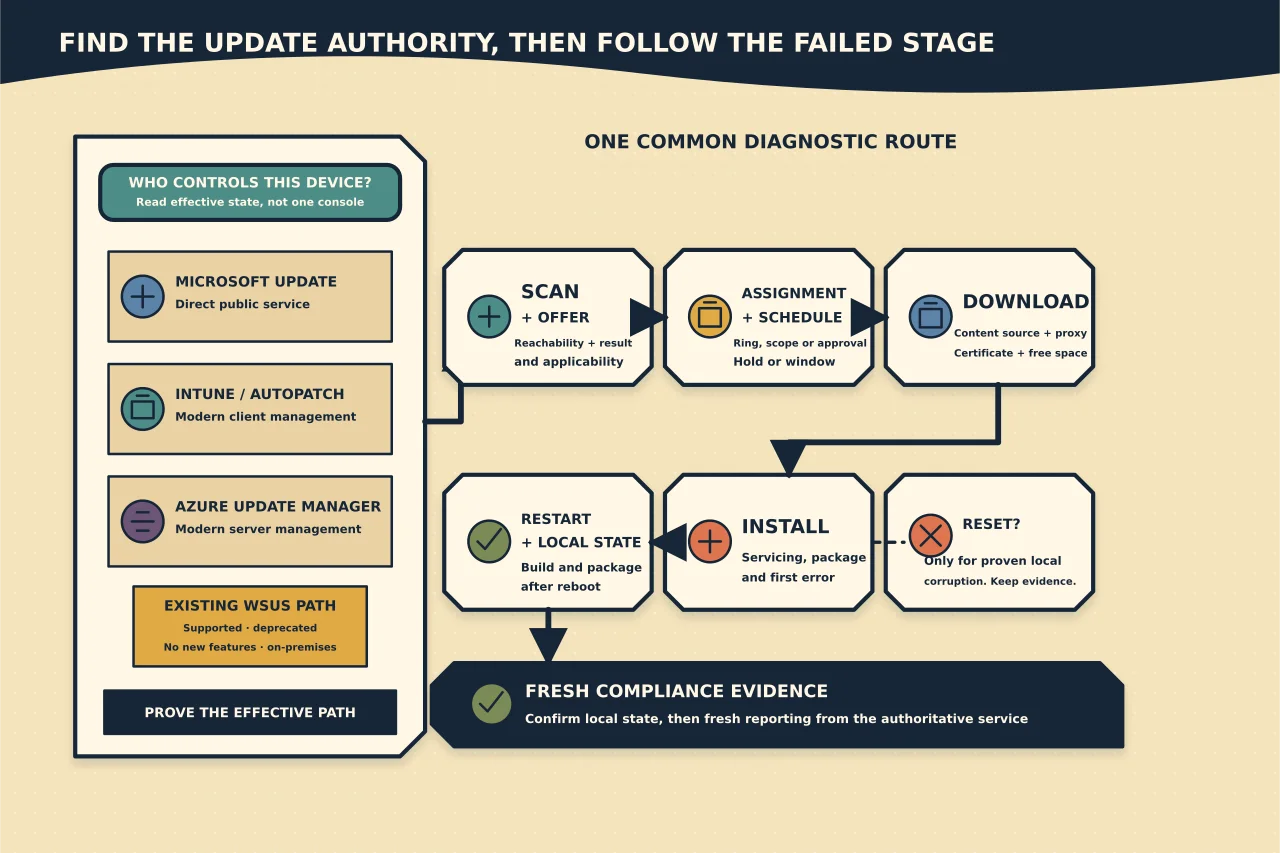
“Windows Update is broken” can describe very different failures. A device may be asking the wrong service, receiving conflicting policy, missing an assignment or approval, unable to download content, rejecting an inapplicable package, failing during installation, waiting for a restart or reporting stale compliance after it is already patched.
Resetting every update component before identifying the stage destroys useful evidence and often changes nothing.
Start with the update authority, not WSUS
WSUS remains operational and supported, including as a role in Windows Server 2025. Microsoft has nevertheless deprecated it: existing features continue to work and receive applicable security and quality fixes, but Microsoft is no longer developing new WSUS features. Microsoft recommends Intune and Windows Autopatch for client update management and Azure Update Manager for server update management.
That is product-direction guidance, not a reason to remove a working WSUS service during an incident. Existing on-premises and restricted-connectivity environments may still depend on it. Diagnose the platform that is actually authoritative today, then plan any transition as separate, tested work.
The practical branches are:
- Direct Microsoft service: the device scans Windows Update or Microsoft Update without an organisation-controlled deployment service.
- Modern client management: Intune update policies and Windows Autopatch control eligible Windows client deployments, rings, timing and reporting through cloud management.
- Modern server management: Azure Update Manager assesses and schedules updates for supported servers in Azure and for connected hybrid or multicloud machines. The operating system still has an underlying content source, which may be Microsoft Update or WSUS.
- Existing on-premises management: WSUS may provide update metadata, approvals and content directly, or underpin Configuration Manager software-update workflows. Configuration Manager remains the management authority where it controls the deployment; do not troubleshoot it as if it were a stand-alone WSUS estate.
Define the expected update path
Record the exact Windows edition, version and build, whether it is a client or server, device ownership, enrolment or management authority, intended update source and expected deployment policy. Determine whether the effective path is direct Microsoft Update, Intune or Windows Autopatch, Azure Update Manager, Configuration Manager, stand-alone WSUS or another managed service.
Check the support status of the installed release. An unsupported build may no longer receive the package you expect. Also identify whether the request concerns quality updates, feature updates, drivers, Microsoft product updates, Features on Demand or language content; those categories can use different policy and source behaviour.
Capture the failure before changing it
Record:
- the exact update identity and error code;
- last successful scan and installation;
- whether the update appears applicable, downloaded, installed or pending restart;
- recent policy, proxy, certificate, disk or servicing changes;
- free space and storage health; and
- whether one device, one policy group or the entire estate is affected.
Preserve Windows Update event data and generate the current diagnostic log using Microsoft’s documented method. Modern Windows clients build WindowsUpdate.log from ETW traces; an old text file may not be the live source you think it is.
Follow the stages in order
Authority, policy and source
Read effective state on the device, not only the setting in one GPO or portal. Confirm enrolment, the resulting update service, policy assignment, ring or deployment membership, deferrals, pause state, deadlines, maintenance window, target release, restart behaviour and driver/product controls. Conflicting GPO, MDM and platform settings can each look valid while producing a different effective result at the endpoint.
For Azure Update Manager, distinguish the management and scheduling layer from the Windows machine’s configured content source. Confirm that the correct Azure VM or Azure Arc-enabled server is in scope, assessment data is current and the applicable maintenance configuration reached it.
Only enter the WSUS branch when effective policy or the managing platform proves that WSUS is involved. Confirm that the client is pointed to the intended HTTPS/HTTP endpoint, trusts its certificate where applicable, and can reach the service through the actual system/proxy context. A successful browser visit does not prove the Windows Update agent can use it.
Scan and applicability
Trigger a supported scan through Windows Settings or the managing platform, then correlate the time and activity in event/log evidence. Determine whether the service offered the update and whether Windows considered it applicable.
An update may be absent because the device already has a superseding package, lacks a prerequisite, is in the wrong product/classification group, has a safeguard hold, or does not match architecture/build. Do not download a random catalogue package until applicability is understood.
Assignment, approval and schedule
An available update is not necessarily assigned to this device now. Check the control that belongs to the effective authority: Autopatch group or Intune policy assignment for managed clients, maintenance configuration and scope for Azure Update Manager, deployment and collection state for Configuration Manager, or approval and target-group membership for stand-alone WSUS.
Treat rollout safeguards, holds, exclusions and maintenance windows as possible intended outcomes rather than faults to bypass. Before changing them, establish who owns the decision and whether the update is expected on this device at this time.
The conditional WSUS branch
For a proven stand-alone WSUS path, verify synchronisation, product/classification selection, approval and target-group membership. Then distinguish metadata from content: the server can know about an update while content download has failed or clients cannot reach its content path.
Check whether the device reports to the expected computer object and whether duplicate or stale identities obscure status. In a Configuration Manager environment, use its supported software-update troubleshooting path rather than treating the WSUS console as the deployment authority. Do not delete every WSUS client record merely to refresh one report.
Download
Check delivery, proxy, certificate, firewall, free-space and cache errors. Compare failures across networks and content types. If ordinary quality updates work but an optional feature fails, investigate the Features on Demand source and version-specific policy rather than resetting the core update agent.
Installation and servicing
Correlate the error with component-store health, pending operations, driver/application conflicts and available space. Preserve CBS and servicing evidence before using DISM/SFC. A package can download correctly and still fail because the Windows servicing stack cannot commit it.
Restart and reporting
Determine whether Windows is waiting for a restart or maintenance window. After restart, verify the build/package state locally and allow the management/reporting cycle to complete. A stale dashboard is not proof the update failed; a “successful” dashboard is not proof the device rebooted into the new state.
Use resets only for a proven corrupt local state
If evidence specifically supports corrupt update datastore/cache state, use Microsoft’s current, version-appropriate recovery procedure and capture before/after state. Avoid scripts that stop many services, rename stores, delete queues and re-register large sets of DLLs without explaining why. They can erase history, break concurrent servicing and conceal the actual policy fault.
If the component store is damaged, follow the dedicated image-repair workflow with a correct repair source. If setup/feature upgrade fails, preserve Panther/Rollback logs and use SetupDiag rather than repeating the attempt.
Verify compliance, not just a green button
After correction:
- effective policy points to the intended source;
- a fresh scan completes against that source;
- the target update is correctly offered or correctly deemed unnecessary;
- download and installation complete;
- restart occurs where required;
- build/package history confirms the new state;
- the applicable management service or WSUS reporting converges; and
- a representative application and network path still work.
Test an expected negative case too: a device outside the approval ring should not receive the release early. Update management is healthy when intended devices become compliant through the planned path and the organisation can explain exceptions without wiping the evidence.