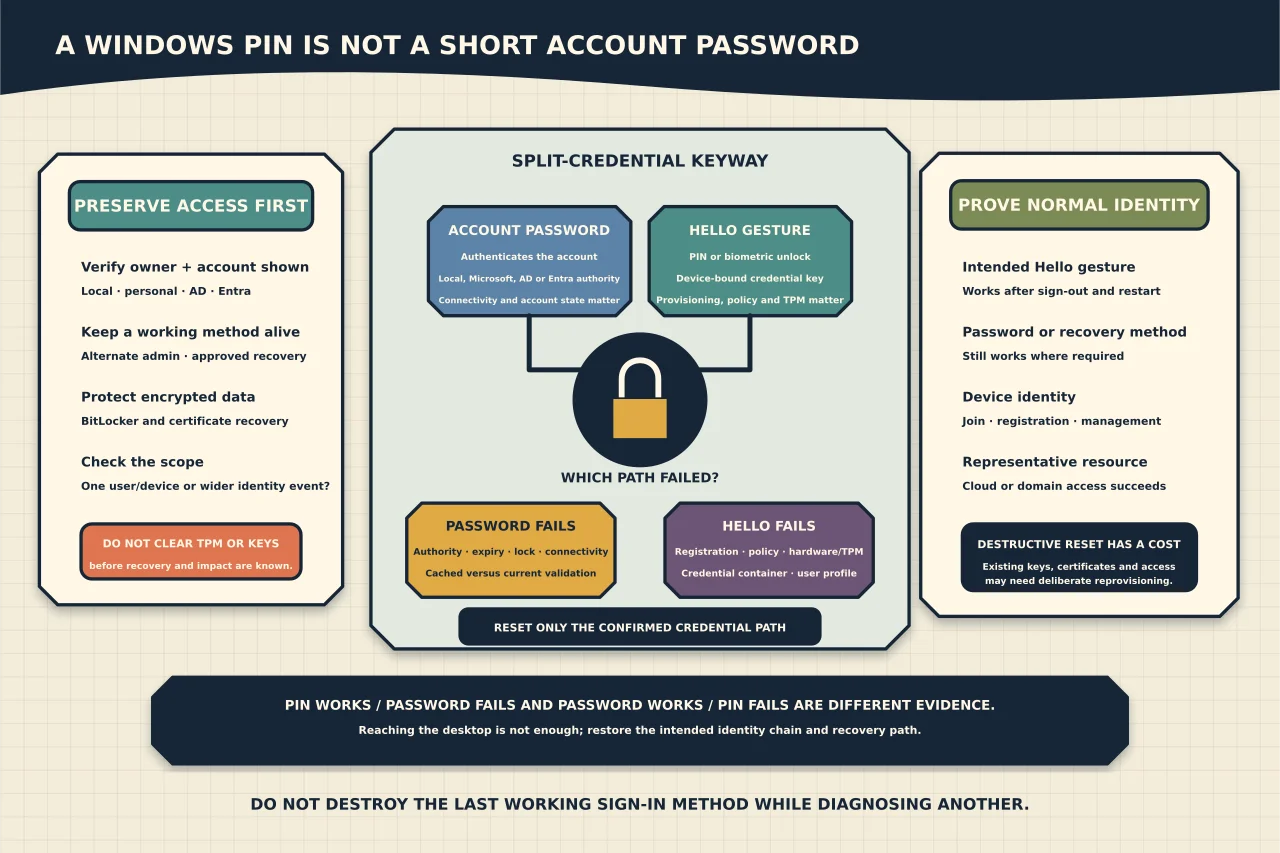
A Windows PIN is not a short version of your account password. With Windows Hello, the PIN or biometric gesture unlocks a credential bound to that device. Your password authenticates the account through a different path. That distinction explains why one can work while the other fails—and why changing every credential at once is poor diagnosis.
Protect the remaining access first
Before resetting anything, confirm device ownership and whether important data is encrypted. Locate the organisation’s or owner’s BitLocker recovery material and identify any other working administrator account. If one sign-in method still works, preserve it while gathering evidence.
Do not clear the TPM, delete the Windows Hello container, remove the device from its directory or reset Windows as a first response. Those actions can remove device-bound credentials, certificates or recovery paths and make the original cause impossible to see.
For a work device, check whether the failure is isolated or widespread. Multiple users or devices failing together may indicate an identity-provider, domain controller, network, time, certificate or policy incident rather than a broken PIN.
Identify the account and credential provider
At the sign-in screen, use Sign-in options and note which symbol is selected: PIN, password, fingerprint, face, security key or another provider. Then establish the account type:
- local account on this device;
- personal Microsoft account;
- Active Directory domain account; or
- Microsoft Entra work/school account.
Record the exact message, whether the device is online, when the user last signed in successfully and any recent password, PIN, firmware, TPM, motherboard, join or policy change.
Verify keyboard layout, Caps Lock and the visible account identity before declaring the credential wrong. A work and personal Microsoft identity can use the same-looking address but remain separate accounts.
Use the split result as evidence
If the PIN works but the password fails, the local Hello key is probably still usable. Check whether the password has changed, expired or cannot be validated because the device cannot reach the relevant domain or cloud service. A domain password may require current DC connectivity to change, while cached sign-in can behave differently offline.
If the password works but the PIN or biometric fails, focus on Windows Hello policy, provisioning, hardware/TPM state and the user’s device-bound credential. Do not reset the account password merely because the PIN fails.
If both fail, test an approved alternate administrator or recovery path and verify the account through its authoritative service from another trusted device. Distinguish an account lock/disable from a local profile or credential-provider failure.
If sign-in succeeds but organisational applications fail, inspect token and device-registration state rather than rebuilding the profile automatically. Windows unlock and access to a particular cloud or on-premises resource are separate tests.
Understand what PIN reset changes
Windows Hello for Business can support destructive and nondestructive PIN reset depending on the deployment. Microsoft’s default destructive reset removes the existing Hello credential material and provisions a new sign-in key and PIN. Configured nondestructive reset protects and reuses the existing key material through the PIN reset service.
Use the supported I forgot my PIN or organisational recovery path appropriate to the join model. Confirm the user through approved authentication and ensure the device can reach the required identity service. Avoid third-party “NGC folder fixes” copied from forums: manually taking ownership and deleting credential folders can destroy keys without repairing registration or policy.
Before a destructive reset, identify certificates or services that may depend on the existing Hello container and confirm an alternate authentication method. The change may be correct, but its consequence should be intentional.
Diagnose provisioning failures in layers
When a new PIN cannot be created, check the sequence rather than repeatedly clicking the prompt:
- Is the user signed into the intended account?
- Does the device have the expected AD/Entra join and registration state?
- Has the relevant Windows Hello policy arrived from the intended authority?
- Are time, DNS and required identity-service endpoints reachable?
- Did required MFA or user verification complete?
- Does the device meet the hardware/TPM and attestation requirements of policy?
- Does the event evidence point to registration, certificate/key trust, policy, TPM or user-container failure?
In hybrid deployments, consider directory synchronisation and trust-model dependencies. A PIN can provision locally yet fail for an on-premises resource if the corresponding public key or certificate path is not ready.
Do not clear the TPM simply because one troubleshooting table mentions it. First prove BitLocker recovery, understand every TPM-backed credential on the device and exhaust the less destructive cause-specific path.
Keep local-account recovery honest
For a local account, use its configured security questions, password-reset disk or another authorised local administrator. A local PIN still belongs to that device; a Microsoft account password reset does not automatically recover an unrelated local account.
Do not enable hidden accounts, replace accessibility executables or use offline password manipulation as a support shortcut. Those techniques bypass the security boundary and can damage encrypted or protected data.
If no authorised recovery method exists, the honest outcome may be data recovery from an already authorised context, followed by reset/reinstallation—not a promise to recover an unknown password.
Prove normal and resource sign-in after repair
After the least-destructive repair:
- sign out and sign in with the intended Hello gesture;
- verify the password or approved recovery method still works where required;
- restart and test again without relying on an unlocked session;
- confirm device join/registration and management compliance;
- access a representative cloud and/or domain resource;
- confirm BitLocker and other device protections remain healthy; and
- record which credential was reset or reprovisioned without recording the secret.
If the problem returns after restart or policy refresh, the repair treated a symptom. Reopen the layer that changed—device registration, policy, TPM/firmware, directory sync or profile—rather than repeating the reset.
The objective is not merely to reach the desktop. It is to restore the intended identity chain while preserving recovery and explaining why it failed.