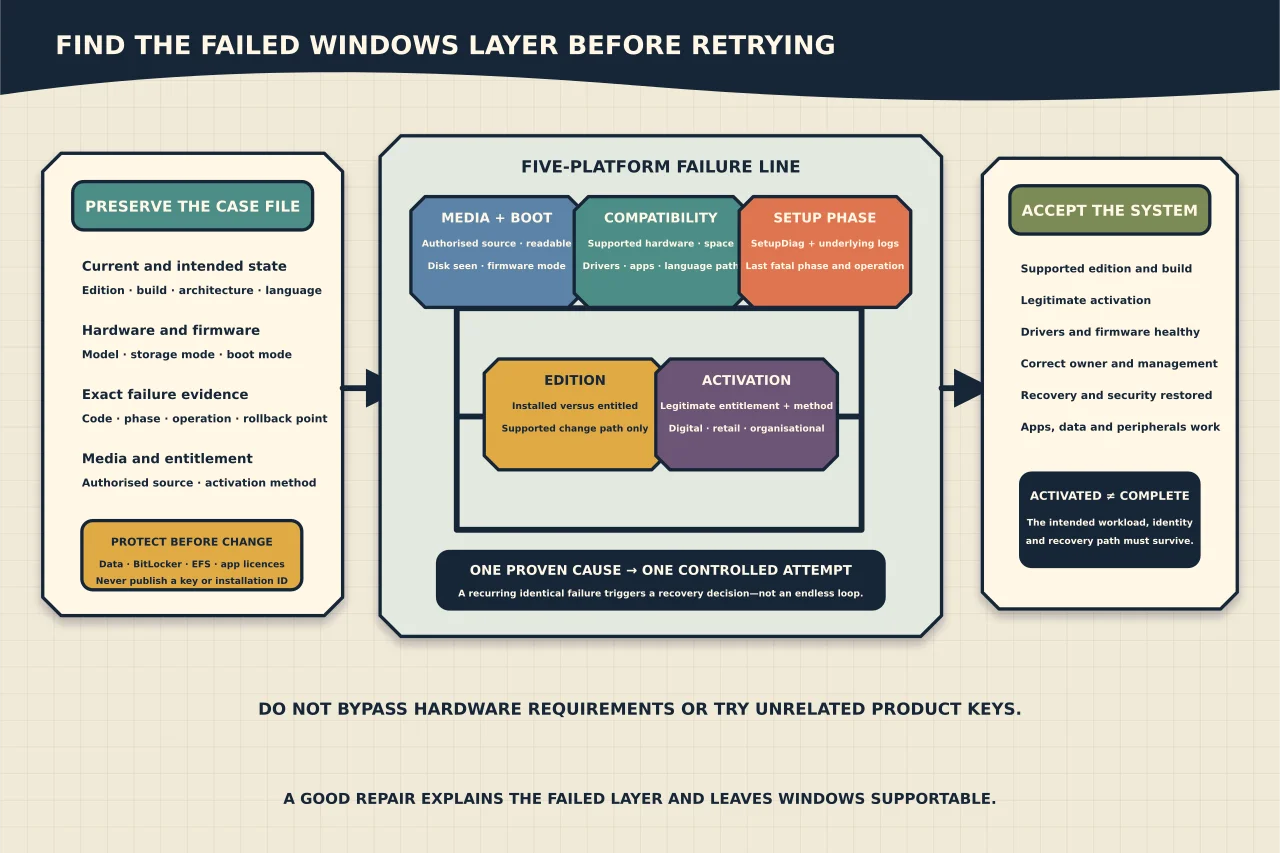
Windows installation, upgrade and activation are connected, but they are not the same process. Setup can complete with the wrong edition and then fail activation. Activation can fail after a motherboard change even though Windows itself is healthy. An upgrade can roll back because of a driver while the licence remains valid.
Start by naming the failed layer.
Record the target and current state
Capture the current and intended Windows edition, version, build, architecture and language; hardware model and firmware mode; installation-media source; upgrade versus clean-install intent; activation status/method; and exact error code or rollback point.
Check Microsoft’s current hardware and upgrade requirements. Do not disable requirement checks to turn an ineligible machine into an apparently successful but unsupported installation.
Protect user data, BitLocker recovery, EFS keys and application licence/recovery details before changing partitions, firmware or edition. Never paste a product key or installation ID into a public forum or ordinary project document.
Separate media and boot problems
If setup does not start, verify that media came from Microsoft or an authorised organisational source, matches the required architecture and can be read. Check boot mode, storage visibility and vendor storage drivers before changing partition tables.
If setup cannot find a disk, determine whether firmware storage mode or a missing supported driver is responsible. Do not switch RAID/AHCI modes casually on an existing installation; that can make the current OS unbootable.
For clean installation, confirm which volumes may be erased. A disk number in setup is not a business-readable asset identifier.
Diagnose compatibility before retrying upgrade
For an in-place upgrade, check free space, current updates, firmware/drivers, language/edition path and critical application compatibility. Disconnect nonessential external hardware. If security or other filter software is implicated, preserve its configuration and recovery access before supported removal; do not disable endpoint protection indefinitely.
When Windows rolls back, preserve the Setup, Panther and Rollback logs before cleanup tools remove them. Use the current SetupDiag included with supported Windows Setup or Microsoft’s latest version to analyse the full log set.
SetupDiag reports matched rules, phase and operation. If it lists multiple failures, Microsoft notes that the last failure is typically fatal. Treat the result as a focused lead, then confirm the named driver, package, disk or component in the underlying evidence. Do not apply every recommendation from every earlier warning.
Match edition to entitlement
Home, Pro, Enterprise, Education and specialised editions have different activation and upgrade paths. Record the edition actually installed and the edition covered by the device’s digital licence, firmware key, retail entitlement or organisation agreement.
A valid licence for another edition does not activate the current installation. If Windows was reinstalled with the wrong edition, use Microsoft’s supported edition-change path where eligible or reinstall the licensed edition. Trying keys from unrelated devices risks licensing breach and obscures the simple mismatch.
For business editions, establish whether activation uses a digital licence, subscription activation, MAK, KMS or Active Directory-based activation. A home-user activation troubleshooter cannot repair a broken organisational KMS/DNS/licensing design.
Diagnose activation without changing Windows unnecessarily
Check time, connectivity and the exact activation error. Use the supported Activation troubleshooter/Get Help path for the current release. For a digital licence after reinstall, confirm the same edition and—where relevant—the Microsoft account associated with the licence.
After a significant hardware change, use Microsoft’s hardware-change reactivation path if the entitlement permits it. A motherboard replacement may make Windows see a new device; it does not automatically mean system files are corrupt.
For an organisation, verify DNS discovery, reachability, client key/edition and licence counts against the actual volume-activation design. Do not convert a machine to another channel merely to remove an error.
Treat installation errors by phase
Use the setup phase and last operation to constrain the cause:
- Downlevel/compatibility: applications, drivers, space, edition/language or prerequisite state.
- Safe OS: image application, disk/storage, optional components or boot preparation.
- First boot: migrated drivers, services and device configuration.
- Second boot/OOBE: final migration, provisioning, user/device setup or policy.
Correlate the error code with the actual log context. The same hexadecimal code can be generic, while the operation and component reveal the useful meaning.
If the component store is damaged, follow the Windows image-repair process with a correct source. If an optional feature blocks setup, identify that feature and its payload source rather than removing an arbitrary list.
Choose recovery deliberately
After a cause-specific correction, make one controlled attempt and collect a new evidence set. If the same failure recurs, do not loop indefinitely. Decide among supported in-place repair, clean installation, hardware replacement or rollback to the still-supported prior state.
Clean installation may be the clearest technical answer, but it is not a shortcut around data, licence and application migration. Prove the destination workload before erasing the source.
Verify more than activation
Acceptance requires:
- intended edition/version/build and supported hardware state;
- Windows activation through the legitimate entitlement;
- updates and restart complete;
- device drivers and firmware healthy;
- intended account ownership, join and management state;
- BitLocker/recovery and security controls restored;
- representative applications, data and peripherals working; and
- rollback/old installation retired according to the migration plan.
An activated desktop is not proof that the right edition, owner or workload survived. A good repair explains which layer failed and leaves both Windows and its entitlement in a supportable state.