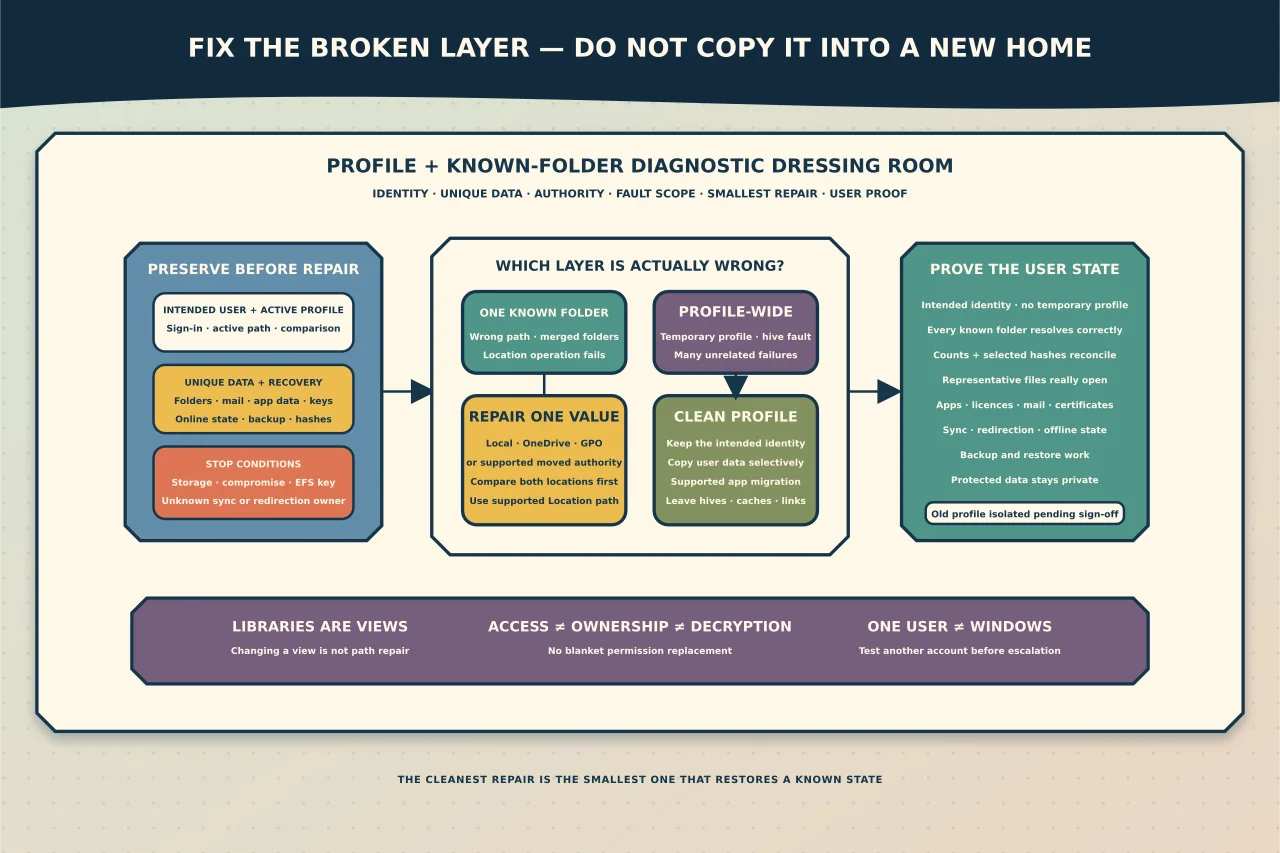
When Desktop, Documents or Pictures suddenly appears in the wrong place, it is tempting to call the whole Windows profile corrupt. When Windows signs a user into a temporary profile, it is equally tempting to copy everything from the old folder into a new one. Both shortcuts can make the situation worse.
A profile is a collection of identity-linked settings, registry state, application data and known folders. Diagnose which part is broken before moving data.
Preserve evidence and unique data first
Confirm the intended user and device. Record the exact sign-in message, recent update/account/storage/OneDrive changes and whether another administrator can sign in. Note the profile folder Windows is actually using and whether the user sees a temporary-profile warning.
Before repair, identify unique data across:
- Desktop, Documents, Downloads, Pictures, Music and Videos;
- browser profiles and locally stored bookmarks where permitted;
- email archives or local stores;
- application databases, templates and configuration;
- certificates, encryption keys and developer/SSH material;
- OneDrive or other sync roots and their online status; and
- data held in redirected or offline folders.
Do not assume a sync icon means every file exists in the cloud. Check online availability and Files On-Demand state. Do not copy EFS-encrypted files as though possession of the file guarantees future access; preserve the authorised decryption key and certificate path.
If the disk reports errors, files disappear during reads, or malware is suspected, stop profile repair. Capture or recover the storage safely first.
Decide whether the fault is profile-wide
Profile-wide evidence includes temporary-profile sign-in, repeated user-registry loading errors, many unrelated settings resetting, several applications failing only for one user, or the same account consistently failing while a clean test account works.
A known-folder problem is narrower: one or more special folders point to the wrong path, two folders have been merged, a Location tab operation fails, or OneDrive/Folder Redirection owns a location the user expected to be local.
A shell or Start-menu symptom alone can come from system files, policy, packages or a wider Windows fault. Test another account. If every user is affected, the repair belongs at the operating-system or policy layer, not in one profile.
Map the data authorities
For each known folder, determine the intended authority:
- local path beneath the profile;
- OneDrive Known Folder Backup/Move;
- Group Policy Folder Redirection to a UNC path; or
- a supported manually moved location.
Do not mix repair methods. Changing a registry path beneath an active OneDrive or Group Policy arrangement can cause duplication, redirection loops or data movement in the wrong direction. Resolve policy and sync ownership first.
Libraries are views that aggregate folders; they are not the folders themselves. Changing a Library’s default save location does not necessarily repair the underlying known-folder path.
Repair one misplaced known folder carefully
Capture the current folder properties, relevant policy/sync state, directory contents and the affected user’s User Shell Folders registry values. Export the relevant registry key for rollback.
Where the problem matches Microsoft’s documented merged/misplaced-folder condition, restore only the affected value to its documented default—not every value in the key. Examples include the standard per-user Desktop, Documents, Pictures, Music, Videos or Downloads locations. Sign out/in or restart Explorer as Microsoft directs, then use the folder’s supported Location interface for any intentional move.
Before agreeing to move files, compare source and destination contents. If two known folders were accidentally pointed at the same root, automatic movement can mingle or overwrite data. Create distinct folders, reconcile names and copy with a verified rollback rather than pressing through warnings.
Verify the folder opens from Explorer, applications save there, environment/shell APIs return the intended path, and OneDrive or Folder Redirection remains consistent. A corrected icon in Explorer is not enough.
Create a clean profile when corruption is broader
Microsoft’s general recovery path for a corrupted user profile is to create a new account/profile and copy user files. In an organisation, keep the intended identity model: do not permanently replace a domain or Entra identity with an unrelated local user just because the local profile is damaged.
Create a clean profile under an authorised account and sign in once so Windows initialises it. Copy user-created data selectively. Microsoft warns not to expose hidden and protected operating-system files and copy everything indiscriminately. That can bring damaged registry hives, caches, junctions and application state into the clean profile.
Migrate in groups:
- ordinary documents and media after malware/storage checks;
- browser data through supported sync/export where possible;
- email data through the email application’s supported import or account resynchronisation;
- application data only from vendor-documented locations; and
- certificates/keys through their supported export/import path.
Reinstall or reconfigure applications as required. Some Store purchases, application licences and per-user settings must be re-associated rather than copied.
Handle permissions without erasing ownership evidence
If an authorised administrator cannot read the old profile, establish why. A different SID after account recreation, EFS, an offline disk or damaged ACLs require different solutions. Do not recursively take ownership and replace permissions across the profile as a default fix; that can expose private data, damage inherited ACLs and still not decrypt EFS.
Use a separately protected migration location when administrative transfer is necessary, retain an audit record and restore the intended user-only access on the destination.
Verify the new working state
After repair or migration:
- restart and sign in as the intended identity;
- confirm Windows is not using a temporary profile;
- verify every known folder resolves to its intended local, OneDrive or redirected path;
- compare file counts and selected hashes for unique data;
- open representative files rather than checking names only;
- test application sign-in, licences, mail, browser data and certificates;
- confirm OneDrive/Offline Files/Folder Redirection status;
- test backup and restore for the new profile; and
- verify another user cannot read protected content.
Keep the old profile isolated and read-only for the agreed observation period. Delete it only after the user and application owners accept the migration and recovery evidence exists.
The cleanest repair is the smallest one that restores a known state. Fix one folder when one folder is wrong; create a clean profile when the profile is genuinely damaged; rebuild Windows only when the operating-system layer is the proven problem.