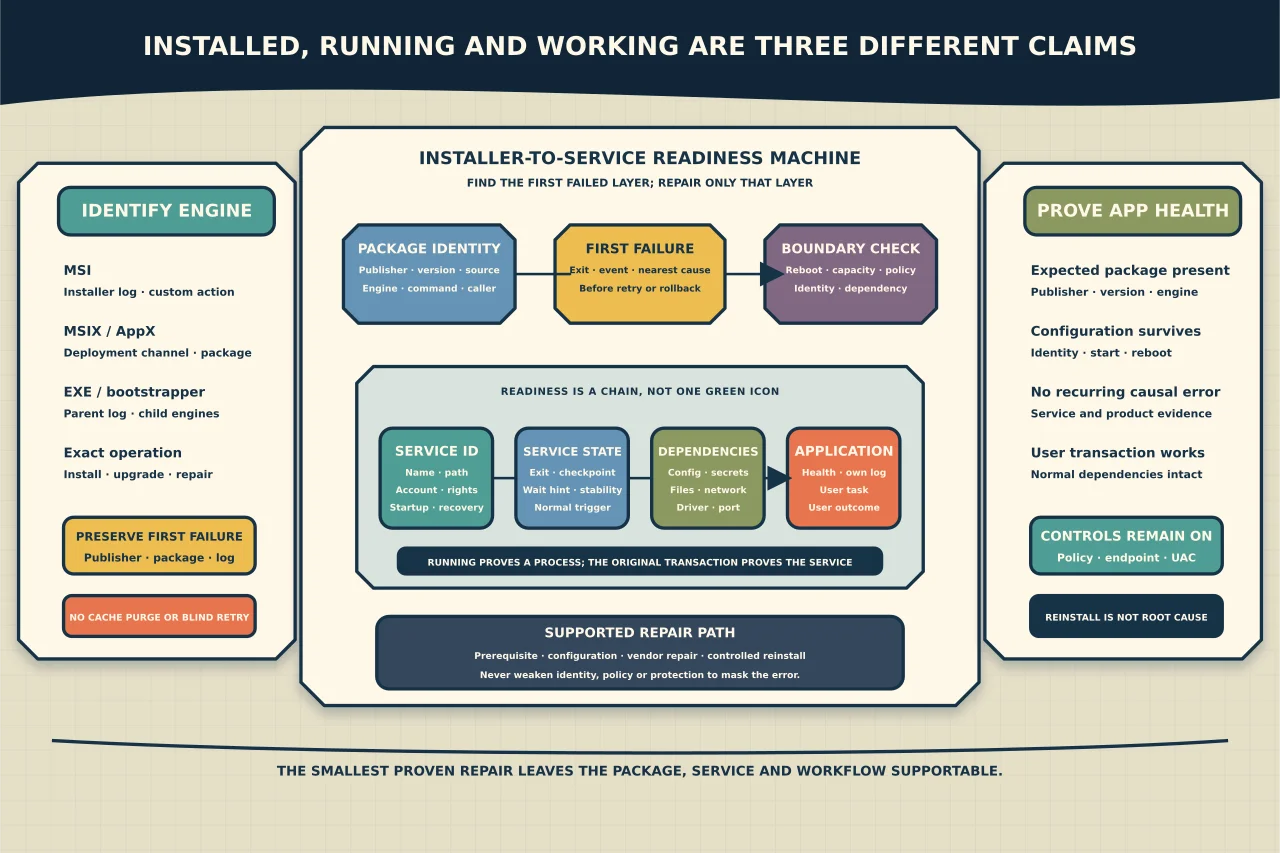
A Windows service can be installed but stopped, running but unusable, or healthy while the application fails somewhere else. Likewise, an “installer failed” message can come from Windows Installer, MSIX deployment, a vendor bootstrapper, application control or a post-install configuration step.
Identify the layer before repairing it.
Define the failed outcome
Record:
- product/package/version and official source;
- Windows edition/build/architecture;
- installation technology: MSI, MSIX/AppX, EXE bootstrapper, script or management agent;
- exact command/UI action, execution identity, time and exit/error code;
- required service name and expected application workflow;
- recent update/reboot/policy/security changes; and
- whether this is new install, upgrade, repair or uninstall.
Preserve logs before retrying. Repeated installers can roll back, overwrite or remove the evidence from the first failure.
Separate the service’s identities
Windows exposes:
- service name used by APIs and commands;
- display name shown to people;
- binary path and arguments;
- service account and its rights/credentials;
- startup type/triggers;
- dependencies;
- current state and exit codes; and
- recovery actions.
Do not assume the display name is the service name. Do not change an account or binary path from a forum recipe.
Read-only examples:
Get-Service -Name 'ExampleService' | Format-List *
sc.exe query ExampleService
sc.exe query reports state, Win32/service exit codes, checkpoint and wait hint. A service paused in START_PENDING needs timing/dependency/application evidence; issuing repeated starts adds noise.
“Running” is only process-level evidence
A running service may still fail its purpose because it cannot:
- read configuration or secrets;
- bind the intended port;
- reach a database/API/domain;
- access files under its service identity;
- initialise a driver/plugin;
- pass application health checks; or
- serve the user workflow.
Verify in layers: service process, listening/interface state, dependencies, application health endpoint/log and representative user transaction. Do not declare success from Services.msc alone.
Build a timeline around the service control event
Use System and Application logs plus product-specific channels/logs. Query a small time window:
Get-WinEvent -FilterHashtable @{
  LogName = @('System','Application')
  StartTime = (Get-Date).AddMinutes(-30)
} -MaxEvents 300
Filter further by the observed provider/event after inspecting the data. Correlate Service Control Manager events with application errors, account/logon failures, driver events, storage/network issues and update/reboot state.
The Service Control Manager event often reports the end result. The application’s own log or Windows error fields may contain the actionable reason.
Identify the installer engine
MSI / Windows Installer
Windows Installer records errors in its own log and the Application event log. Capture a verbose log through the product’s supported command path, for example a reviewed MSI operation with /L*v to a controlled file. Do not invent silent/repair properties; use the vendor’s documented syntax.
Installer logs can reveal paths, account names and property values. Microsoft specifically warns about confidential information in logging. Restrict and redact copies.
Find the first failure/return value and the surrounding custom action rather than searching only for the final generic error. A custom action is vendor code; its log and publisher support may be decisive.
MSIX/AppX
Packaged-app deployment uses operational logs such as AppXDeployment-Server and AppxPackaging, and PowerShell Get-AppxLog can expose recent deployment events. An MSI repair command is irrelevant to an MSIX deployment failure.
EXE/bootstrapper
A bootstrapper may check prerequisites, download payloads, invoke several MSIs or configure services afterward. Capture its own log and the child installer logs. A bootstrapper exit code can summarise a deeper failure.
Check common boundaries without shortcutting them
Reboot and concurrent servicing
Pending Windows/component updates, another installer or locked files can block a package. Record reboot/update state and active installation processes. Complete the owned maintenance sequence rather than stacking repair attempts.
Disk and temporary paths
Confirm capacity, permissions and security controls for the installer cache/temp/log/application paths. Do not clear %windir%\Installer or arbitrary temp folders; the Installer cache is used for repair/update/uninstall.
Service account
Confirm the intended identity, logon right, credential state, file/registry/network access and SPN/delegation requirements from current product design. Do not switch to LocalSystem to make an error disappear; that can dramatically expand privilege and change network identity.
Application control and endpoint protection
A block may be intentional. Use the control’s audit/detection evidence, verify publisher/signature/hash and approve the narrow required rule. Do not globally disable protection.
Dependencies and ports
Check the actual named dependency and endpoint. Avoid creating undocumented service dependencies or firewall exclusions from symptoms alone.
Choose supported repair before reconstruction
Prefer:
- complete pending servicing/reboot under change control;
- correct the verified prerequisite/configuration/permission;
- run the vendor-supported repair for the installed exact version;
- supported uninstall/reinstall with configuration/data backup; or
- vendor escalation with logs.
Do not delete service registry keys, copy an MSI from another machine/version, purge the Windows Installer cache, remove drivers or recreate the service manually unless the publisher’s exact recovery procedure and rollback support it.
Before uninstall, identify which data/configuration/keys are retained or removed and how licensing/reactivation works.
Verify the complete application
After the approved correction, confirm:
- installed product/version/package identity;
- service account, binary path, startup and recovery configuration;
- stable service state across its normal start/reboot trigger;
- no recurring installer/service/application errors;
- intended dependencies and ports;
- representative user transaction;
- updates, monitoring and backup integration; and
- application-control/endpoint/UAC controls remain enforced.
Document the first causal error and correction. “Reinstalled and working” leaves the same mystery ready for the next endpoint.