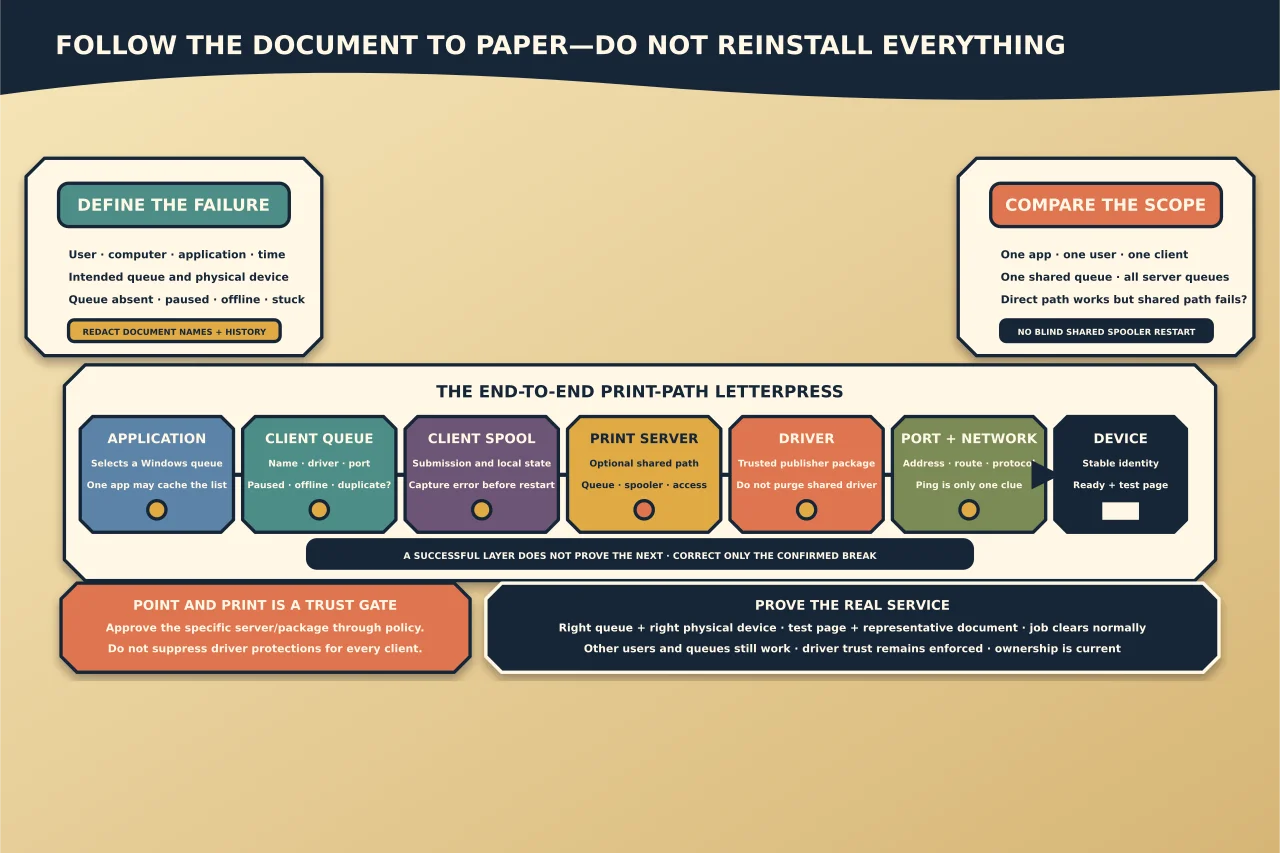
“The printer is missing” can mean at least four things: Windows has no logical queue, the application cannot see the queue, the shared connection cannot be established, or the physical device is unavailable.
Diagnose from the user’s failed operation outward. Do not start by reinstalling every driver.
Define the exact symptom
Record:
- user, computer and application affected;
- intended logical printer/queue and physical device;
- local, direct-IP, shared print-server or cloud-managed path;
- whether other applications/users/computers can print;
- whether the queue is absent, offline, paused or accepting jobs that never finish;
- exact error and time; and
- recent Windows, driver, policy, network or server changes.
Document names and print logs can contain sensitive information. Redact them in shared evidence.
Follow the print path
Use this order:
- Application selects a Windows logical printer.
- Client queue and driver render the job.
- Client spooler manages local submission.
- Print server/share accepts a shared job where used.
- Server queue, driver and spooler process it.
- Port/network/protocol reaches the device.
- Physical printer accepts and prints it.
A successful step does not prove the next. Ping can show IP reachability without proving the print protocol; a visible queue can point to the wrong port; a printer test page can work while one application renders badly.
Is the logical printer installed?
Use Settings or this read-only PowerShell view:
Get-Printer | Select-Object Name, Type, DriverName, PortName, PrinterStatusOn the print server or an authorised remote session, compare the intended shared queue and its configuration. Get-Printer can query a remote computer under the appropriate permissions.
Check for duplicate friendly names pointing to different ports or servers. Record the share path, driver and port without publishing internal names.
If only one application cannot see the installed queue, investigate its architecture/session, sandbox, user context and cached printer list before changing Windows printing.
Test scope before touching the server
- Nobody can print to the physical device: inspect device state, network/port and server queue.
- Nobody can print through one server queue, but the device works directly: focus on that logical queue, port, driver or server spooler.
- One client fails while others use the same queue: focus on connection, client policy, driver and spooler.
- One user or application fails on one client: focus on profile/application selection and permissions.
This comparison prevents an organisation-wide spooler restart for a single stale connection.
Check the physical and network endpoints
Confirm the exact physical printer is powered, ready, has no paper/toner/jam error and can produce its own configuration/test page where appropriate. Match serial/location/MAC or other approved stable identity—not only a mutable display name or IP address.
For network printing, confirm current address/hostname, VLAN/routing and the specific printing protocol/port in use. Do not expose an unauthenticated printer service to the internet. A ping response is only one network clue.
Check queue, port and driver as separate objects
On the owning client/server, record:
- queue status, pause/offline state and jobs;
- driver name/version/architecture and package provenance;
- port type, hostname/address and protocol;
- sharing/security settings;
- spool directory capacity; and
- relevant PrintService/System events.
Do not clear queued documents until the owner understands which jobs will be lost and whether evidence is needed. Do not delete a driver package used by other queues.
Use a controlled Windows test page, then a simple document from a basic application, then the original application/document. This distinguishes transport/driver basics from application rendering.
Treat the spooler as shared infrastructure
The Print Spooler hosts Windows components and vendor driver/provider code. If it is stopped or repeatedly crashes, capture service state, exit/error events, faulting module and affected queues before restart.
A restart may release a transient stuck state, but it can interrupt every user on that spooler and erase the timing needed to find a recurring bad driver/job. If one queue/job triggers failure, isolate that relationship through the print-management and event evidence.
Understand Point and Print security
Connecting to a shared printer can require Windows to obtain or update a driver from the print server. Point and Print and administrator-installation controls restrict which servers/packages can supply privileged driver components.
A prompt or denied connection can therefore be intentional protection—not a broken printer. Verify:
- effective computer and user policy;
- approved print-server names;
- current ADMX/MDM settings for the OS build;
- whether a package-aware/supported driver is already staged; and
- who is authorised to install or update it.
Do not disable Point and Print restrictions or suppress elevation/security prompts globally. Approve the specific trusted server/package path through the authoritative policy if business need and publisher provenance justify it.
Re-create only the broken layer
If evidence shows a stale client connection, remove/re-add that connection through the supported managed path. If the queue points to a wrong port, correct the owned queue after recording before-state. If the driver is faulty, stage a current supported publisher package and change only the affected queue(s) with rollback available.
Avoid registry deletion, broad spool-directory cleanup and driver-store purges. These can affect unrelated printers and remove recovery evidence.
Verify the end-to-end service
Confirm:
- the intended queue appears for the intended user/application;
- logical queue, server/share, port and physical device identities align;
- a Windows test page and representative business document print correctly;
- job state clears normally and no repeated errors occur;
- other queues/users still print;
- Point and Print/application-control protections remain enforced; and
- monitoring/ownership are updated if address, driver or server changed.
The goal is not a green printer icon. It is the right document, produced by the right controlled path, without weakening every client’s driver trust to fix one queue.