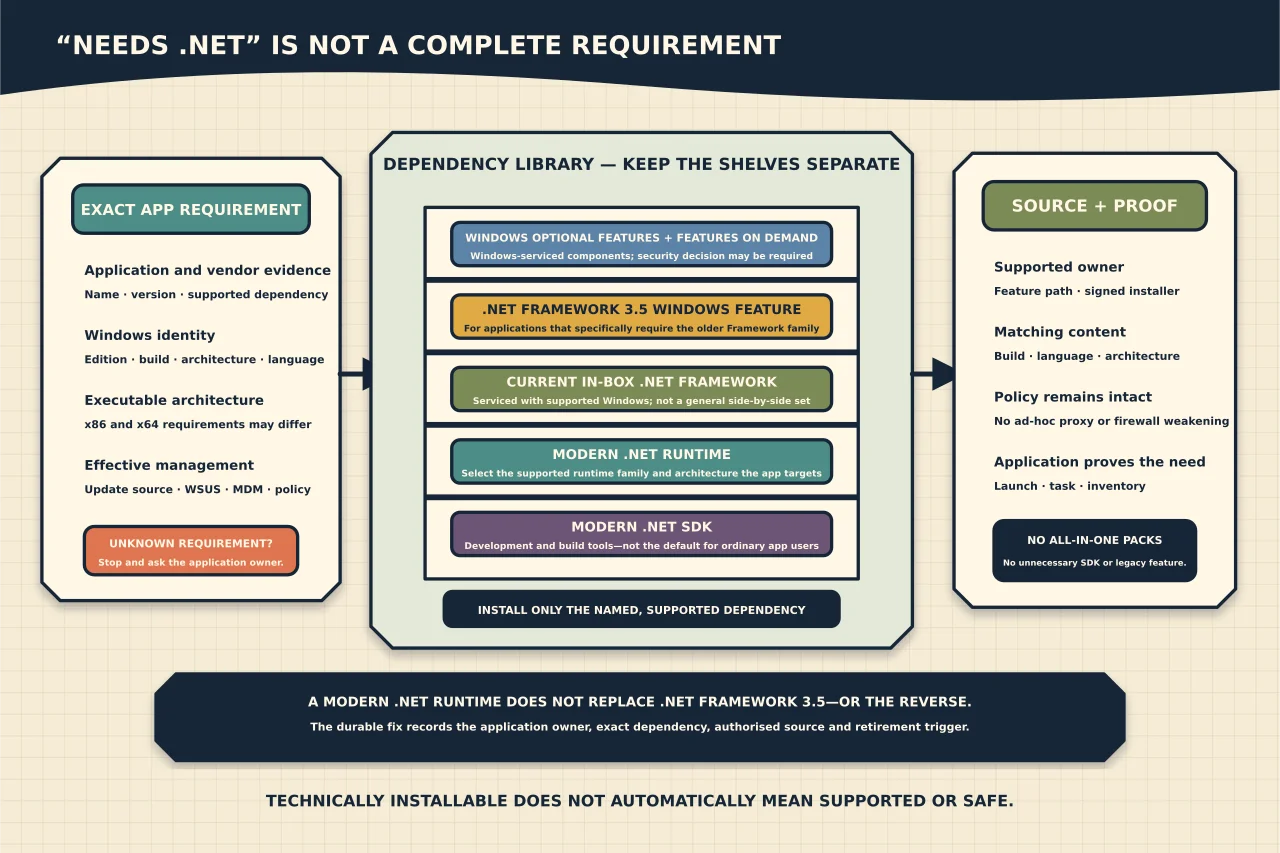
An application asking for “.NET” does not tell you what to install. It may require the Windows feature for .NET Framework 3.5, the in-box .NET Framework 4.x line, a particular modern .NET runtime, or an SDK needed only to build software. Installing every package is not a reliable solution and can add unsupported dependencies.
Identify the exact dependency
Record the application name/version, vendor support statement, error text, Windows edition/version/build/architecture and whether the machine is managed by WSUS, Configuration Manager or MDM.
Separate these families:
- Windows optional features / Features on Demand: components serviced as part of Windows.
- .NET Framework 3.5: a Windows feature supporting older .NET Framework 2.0–3.5 applications.
- Current .NET Framework 4.x: included and serviced with supported Windows releases; versions are not general side-by-side replacements.
- Modern .NET runtime: standalone runtime families that can coexist side by side according to Microsoft support rules.
- Modern .NET SDK: development tools; ordinary users normally need only the runtime required by the application.
A modern .NET runtime does not satisfy an application that explicitly requires .NET Framework 3.5, and installing .NET Framework 3.5 does not provide a modern .NET desktop runtime.
Check support before installation
Confirm that both Windows and the requested component version are supported. Old applications may name a framework that current Windows cannot or should not host. Ask the vendor for a supported application update before preserving a legacy dependency indefinitely.
For optional features such as legacy file-sharing clients, scripting engines or browser components, evaluate the security impact. A feature being technically installable does not mean it should be enabled across the fleet.
Understand where Windows gets feature content
When a feature payload is not present locally, Windows uses the configured repair/feature source. That may be Windows Update, a maintained network source, WSUS/UUP content or matching Features on Demand/installation media depending on Windows release and policy.
If installation returns “source files could not be found,” first inspect effective policy, update source and connectivity. Do not immediately point DISM at any sources\sxs folder found online.
Local source media must match the target Windows edition, build, architecture and language components closely enough for the feature. Features on Demand media is release-specific. Maintain organisational repair sources as the fleet is serviced.
Current Windows 11 UUP-era behaviour differs from older Windows/WSUS guidance. Apply Microsoft’s documentation for the exact client release; an old policy that told clients to bypass WSUS may now be unnecessary or removed.
Install through the supported owner
For a personal device, use Windows Settings/Optional Features or the application vendor’s signed installer from the official source. For managed devices, use the organisation’s deployment and policy system so inventory, approvals and repeatability are preserved.
Enable only the named Windows feature. Capture its prior state and expected restart. If the device cannot contact Windows Update by design, provide the authorised matching source rather than weakening proxy or firewall policy ad hoc.
For modern .NET, determine whether the application is framework-dependent or self-contained and which runtime family/architecture it requires. Use Microsoft’s installer, Windows Package Manager or the vendor’s supported deployment method. Install an SDK only for a genuine development/build requirement.
Do not use third-party “all-in-one runtime packs.” They obscure provenance, support state and what the application truly needs.
Diagnose failure by layer
Requirement mismatch
Check the application’s documentation and executable architecture. An x86 application can require an x86 runtime even on 64-bit Windows. A vendor may use “.NET Core” language for a now-renamed modern .NET version; verify the actual runtime target.
Policy/source failure
Read effective optional-component and update-source policy. Confirm system-context proxy/TLS access and whether the selected content class is available from WSUS/UUP or allowed directly from Microsoft.
Component-store failure
If multiple optional features or Windows servicing operations fail, assess the component store through the dedicated DISM/SFC workflow. Preserve CBS/DISM evidence and use a matching repair source.
Application failure after installation
Verify the component actually installed, then inspect the application’s own logs and vendor compatibility. The feature prompt may have been one prerequisite, not the root cause.
Obsolete or conflicting package
Modern .NET versions can coexist, but applications select runtimes according to their configuration. Removing “older-looking” runtimes can break another supported application. Inventory dependants and follow Microsoft/vendor lifecycle guidance.
Verify and document the result
After installation:
- Windows reports the intended feature enabled or the intended runtime installed;
- restart completes if required;
- the application launches and performs a representative task;
- Windows Update/servicing still succeeds;
- policy and security baseline remain compliant;
- no unnecessary SDK or legacy feature was added; and
- the component appears in inventory and patch management.
Test removal in a disposable environment when the component is part of a repeatable deployment. Record the application owner, dependency version, source and retirement trigger.
The durable fix is to understand the dependency. Once you know which Windows feature or runtime the application truly requires, source and servicing failures become diagnosable—and obsolete components can be retired when the application is modernised.