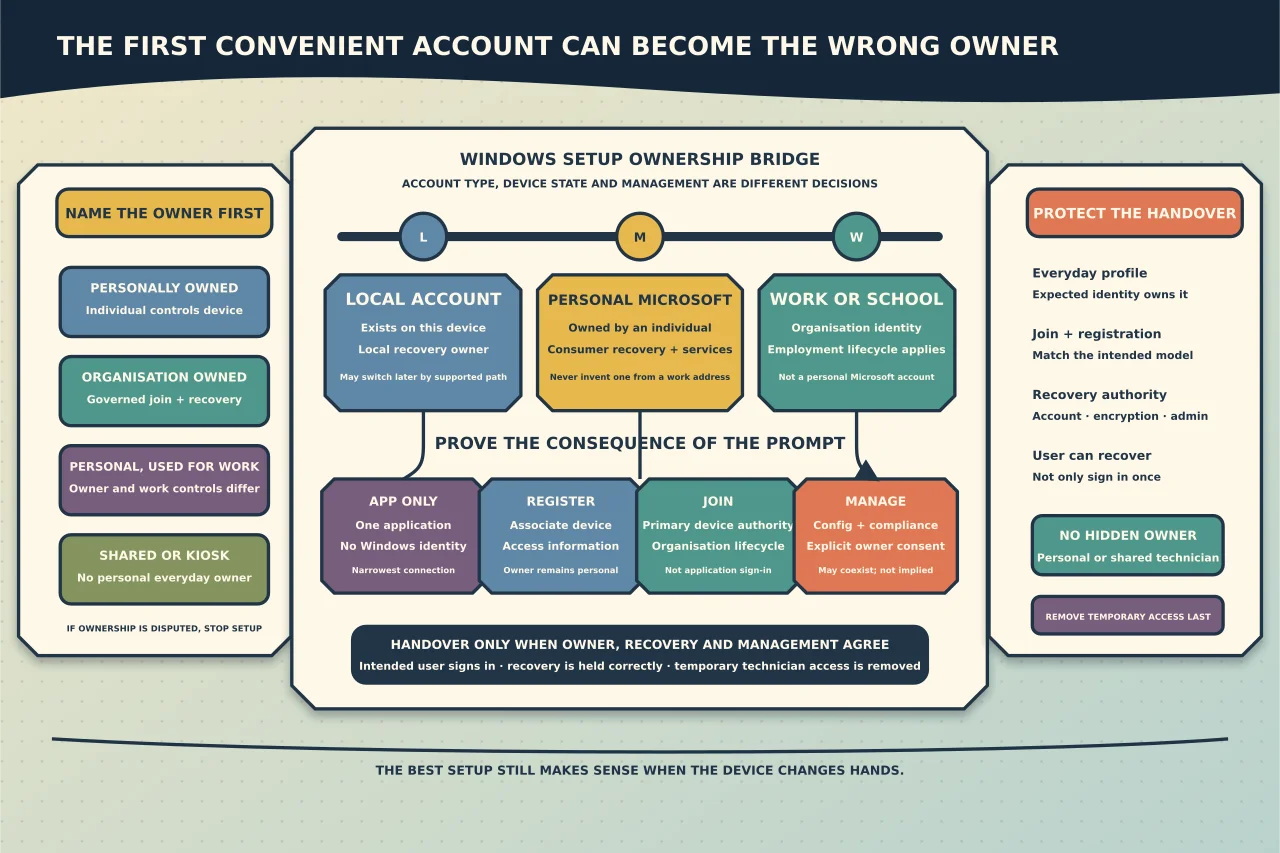
The account used during Windows setup can decide who owns the profile, where recovery information is stored, which cloud services receive data and whether an organisation can manage the device. Using “whatever account gets past the screen” often creates a quiet problem that appears months later—usually during offboarding, a password reset, BitLocker recovery or device replacement.
First decide who owns the device
Classify the machine before entering an address:
- Personally owned: bought and controlled by an individual for their own use.
- Organisation owned: purchased, assigned and governed by an employer, school or other organisation.
- Personally owned but used for work: the individual remains the device owner while the organisation controls access to its data and may require registration or management.
- Shared or kiosk: no single person’s everyday profile should become the ownership model.
If ownership is unclear, pause. Account choice cannot compensate for a missing policy or disputed asset.
Know the three account types
A local account exists on that Windows device. It can work without cloud sign-in, but its password and recovery need local ownership and documentation.
A personal Microsoft account belongs to an individual and connects services such as OneDrive, Outlook.com and Microsoft Store. It is not the same as a Microsoft 365 business identity, even when the addresses look similar.
A work or school account is created and governed by an organisation in Microsoft Entra ID or its connected identity system. Its lifecycle follows employment, enrolment and organisational policy.
The choice is not simply “online or offline.” It determines which identity owns the first profile and what happens when that identity is disabled or unavailable.
Use the intended person’s identity on a personal device
For an individual’s new PC, let that person complete identity and recovery prompts. If they choose a personal Microsoft account, verify that it is theirs, that recovery methods are current and that they understand OneDrive and device-encryption implications. Never create a throwaway account that only the installer can recover.
Where the current Windows edition offers a supported local-account path and the owner chooses it, create it for the owner—not the technician—and establish a recovery method. Microsoft supports switching between local and personal Microsoft-account sign-in later, so a rushed setup decision need not become permanent.
Do not invent a personal Microsoft account from an employee’s work address to make setup pass. That creates a consumer identity outside the organisation’s normal lifecycle and can be indistinguishable from the real work account to the user.
Prepare organisation-owned devices before setup
The organisation should decide the join and management model before the box is opened. Typical questions include:
- Is the device joining Microsoft Entra, an on-premises domain or a hybrid design?
- Is automated provisioning such as Windows Autopilot in place?
- Which licensed work identity is assigned to the user?
- Will management enrol automatically, and which policies must apply?
- Who controls BitLocker recovery and local administrator access?
- What is the supported break-glass or staging method?
On a prepared work device, the intended user’s work/school account can join the device during out-of-box setup. That is different from signing into one Office application after Windows has been configured as a personal PC.
Never use a technician’s personal Microsoft account as a temporary setup owner. Its profile, recovery information, Store history or encryption record may remain attached after handover. A shared technician work account is not automatically better: broad reusable enrolment credentials weaken audit and may assign the wrong primary user.
Distinguish app access, registration, join and management
Windows may ask whether to add a work account to the device while someone signs into an application. The options have different consequences:
- This app only signs the user into that application without adding the account to Windows.
- Device registration associates a personally owned or already configured device with the organisation for sign-on and access information.
- Microsoft Entra join makes the organisation’s directory the device’s primary cloud identity authority.
- Management enrolment allows the organisation’s management service to apply configuration, compliance and security controls.
These states can coexist, but they are not interchangeable. Read the prompt and match it to the ownership decision. On a personal device, consenting to organisation-wide management may give the employer controls the owner did not intend. On a work device, choosing app-only sign-in can leave the machine unmanaged.
Stage without creating hidden ownership
If a technician must prepare a device before the user is available, use the organisation’s supported provisioning method. Apply firmware and operating-system updates, record asset details and validate deployment readiness without creating the final user profile under an unrelated identity.
If a temporary local staging account is explicitly required, make it unique, time-limited and documented; do not attach personal cloud services or store business data in it. Remove it only after the assigned owner can sign in, management and encryption are healthy, and an approved support path exists.
Verify before handover
Record evidence that:
- the expected account owns the everyday profile;
- the device has the intended join and registration state;
- required management and compliance policy applies;
- BitLocker recovery belongs to the correct owner or organisation;
- the intended user can sign in and recover the account;
- organisational applications use the correct identity;
- no technician personal account remains; and
- any temporary administrator is removed, disabled or transferred according to policy.
For a personal device used for work, show the owner how to remove or disable the work connection if the relationship ends, while explaining that organisational data may remain subject to company controls.
The best setup is not the one with the fewest prompts. It is the one whose ownership, recovery and management still make sense when the device changes hands or something goes wrong.