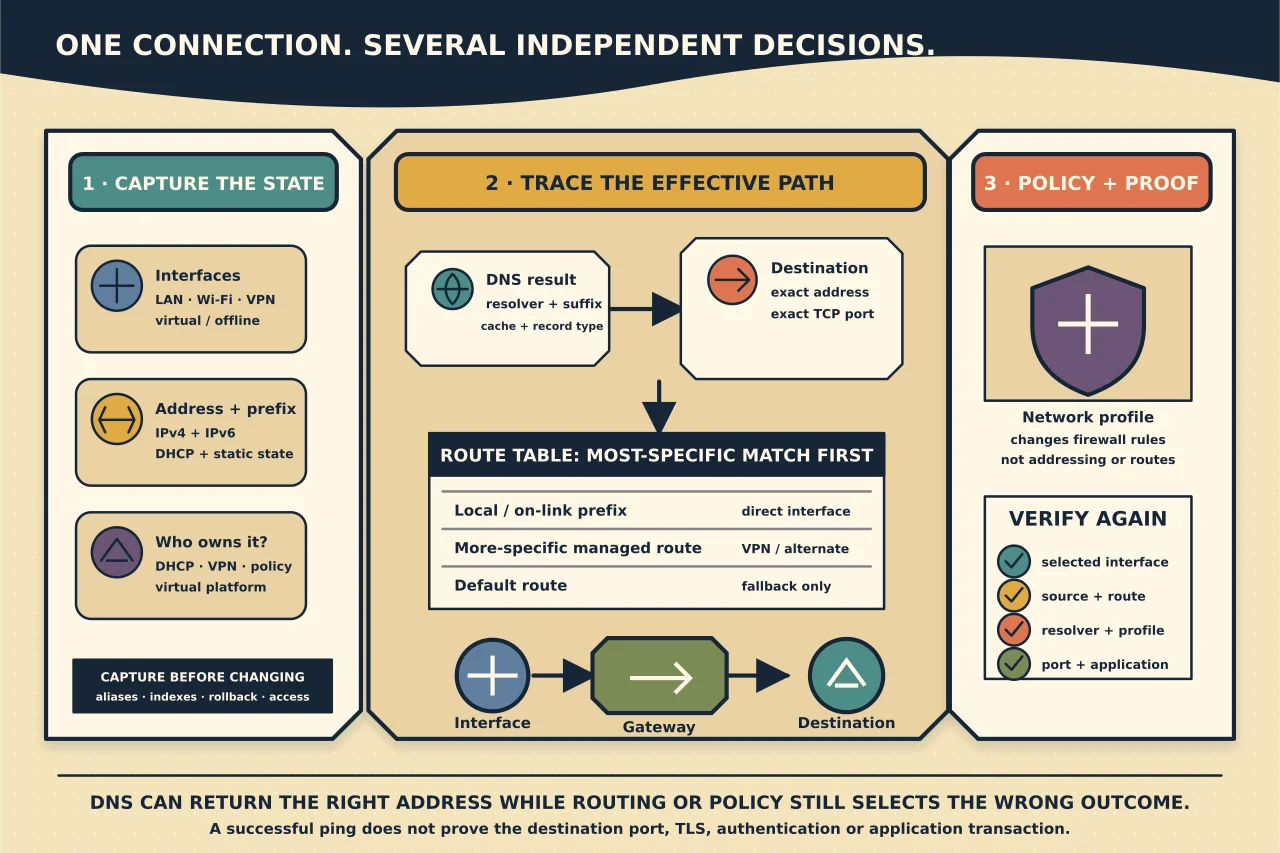
Windows does not have one “network setting.” It chooses among interfaces, addresses, routes, DNS rules and firewall profiles for every connection. A plausible value in one Settings screen can hide a different effective path.
Build one complete snapshot
Start with read-only evidence:
Get-NetIPConfiguration -All
Get-NetIPInterface
Get-NetRoute
Get-DnsClientServerAddress
Get-NetConnectionProfile
ipconfig /all remains a useful compact cross-check for DHCP, DNS and suffix information. Record adapter aliases and interface indexes so a later change targets the intended interface rather than whichever is called “Ethernet.”
Include disconnected, virtual, VPN, Hyper-V/WSL and loopback interfaces when behaviour is confusing. Microsoft notes that the default Get-NetIPConfiguration view focuses on usable connected interfaces; -All exposes more of the state.
Read address and prefix together
An address without its prefix length/subnet mask is incomplete. Windows compares the destination with the local address and mask to decide whether it is on-link or should go through a router. A wrong mask can make some destinations appear local when they are actually routed.
Separate:
- IPv4 and IPv6;
- DHCP-assigned and static configuration;
- link-local/automatic addresses and valid site addresses;
- preferred, tentative and duplicate states; and
- address lifetime from actual reachability.
Do not disable IPv6 merely because an application issue appears on an IPv4 network. Modern Windows components may rely on it, and disabling it can hide rather than solve name/path selection.
Understand the gateway and route table
The default gateway is used when no more-specific route matches. It is not used for every packet. Windows selects the most specific destination prefix, then considers route/interface metrics among suitable candidates.
Inspect the exact destination in the route table. A VPN can intentionally capture only corporate prefixes, all traffic, or DNS for selected namespaces. Hyper-V, containers and WSL add virtual networks that may reuse private address ranges. Overlap can send traffic to a valid but wrong interface.
Before deleting a route, identify who created it: static configuration, DHCP, VPN client, routing service, virtualisation platform or management policy. A route that returns after reconnect is being managed upstream.
Treat DNS as a configured service
Record which DNS servers are assigned to each active interface and the connection-specific suffix/search behaviour. Query the exact FQDN and record type through the intended resolver. Resolve-DnsName provides direct query control; ipconfig /displaydns helps inspect the client cache.
Different answers can be correct in split-DNS environments. Public resolvers may not know internal Active Directory or application records. Do not replace organisational DNS with a public address as a permanent fix.
If the FQDN resolves but a short name does not, inspect the suffix search configuration. If an old negative answer is cached, preserve it, correct/confirm the authoritative record, then flush only the client cache and retest.
Network category changes firewall behaviour
Windows associates a network with Public, Private or DomainAuthenticated behaviour. The category affects which firewall rules apply; it does not change the IP route itself.
Do not force a domain network to Private simply to open a port. Diagnose why domain authentication/profile identification failed—DNS, identity, time or connectivity may be the real problem. Do not disable the firewall as a test when a scoped port check or logging can show the blocked flow.
Test the real destination
Use Test-NetConnection for an exact destination and TCP port, then validate the application. A successful ICMP echo is not proof that the TCP listener, TLS or authentication works. A failed ping may only mean ICMP is filtered.
Compare:
- name versus known address;
- affected versus known-good source;
- intended interface with VPN connected and disconnected (when authorised);
- route selected for the exact destination; and
- destination port versus another known service.
Reset only a demonstrated broken layer
Stack and Winsock resets change broad state and require restart. Microsoft includes them later in cause-specific troubleshooting and advises backing up network configuration first. They are not a substitute for understanding an incorrect address, route, resolver or policy.
Make one controlled correction: renew one invalid DHCP configuration, set the approved static values on the correct interface, withdraw a stale managed route, repair the VPN configuration or correct the authoritative DNS assignment. Record rollback and remote-access impact.
Verify effective behaviour
After the change, repeat the snapshot and original flow. Confirm the expected interface, source address, route, resolver answer, firewall profile, destination port and application transaction. Restart/reconnect the managing component and ensure the fix persists.
Good Windows networking work connects the tables. It does not collect a screenful of individually plausible values and hope one of them explains the symptom.