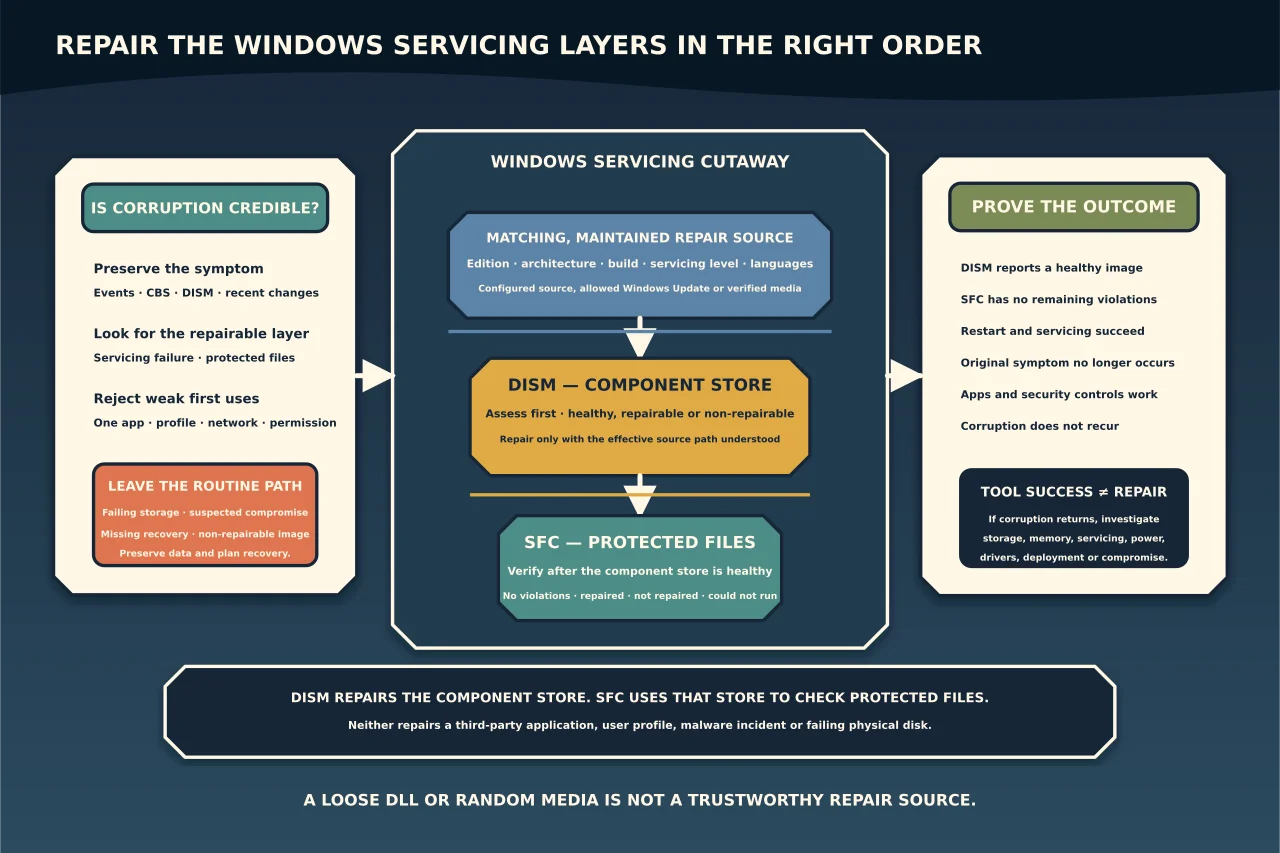
DISM and System File Checker are often pasted together as a universal Windows cure. They are useful, but they repair specific layers: DISM can assess and repair the Windows component store; SFC verifies protected system files and uses that store as a source. Neither explains why corruption happened, repairs a third-party application or makes a failing SSD trustworthy.
Decide whether corruption is a credible cause
Record the exact symptom, affected users, recent updates or abrupt shutdowns, storage health and whether the problem reproduces in another profile. Capture relevant event, CBS and DISM logs before repair.
Component/system-file repair is reasonable when servicing reports corruption, protected Windows binaries are missing or altered, optional-feature/update operations fail because the store cannot supply components, or SFC reports integrity violations.
It is a weak first response to a single application crash, wrong permission, broken user profile, network error or hardware fault. Diagnose those layers first.
Back up unique data and confirm BitLocker recovery before invasive recovery work. If storage reports read errors, SMART/media warnings or repeated filesystem corruption, prioritise storage recovery and replacement.
Understand the two layers
The component store holds Windows components used for servicing and repair. DISM’s image-health operations can report the online image healthy, repairable or non-repairable.
SFC checks protected system files in the running Windows installation. If the component store it draws from is damaged, SFC may fail or restore a bad copy. That is why Microsoft commonly places component-store repair before the final SFC pass.
Assess before repairing
Run from an elevated terminal and capture output:
DISM /Online /Cleanup-Image /CheckHealth
DISM /Online /Cleanup-Image /ScanHealth
CheckHealth reports whether corruption has already been flagged; ScanHealth performs a deeper scan. Do not infer that an unresponsive application is fixed because the image reports healthy.
If the image is non-repairable, stop looping. Preserve data and choose a supported repair installation, clean rebuild or recovery path.
Choose the repair source deliberately
Without an explicit source, online DISM normally uses the configured Windows repair source, commonly Windows Update when policy allows it. Managed devices may instead use a network source or be restricted by WSUS/repair-content policy.
When specifying local media, match the installed edition, architecture, build/servicing level and required languages. Identify the correct image index rather than assuming the first edition in a WIM. Random media can produce “source files could not be found” or introduce mismatched components.
/LimitAccess prevents DISM using Windows Update as a repair or fallback source. Use it only when the explicit source is complete and intentional; adding it blindly can block the only available healthy content.
Organisations that maintain a repair source must service it. An old share that once matched the fleet is not a durable source.
Repair the component store, then system files
For a repairable online image using the configured source, Microsoft’s documented operation is:
DISM /Online /Cleanup-Image /RestoreHealthUse /Source and, where appropriate, /LimitAccess only after proving the matching source. Capture the final status and inspect the DISM/CBS evidence for failures or repaired corruption.
After the component store is healthy, run:
sfc /scannowDistinguish four outcomes: no integrity violations; files repaired; files found but not repaired; or the scan could not run. Each points to a different next step. Repeating SFC endlessly is not a plan.
If SFC repairs files, restart where appropriate and run a confirmation scan. If it cannot repair files, inspect the CBS detail, confirm the component source and assess whether an in-place repair installation or clean rebuild is now more reliable.
Do not erase the cause
If corruption returns, investigate:
- disk/controller and filesystem health;
- memory or unstable hardware;
- interrupted servicing or power loss;
- unsupported cleanup/customisation tools;
- security incidents;
- faulty drivers/filter software; and
- a deployment image that was already damaged.
Repairing the same files after every restart is evidence of an unresolved cause, not successful maintenance.
Avoid third-party scripts that delete component-store folders, reset every Windows service or replace individual DLLs downloaded from the web. Protected files have versions, servicing metadata and trust relationships that a loose file copy does not preserve.
Verify the actual outcome
After repair:
- DISM reports the image healthy;
- SFC reports no remaining integrity violations;
- the system restarts normally;
- Windows Update/optional-feature servicing works if it was affected;
- the original symptom no longer reproduces;
- representative applications and security controls work; and
- subsequent monitoring shows no recurring corruption.
Keep the before/after logs without publishing identities or environment detail. A zero exit code is evidence for one tool invocation; completion requires the operating system and original workload to behave correctly.