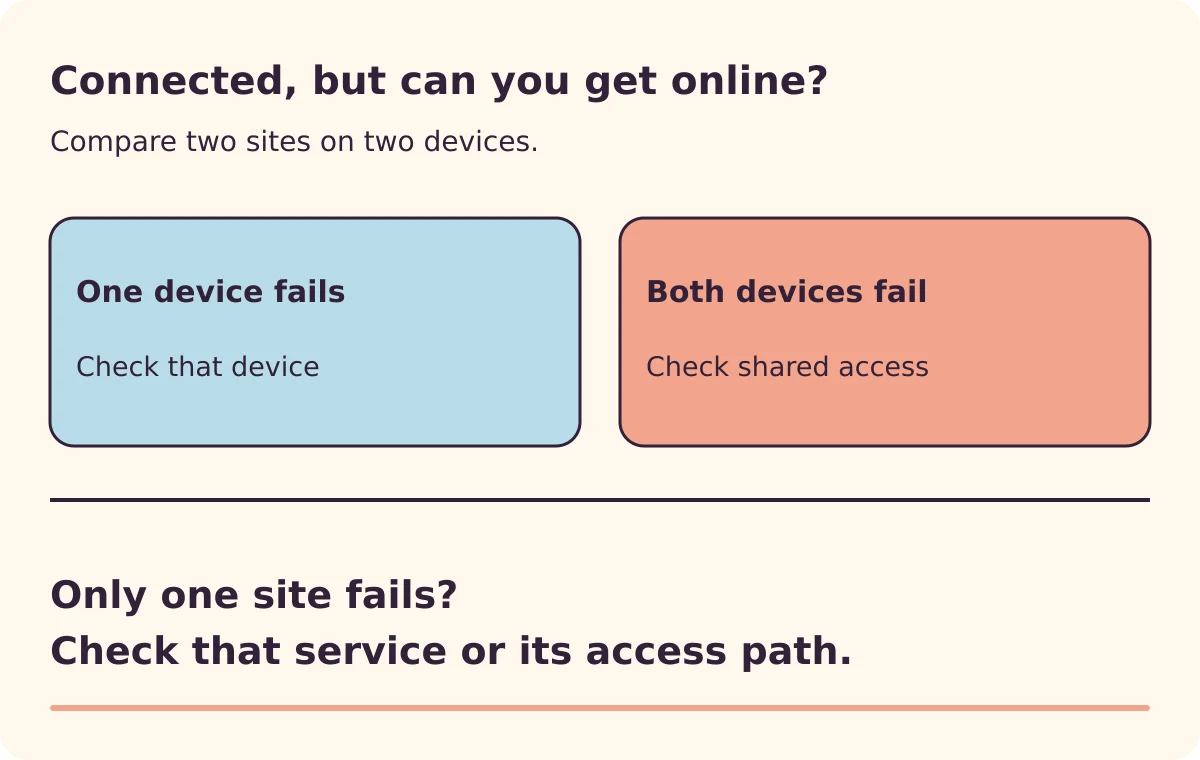
Your device says it is connected, but a website will not open. The useful first question is whether the problem follows the device, affects the whole network, or belongs to one app or website.
Wi-Fi connects you to a nearby network. That network still needs a working path to the internet. A strong wireless signal therefore cannot tell you whether your broadband connection is working. Windows also uses a connectivity check to decide what status to display; compare that label with what you can actually open. Microsoft explains the connection states.
Make two comparisons before changing settings
Try a fresh page on two unrelated websites. Then try those same sites on another device connected to the same Wi-Fi network.
If the second device is a phone, temporarily switch off mobile data for this comparison. Otherwise, the phone may be reaching the internet through its mobile connection. Restore mobile data afterwards if you need it.
Use a page that has to load something new. An old tab or downloaded video is weak evidence of a working connection.
| What you observe | What to investigate next |
|---|---|
| Two devices cannot load either site | The shared network, its internet connection, or a network-wide restriction |
| One device fails while the other succeeds | The affected device or a setting that applies specifically to it |
| Both devices fail on one website but other sites work | That website, or the route or policy affecting access to it |
| The device works on another trusted network | Something about its interaction with the original network |
| Websites work despite a “no internet” label | The status check or a restricted part of the connection |
These comparisons narrow the question. They do not identify a faulty component with certainty.
For example, a phone working beside a laptop suggests you should investigate the laptop next. It does not prove every part of the router is healthy: devices can receive different network settings or restrictions.
If only one device has trouble
Save any work. Turn Wi-Fi off and on, reconnect to the intended network, and repeat the same two-site check. Restart the device if the problem persists.
Check whether the trouble began after a VPN, security application or network setting changed. Record the application and the timing. On an employer-managed device, give that information to IT instead of removing protection or changing organisational settings.
A wrong clock can also interfere with secure connections. Apple’s Mac troubleshooting guide covers date and time, diagnostics and software that can affect access. On a Mac, follow that path before guessing at advanced network settings.
If this is a guest network that normally asks you to sign in, use its normal connection prompt. Ask the venue for help if it does not appear; do not bypass a certificate warning to force the page open.
If several devices have trouble
Check your provider’s service-status information using mobile data or another working connection. Note any message or unusual indicator on the internet equipment. The meaning of a light depends on the device, so use its label and provider documentation.
At home, a restart may be appropriate once you know which equipment belongs to your connection. Follow the provider’s restart instructions and warn anyone using the network. A restart briefly interrupts everyone.
Do not press a recessed Reset button as a substitute for restarting. If you cannot identify the equipment or its reset behaviour, stop and ask the provider.
In an office, report the shared failure to whoever manages the network. A router restart during another person’s call or transaction creates a second problem.
Leave network reset until there is a reason for it
Windows network reset removes adapters and their settings and can require VPN or virtual-network software to be set up again. Microsoft’s guidance treats it as a later step. It is a poor opening move when you have not yet established whether the fault affects one device or everyone.
Command-line DNS and routing checks belong further down the investigation. Our first-response network guide explains that more technical stage.
Give support an observation they can use
A useful report sounds like this:
My laptop and phone are on the same home Wi-Fi. With mobile data off, neither loads either of the two sites I tried. This began around 09:20. I have not reset any equipment.
That is an illustrative report, not a captured support incident. Replace it with your own observations and leave out Wi-Fi passwords.
After a correction, repeat the original checks and the task that failed. Keep a note of what changed. “It works after reconnecting” is useful; knowing that only one laptop needed reconnecting is more useful if the fault returns.