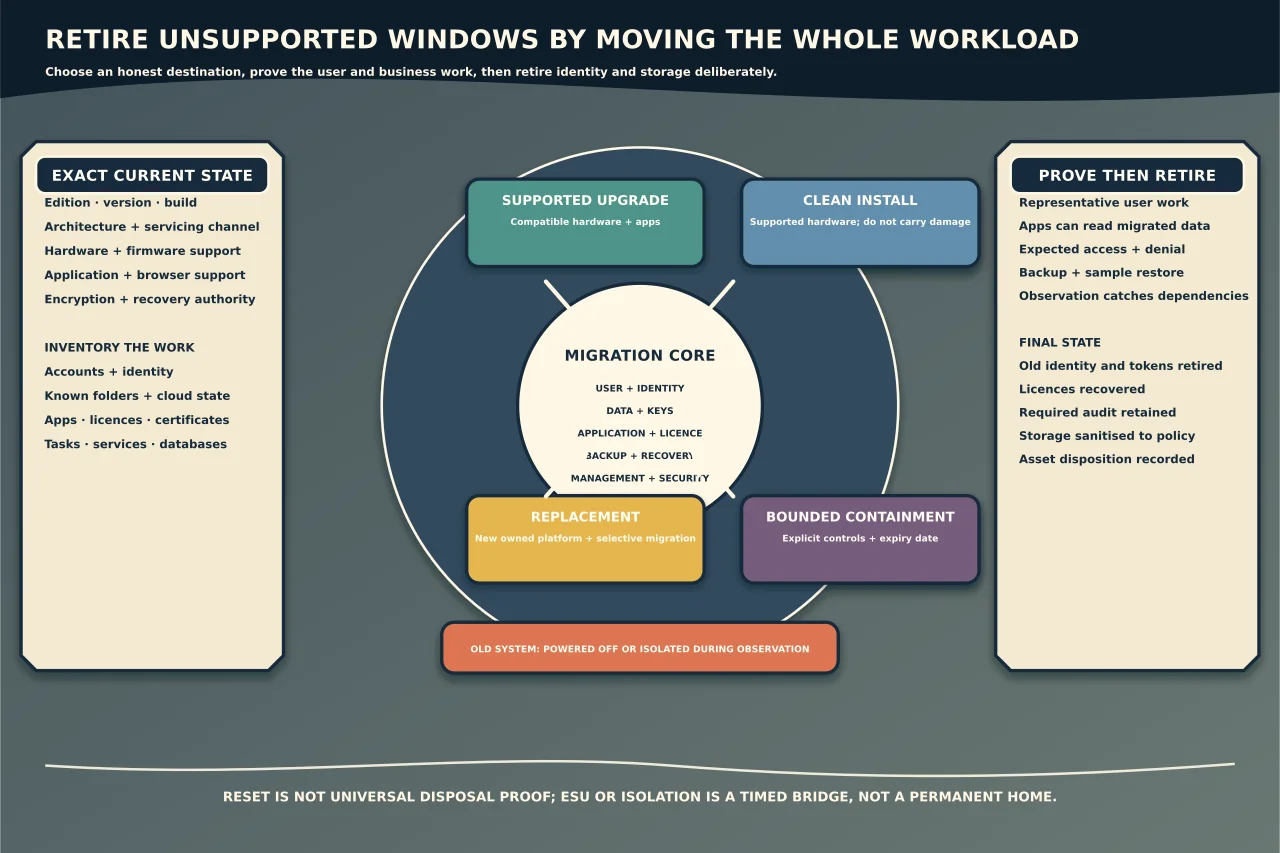
An unsupported Windows PC is not automatically obsolete hardware, and a successful file copy is not a completed migration. The real job is to move the person’s or organisation’s data, identity and workload to a supported state, prove it works, and make sure the old device cannot quietly return with exposed data or an unpatched operating system.
Verify the exact support position
Record edition, version, build, architecture and servicing channel. Do not rely on the familiar product name alone. Windows 10 version 22H2 Home, Pro and mainstream Enterprise/Education reached end of support on 14 October 2025, while LTSC/LTSB editions follow separate lifecycle dates.
Check Microsoft’s current lifecycle and release-health pages for the installed edition. Also check the browser, Office release, endpoint security and critical applications: a supported operating system does not make an unsupported application safe, and the reverse is also true.
End of support means regular security servicing and normal product support have ended. The computer may keep booting, which is precisely why unsupported systems can linger unnoticed.
Choose upgrade, replacement or bounded containment
There are four honest paths:
- Supported in-place upgrade: the device meets Windows 11 requirements, applications are compatible and recovery/rollback are prepared.
- Clean installation on the same hardware: appropriate when hardware is supported but the existing installation is unhealthy or should not carry old state forward.
- Replacement device: usually clearer when hardware, firmware, performance, warranty or security requirements are no longer met.
- Temporary containment: an eligible Extended Security Updates programme or an isolated application-specific arrangement buys migration time under an explicit expiry date.
ESU is a transition control that supplies eligible security updates for a limited period. It is not feature development, broad application compatibility or a permanent supported architecture.
Do not use registry or installation-media tricks to force Windows 11 onto hardware that Microsoft does not support and then describe the result as a supported upgrade. If a specialised workload must remain, document the exception, network isolation, access restrictions, backup, monitoring, vendor plan and retirement date.
Inventory the user, data and workload
Talk to the person who actually uses the machine. Inventory:
- local, personal Microsoft, domain and work/school accounts;
- Desktop, Documents, Downloads and other known folders;
- OneDrive or other sync state, including online-only files;
- email archives and local application stores;
- browser profiles, bookmarks and passkey/security-key dependencies;
- EFS, BitLocker and other recovery keys;
- applications, versions, installers, plugins and licence ownership;
- printers, scanners, certificates, VPN and mapped resources;
- scheduled tasks, scripts, services and local databases; and
- accessibility and specialist peripheral settings.
Separate business data from caches and old installers. A profile folder can omit application databases elsewhere; a drive image can preserve everything but still fail on dissimilar hardware or unsupported licensing.
For each important item, record the source, destination, migration method, acceptance test and owner.
Secure recovery before changing the system
Confirm BitLocker recovery and any EFS decryption keys. Back up unique data through a method that can be restored independently; then perform a sample restore. If the disk is failing, avoid repeated upgrade attempts and prioritise evidence-preserving recovery.
Capture licence and activation state without storing product keys in ordinary notes. Confirm vendor rules for transfer, deactivation and reactivation. Preserve installation media only when licensing and provenance permit it.
For domain or Entra-managed devices, record current join, management, compliance and ownership state. Plan how the replacement is enrolled and how the old object is retired without deleting audit or recovery evidence prematurely.
Build the destination as a clean, owned system
Use supported hardware, firmware and Windows media. Apply current updates and drivers, establish the intended account ownership and management, and ensure recovery material belongs to the correct person or organisation.
Install applications from trusted current sources. Prefer current supported versions rather than cloning an obsolete stack. Apply security controls, browser policy, backup and monitoring before importing sensitive data.
Migrate data selectively. Use service-native migration or sync where it preserves ownership and metadata, and file copies with count/hash evidence for ordinary data. Avoid copying hidden profile state wholesale; that can transfer corruption, caches, secrets and incompatible configuration.
Test the real work
The user should perform representative tasks, not merely sign in. Test:
- creating, opening, saving and finding real document types;
- email history, calendars and shared resources;
- browser bookmarks and required web authentication;
- line-of-business transactions and reports;
- printing, scanning and specialist peripherals;
- VPN, file shares and remote access;
- backup and sample restore; and
- restart, offline/online transition and normal recovery.
Verify both expected access and expected denial. An old employee, personal account or technician profile should not retain access to the new system.
Reconcile file counts and selected hashes, but remember that a matching file set does not prove applications can read it. Obtain user or business-owner acceptance while the old system remains recoverable.
Observe before destroying rollback
Keep the old device powered off or isolated for a defined observation period if policy and risk allow. Do not leave it connected as an informal fallback; users will return to the familiar machine and recreate data divergence.
Monitor support requests and the old device’s service dependencies. If it hosted a share, database, licence service, scheduled task or scanner destination, migrate and test that workload separately.
Close exceptions explicitly. “We may need something later” is not an acceptance criterion, but neither is an arbitrary seven-day deletion rule.
Retire identity, management and storage
After acceptance and retention approval:
- remove or disable the old device from management and identity systems according to policy;
- revoke or rotate device-bound certificates, tokens and local administrative access where appropriate;
- remove stale backup, monitoring, VPN and application registrations;
- recover reusable licences through the vendor-supported process;
- preserve required audit and asset evidence; and
- sanitise or destroy storage using the organisation’s data-classification and disposal standard.
A Windows “Reset this PC” operation is not automatically adequate disposal evidence for every data class or storage type. Choose and record a sanitisation method that matches the risk and verify the final asset disposition.
The retirement is complete when the supported destination performs the actual work, recovery and ownership are proven, required records are retained, the old installation is no longer an accessible authority or data source, and the asset has a documented final state.