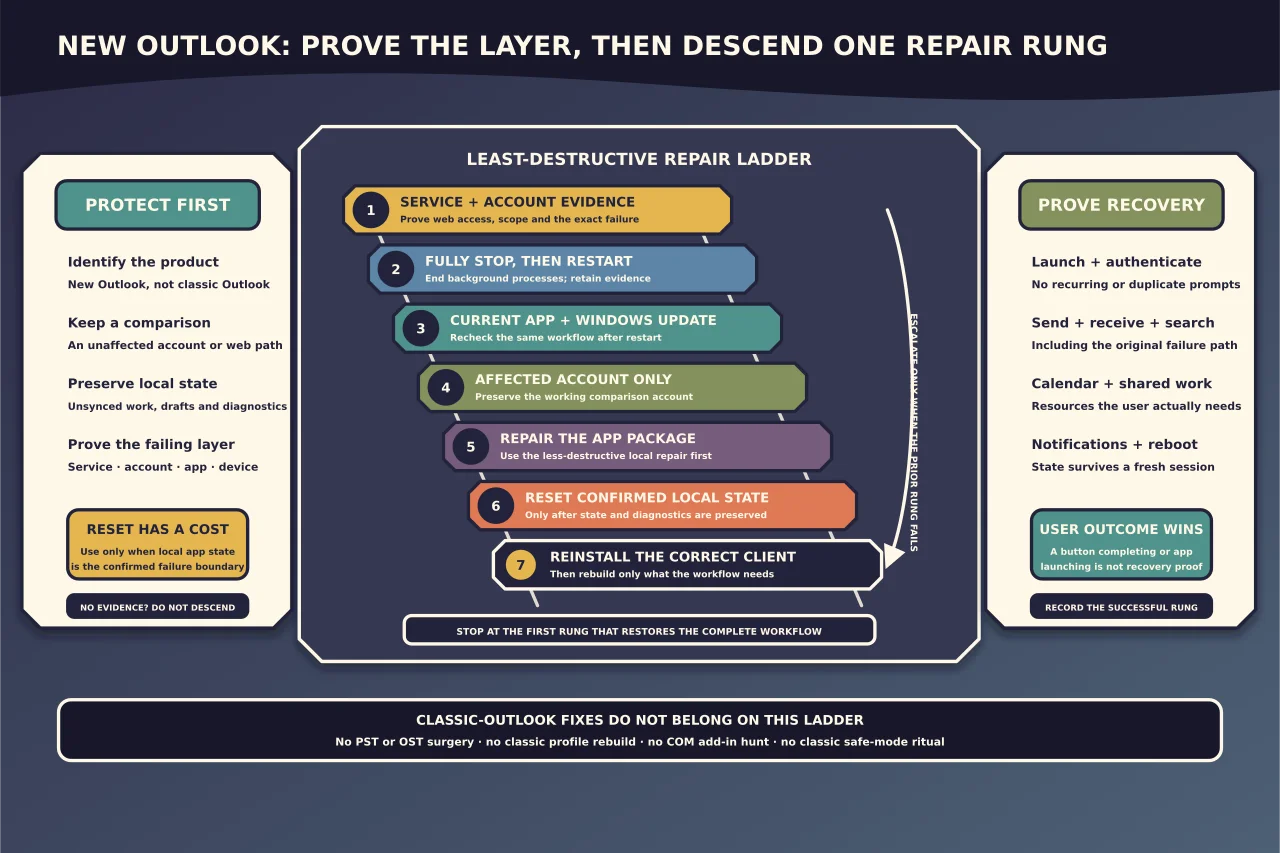
New Outlook for Windows may look like classic Outlook, but it is a different application. Advice about classic Outlook profiles, scanpst.exe, OST caches, COM add-ins or Outlook.exe /safe does not automatically apply.
Start by proving which client is failing and whether the problem is local, account-specific or service-wide.
Record the exact symptom
Useful descriptions include:
- the app never opens;
- it opens to a blank or frozen window;
- one account cannot sign in;
- mail works but calendar or search does not;
- notifications fail while the app otherwise works; or
- the problem began after an app, Windows, account or policy change.
Record the time, app version where visible, Windows build, account type and whether the same account works on the web. Do not publish diagnostic screenshots containing addresses, message subjects or tenant identifiers.
Establish whether the app is the failing layer
Before resetting it:
- check Microsoft 365 or provider service health;
- confirm webmail works for the affected account;
- test whether other accounts in the app are affected;
- test the account on another supported client or device where practical;
- confirm the account type and required feature are supported in new Outlook; and
- check for recent Conditional Access or account changes.
If webmail and other clients fail, a local app reset is unlikely to be the root fix.
Fully stop and restart new Outlook
Closing a window does not always end the process. Microsoft recommends ending Microsoft Outlook from Task Manager when new Outlook is unresponsive, confirming it is closed, and then reopening it.
After restart, reproduce the original workflow—not only the launch screen. If the issue is gone, repeat the action after a normal close and reopen before calling it resolved.
Apply current app and Windows updates
Update new Outlook through its supported application-update path and install relevant Windows updates under the organisation’s change policy. Restart if required.
Do not switch update sources or enrol a managed device in preview software merely to chase one fault. Record the before and after version so the change can be correlated with the result.
Check the account without removing every account
If only one account fails, compare its web sign-in, licence/mailbox state and authentication prompts with other accounts. Look for an obsolete or duplicate account identity.
Where the app allows an affected account to be removed and re-added, first confirm:
- mailbox data is present at the provider;
- any local-only or unsent work is accounted for;
- the correct sign-in and MFA method are available;
- shared resources can be re-established; and
- policy does not automatically add a conflicting account.
Remove only the affected account. A reset of every account destroys a useful comparison.
Use Windows repair before reset when available
Windows may expose Repair and Reset under the installed app’s advanced options. Repair is intended to preserve app data; Reset is broader and can remove local app state.
The exact options can vary by package and Windows version. If available:
- capture the current account list and symptom;
- run Repair;
- reopen and test the original workflow;
- proceed to Reset only if the evidence still points to local app state; and
- expect to sign in and restore preferences after a reset.
Do not promise that cloud mail can never be affected by a client action. Confirm sync state, drafts and outbox content before consequential resets.
Reinstall the correct Outlook
Microsoft’s current new-Outlook troubleshooting includes uninstall and reinstall. Confirm you are removing new Outlook for Windows, not classic Outlook or the complete Microsoft 365 Apps suite.
After uninstall, reinstall through Microsoft’s supported source or the organisation’s managed deployment. Do not download repackaged installers from third-party sites.
If the organisation intentionally supports classic Outlook as a fallback, keep that as a separate, managed application decision. Installing classic Outlook does not repair new Outlook; it supplies another client.
Collect diagnostics before an irreversible reset
Where available, new Outlook’s Help > Get Diagnostics or support workflow can upload logs for Microsoft support. Review the organisation’s policy and the information that will be shared before submission.
Record the support case or diagnostic reference without publishing it. If the app cannot open, preserve relevant Windows/app events and installation details before reinstalling.
Avoid classic-Outlook fixes
Do not use these as generic new-Outlook repairs:
- creating a classic Outlook profile;
- deleting an OST;
- running
scanpst.exeagainst an unrelated PST; - disabling COM add-ins;
- using
Outlook.exe /safe; or - deleting classic Outlook registry branches.
They target a different application’s architecture and can damage a working fallback client or local archive.
Verify the complete user workflow
After the smallest successful repair:
- launch, close and relaunch the app;
- send and receive a synthetic message;
- search for a known message;
- create, update and receive a test calendar event;
- verify required shared mailboxes or calendars;
- confirm notifications and default-app behaviour where required;
- restart Windows and test again; and
- confirm no duplicate account or repeated sign-in prompt appears.
If a required workflow is unsupported in new Outlook, document that as a product-fit gap. Repeated resets will not add a missing feature.
The disciplined repair order—service, account, process, update, repair, reset, reinstall—keeps each step informative and avoids wiping everything merely because the app is new.