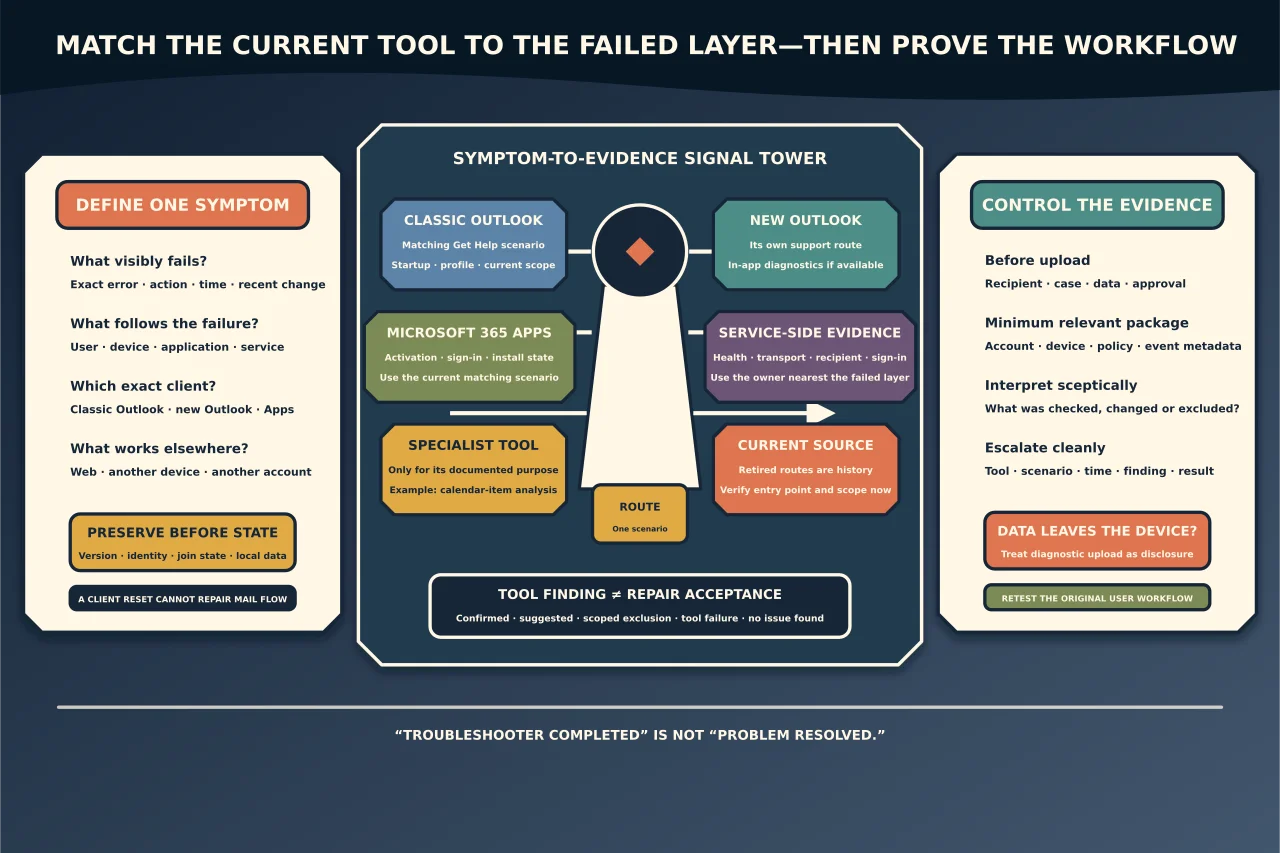
Microsoft support tools change. A ten-year-old guide may confidently tell you to download a tool that has been retired, replaced or narrowed to a different Outlook client.
The current starting point for many Windows, Microsoft 365 and classic Outlook scenarios is Microsoft’s Get Help app. Microsoft states that the Support and Recovery Assistant has been replaced for common scenarios by troubleshooters integrated into Get Help.
That does not mean “run every troubleshooter.” Choose from the symptom, product and data boundary.
Define the symptom first
Write one observable failure:
- Microsoft 365 Apps cannot activate;
- the work account repeatedly prompts for sign-in;
- classic Outlook cannot create a profile;
- classic Outlook hangs at startup;
- new Outlook opens blank;
- a calendar has inconsistent meetings or permissions; or
- mail flow fails before it reaches any client.
The last example is important: a desktop reset cannot repair server-side transport or DNS. Establish whether the failure follows the user, device, application or service before selecting a tool.
Identify the exact client
Classic Outlook and new Outlook have different architectures and diagnostic paths.
Microsoft’s classic Outlook troubleshooters in Get Help can cover scenarios such as startup or profile setup. Microsoft explicitly says those classic troubleshooters do not apply to new Outlook. New Outlook has its own in-app support and diagnostic submission where available.
Do not choose based on the icon alone. Record the product and version from the app or installed-app inventory.
Use Get Help for a matching current scenario
Open Get Help from Windows and search for the specific Microsoft 365, activation, sign-in or classic Outlook symptom. Select the matching troubleshooter and read its scope.
Before allowing a repair:
- note what the tool says it will inspect or change;
- close or save affected work;
- confirm you can restore any local-only data at risk;
- record the original symptom; and
- understand whether results or logs leave the device.
After it runs, retain the finding and test the original workflow. “Troubleshooter completed” is not the same as “problem resolved.”
Choose specialist tools for specialist evidence
Some workloads still have focused Microsoft tools. For example, Microsoft’s Calendar Checking Tool for Outlook, CalCheck, analyses calendar configuration and items for known problems. It is relevant to particular classic-Outlook calendar symptoms, not general mail, sign-in or new-Outlook repair.
Server-side tools and admin-centre diagnostics may be a better fit for:
- Exchange Online mail flow;
- service health;
- mailbox or recipient configuration;
- Autodiscover reachability;
- Microsoft Entra sign-ins and Conditional Access; or
- Microsoft 365 Apps inventory and update state.
Use the evidence source nearest to the failing layer.
Treat diagnostic data as organisational data
Support packages can include account identifiers, device state, policy, installed software, event data, message metadata or logs. Before upload or external sharing, establish:
- who receives it;
- whether support has requested it;
- which tenant or case it belongs to;
- what personal or confidential data it contains;
- how it should be transferred and retained; and
- who may approve that disclosure.
Redact screenshots for public forums. Do not upload an entire diagnostic archive merely to ask a general question.
New Outlook’s support workflow may offer Get Diagnostics, Upload Logs or Send Diagnostics. Follow the prompts and organisational policy; do not assume that clicking the option keeps all data local.
Preserve the before-state
Before a tool changes anything, collect the minimum useful evidence:
- exact error and timestamp;
- app and Windows version;
- affected account type;
- whether web and another device work;
- device join/management state where relevant;
- recent changes; and
- the tool and scenario selected.
Avoid collecting passwords, tokens or irrelevant mailbox content.
Interpret the result sceptically
A tool can:
- identify a confirmed problem;
- suggest a likely problem;
- rule out only the checks it performed;
- fail because it lacks access or network reachability; or
- report no issue even though the user’s workflow still fails.
Read the scope and evidence. A green network check does not prove Outlook’s profile is healthy. A profile repair does not prove mail flow is healthy. A sign-in fix does not prove the device still meets Conditional Access.
Escalate with a clean evidence package
If the tool does not resolve the problem, record:
- the original symptom and reproduction steps;
- tool name, version or current entry point;
- scenario selected;
- start/end time;
- findings and actions;
- before/after user-visible result; and
- the smallest relevant redacted log or case reference.
This prevents the next technician from repeating the same reset and gives Microsoft or the service owner a useful starting point.
Avoid these common mistakes
- Following an old SaRA download article without checking the current Get Help route.
- Running a classic Outlook troubleshooter against new Outlook.
- Using a local-client tool for tenant-wide or server-side symptoms.
- Letting a diagnostic upload disclose data without review.
- Resetting profiles, credentials or the TPM before preserving evidence.
- Calling the repair complete because the tool ended successfully.
The best diagnostic tool is not the most powerful download. It is the current, supported tool whose scope matches the failing layer and whose result can be tested against the user’s actual problem.