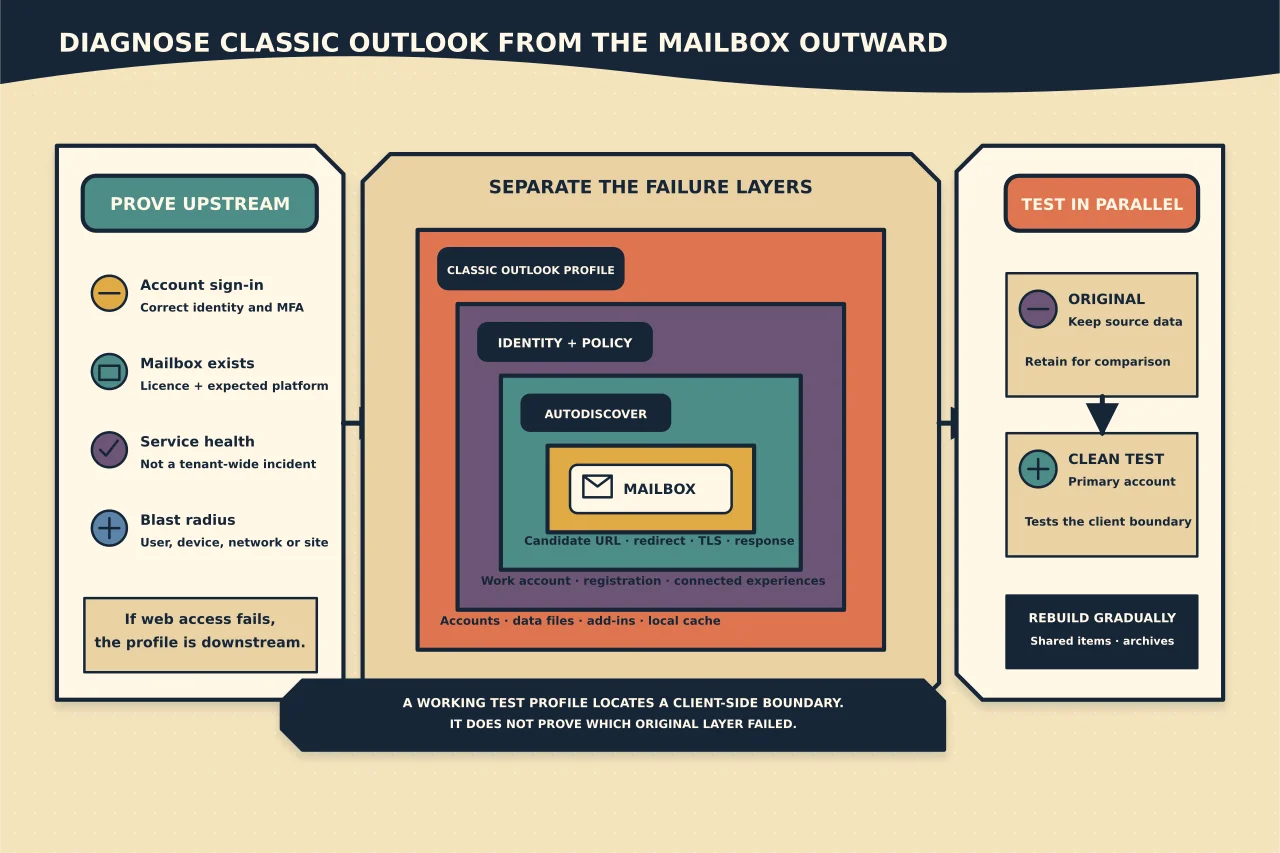
Classic Outlook profiles contain accounts, data files and settings. Autodiscover supplies connection information for Exchange accounts. They work together, but they are not the same thing.
When account setup fails, repeatedly entering server names or deleting the existing profile can hide the real cause. Diagnose from the mailbox outward.
Confirm which Outlook you are repairing
This guide is for classic Outlook for Windows. New Outlook is a separate application and does not use classic Outlook profiles in the same way.
Record the Outlook product, version/build, architecture and whether the failure affects initial account setup, an existing profile, or only one feature such as shared mailboxes. If the user can toggle between new and classic Outlook, identify which one displays the error.
Prove the account and mailbox first
Before touching the Windows profile, confirm:
- the user can sign in through the correct Microsoft 365 or Exchange web endpoint;
- the account is enabled and the sign-in name is correct;
- the mailbox exists and has the expected licence or server state;
- service health does not explain the symptom;
- the password and MFA flow work through an approved interactive sign-in; and
- the problem is not limited to one network, device or user.
If web access fails, the Outlook profile is downstream of the real problem. Fix account, licence, mailbox, authentication or service health first.
Understand what Autodiscover is doing
Autodiscover lets the client find configuration for an email address. Depending on the environment, candidate endpoints can involve Microsoft 365 discovery, DNS-derived endpoints, redirects and, for domain-joined on-premises Exchange clients, Active Directory service connection points.
That means a client can reach an old or unintended endpoint even when the visible DNS record looks correct. Common causes include:
- stale on-premises Exchange service connection points;
- incorrect or incomplete DNS;
- a redirect to an untrusted or obsolete host;
- proxy, TLS inspection or certificate problems;
- policy that disables required Autodiscover methods;
- connected-experience policy that affects Microsoft 365 account setup; and
- a migration that changed the mailbox location but left discovery dependencies behind.
Do not fix this by blindly disabling Autodiscover methods in the registry. Those exclusions can make a temporary symptom disappear while breaking future discovery or other users.
Compare server and client evidence
For Microsoft 365, use Microsoft’s current Remote Connectivity Analyzer or authorised tenant diagnostics to test the account’s discovery path. For on-premises Exchange, inspect the published Autodiscover service and relevant DNS/certificate configuration.
On the affected classic Outlook client, use current Microsoft diagnostic tooling. Where the client exposes Test E-mail AutoConfiguration, capture only the relevant result and redact tokens, addresses, server names or tenant identifiers before sharing.
Ask:
- Which endpoint did the client try?
- Was there a redirect, and to which trusted domain?
- Did TLS and authentication succeed?
- Did the result identify the expected mailbox platform?
- Does a working device obtain the same result?
The difference between working and failing paths is often more useful than a large undifferentiated log.
Check policy and identity state
Microsoft documents a specific Microsoft 365 account-setup failure when Autodiscover options and Office connected experiences are disabled by policy. Check effective policy rather than assuming the registry value visible on one machine is authoritative.
Also confirm that Windows and Office are using the intended work account. Duplicate workplace connections, stale WAM state, activation failure or Conditional Access can make a healthy Autodiscover response look like profile failure.
Do not disconnect a managed work account or clear all credentials until you understand the device-registration and sign-in consequences.
Use a parallel profile as a diagnostic test
If account, mailbox, discovery and identity evidence are healthy, create a new classic Outlook profile while retaining the old one.
Microsoft’s current profile picker can be reached by holding Shift while starting classic Outlook, using Outlook.exe /profiles, or choosing File > Account Settings > Change Profile in supported builds. Choose Prompt for a profile to be used during testing so the original remains available.
Create a clearly named test profile and add only the primary account. Let Outlook finish initial setup and synchronisation before adding shared mailboxes, archives or add-ins.
A working test profile demonstrates that the service and basic client path work. It does not yet prove which setting or data file in the original profile failed.
Preserve local data before retiring a profile
Classic Outlook can use OST caches and PST data files. Confirm which files are attached to the original profile and whether any contain local-only mail, calendars or archives.
An OST for a healthy server mailbox is normally rebuildable from the server. A PST may be the only copy of its content. Do not delete either merely because the filename looks old.
Record shared mailboxes, additional accounts, signatures, rules, delegates, add-ins and custom send/receive behaviour before moving the user to a new profile.
Rebuild complexity gradually
On the test profile:
- confirm send and receive;
- verify calendar and address-book access;
- allow the mailbox cache to reach a usable state;
- add required shared mailboxes or delegates;
- reconnect known PST archives without importing duplicates;
- enable required add-ins one at a time; and
- test search and offline behaviour.
If the problem returns after one addition, you now have a useful boundary. Do not add every old component at once and lose it.
Know when not to create another profile
A new profile is unlikely to solve:
- tenant-wide service health;
- invalid Autodiscover DNS or certificate configuration;
- a missing or unlicensed mailbox;
- Conditional Access or account blocking;
- an unsupported Outlook/Windows combination;
- a network path that blocks required endpoints; or
- a problem reproduced identically on multiple clean devices.
Fixing those at the profile layer wastes time and leaves the real fault for the next user.
Accept the repair against the original symptom
After the chosen fix, confirm:
- Outlook starts repeatedly without an account prompt;
- send, receive, reply and Autocomplete behave as expected;
- calendar, free/busy and delegates work where used;
- address book and search reach an acceptable state;
- shared mailboxes and archives are present once, not duplicated;
- required add-ins work; and
- the old profile and its local data have an explicit retain or retire decision.
Do not delete the old profile until the new state is accepted and local-only data is accounted for.
The aim is not to accumulate profiles. It is to prove whether the fault belongs to discovery, identity, policy, service or local profile state—and change only that layer.