When a SharePoint library becomes awkward to use, the first question is often, “How do I map it as a drive?” That is usually the wrong starting point.
A mapped drive makes cloud content look familiar, but it hides the things that make SharePoint useful—metadata, views, version history, sharing, co-authoring and policy—and introduces authentication and WebDAV-style failure modes of its own. Microsoft’s current OneDrive guidance also states that a network or mapped drive cannot be used as the OneDrive sync location.
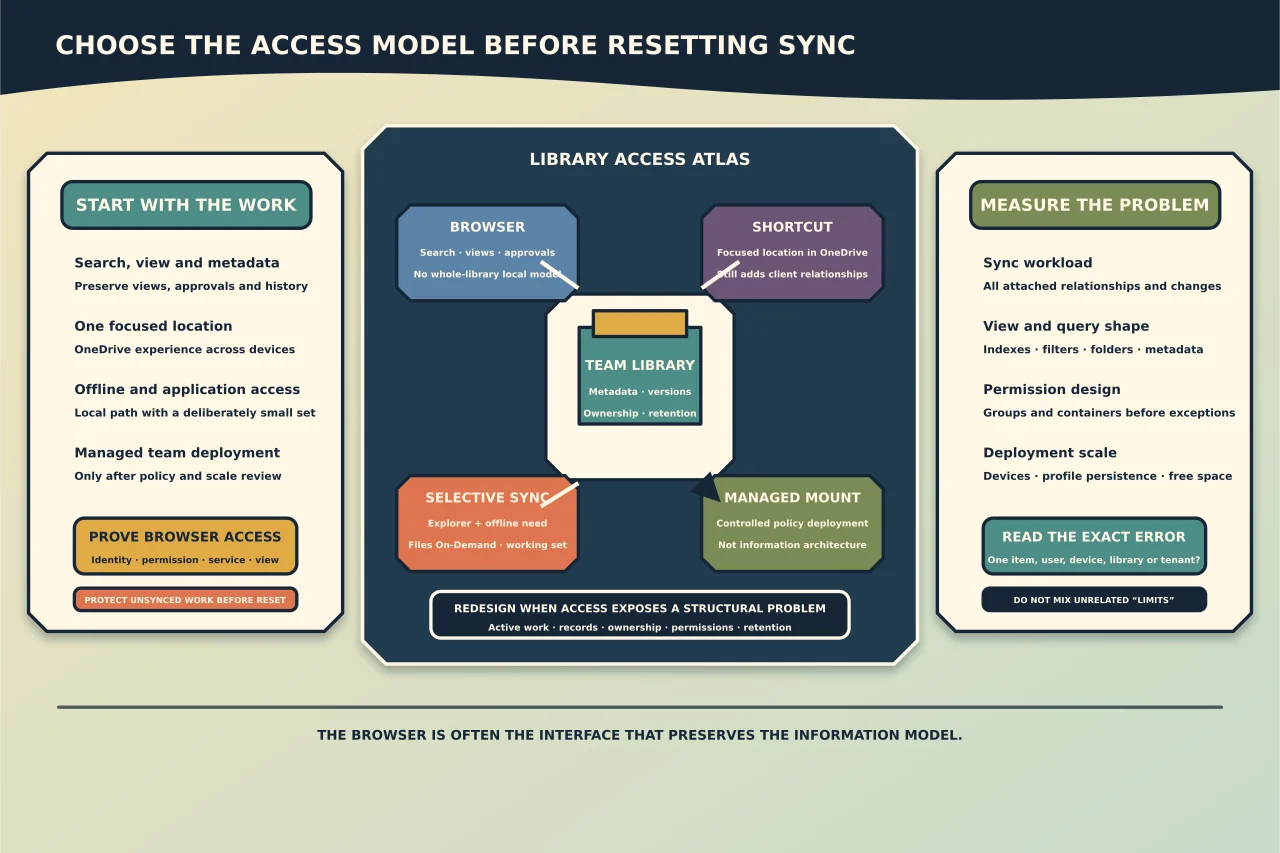
Start with the work the person needs to do, then choose the lightest access method that supports it.
Choose the access model before diagnosing sync
Use the browser when the user needs occasional access, metadata-rich views, search, approval, version history or content spread across a very large library. Browser access does not create a local copy of the whole information architecture.
Use Add shortcut to OneDrive when the person needs a folder or library location to appear within their normal OneDrive experience across supported devices. Check ownership and naming carefully; shortcuts can add to the number of items the sync client must process.
Use Sync when the user genuinely needs File Explorer or Finder integration, offline work and application access through a local path. Pair it with Files On-Demand so “visible in Explorer” does not automatically mean “download every file.”
Use an administrator-driven automatic library mount only for a controlled deployment. It is a policy tool, not a substitute for information architecture. Microsoft’s current policy guidance recommends not automatically syncing a library with more than 5,000 files or folders and not pushing the same library to more than 1,000 devices.
Restructure or migrate the library when the access method is exposing a design problem: one enormous flat container, excessive unique permissions, required metadata that desktop workflows cannot satisfy, or content that belongs to different teams and retention rules.
Stop mixing four different “limits”
Several Microsoft 365 numbers are repeated online as though they describe the same hard ceiling. They do not.
Sync performance recommendation
Microsoft recommends syncing no more than 300,000 items across cloud storage for optimum performance. Problems can appear even when not every item is selected for local download because the client still has relationships and changes to process.
Microsoft began a public preview for up to one million items per sync instance on qualifying Windows devices. It requires a current Insider-ring client, supported Windows, an SSD and substantial memory, and it excludes some environments. A preview ceiling is not a sensible target for a new library design.
SharePoint list view threshold
SharePoint’s 5,000-item list view threshold controls expensive list and library operations. It does not mean a library may contain only 5,000 documents. Indexed columns, filtered views, folders and a sensible information architecture let people work with larger libraries without asking one view to enumerate everything.
Unique permissions
Breaking inheritance on thousands of individual items creates a different scaling and governance problem. Microsoft supports more unique permissions than it recommends for general use, but permission count should not become a design goal. Prefer groups and containers with clear ownership over thousands of exceptional ACLs.
Automatic mount guidance
The 5,000-file warning for automatically mounted team libraries is a deployment recommendation. It is not the same as the list view threshold and not the same as the total sync recommendation.
Record which condition you are measuring before changing anything.
Diagnose the library from the service outward
1. Prove browser access
Open the library directly in a private browser session as the affected user. Confirm that the correct identity and organisation are active, the user can see the expected content, and the relevant view loads.
If browser access fails, this is primarily a site, library, identity, permission, policy or service problem—not a desktop sync reset.
2. Confirm that sync is allowed
Check the site and library’s offline client availability and tenant sync policies. An administrator can deliberately disable sync. External-library, device, Conditional Access and organisation restrictions can also change what the user may connect.
3. Measure the actual content shape
Record:
- total items in the library and approximate items the user needs;
- deeply nested paths and unusually long names;
- invalid or blocked names and temporary files;
- very large individual files;
- required columns, validation, checkout or content approval;
- information rights management;
- unique permissions and external sharing;
- shortcuts and other synced libraries already attached to the user; and
- whether the device is persistent, has adequate free space and runs a current sync client.
Do not “fix” the library by removing governance fields or permissions until their business purpose is understood.
4. Read the sync error before resetting
Capture the OneDrive activity-centre message, affected item and timestamp. Check whether the issue is one file, one folder, one library, one user, one device or the whole tenant. A filename error needs a filename decision; a blocked-library policy needs an admin decision; a large change queue needs time and measurement.
Unlinking the account or resetting the client too early discards useful state and can create duplicate local folders. Microsoft warns that the old folder name may be retained and a newly connected folder can receive a suffix. Preserve the user’s unsynced work before any reset.
Design a smaller working set
When the library is valid but too large for a healthy desktop experience:
- identify the folders the user actually works with;
- prefer browser search and views for the long tail;
- use shortcuts or selected libraries instead of attaching an entire department archive;
- keep Files On-Demand enabled unless offline requirements justify local copies;
- separate active operational content from records or archives with different ownership and retention;
- reduce exceptional item-level permissions through groups and clearer containers; and
- test the proposed shape with a representative user before pushing it broadly.
Do not solve a sync problem by moving business records into one person’s OneDrive. Team content needs a team-owned SharePoint destination.
Know when not to sync
Avoid desktop sync as the primary interface when users mainly search and read, when metadata and approvals drive the process, when a library is an archive, when thousands of people would attach the same large working set, or when virtual desktops cannot preserve a supported user profile and cache.
The browser is not a second-class fallback. For many large libraries it is the interface that preserves the information model without forcing every endpoint to process it.
Close with evidence
A credible fix records:
- the user’s task and chosen access model;
- browser permission and library-policy state;
- measured item, path and metadata conditions;
- the specific sync error or performance symptom;
- the content or policy change made;
- a fresh connection or sync result;
- confirmation that a test edit travelled in both directions when editing is required; and
- ownership of any remaining exceptions.
The goal is not to make the Sync button stop complaining for five minutes. It is to give people a stable route to the content they need without turning a large SharePoint library into an unreliable imitation of a file server.