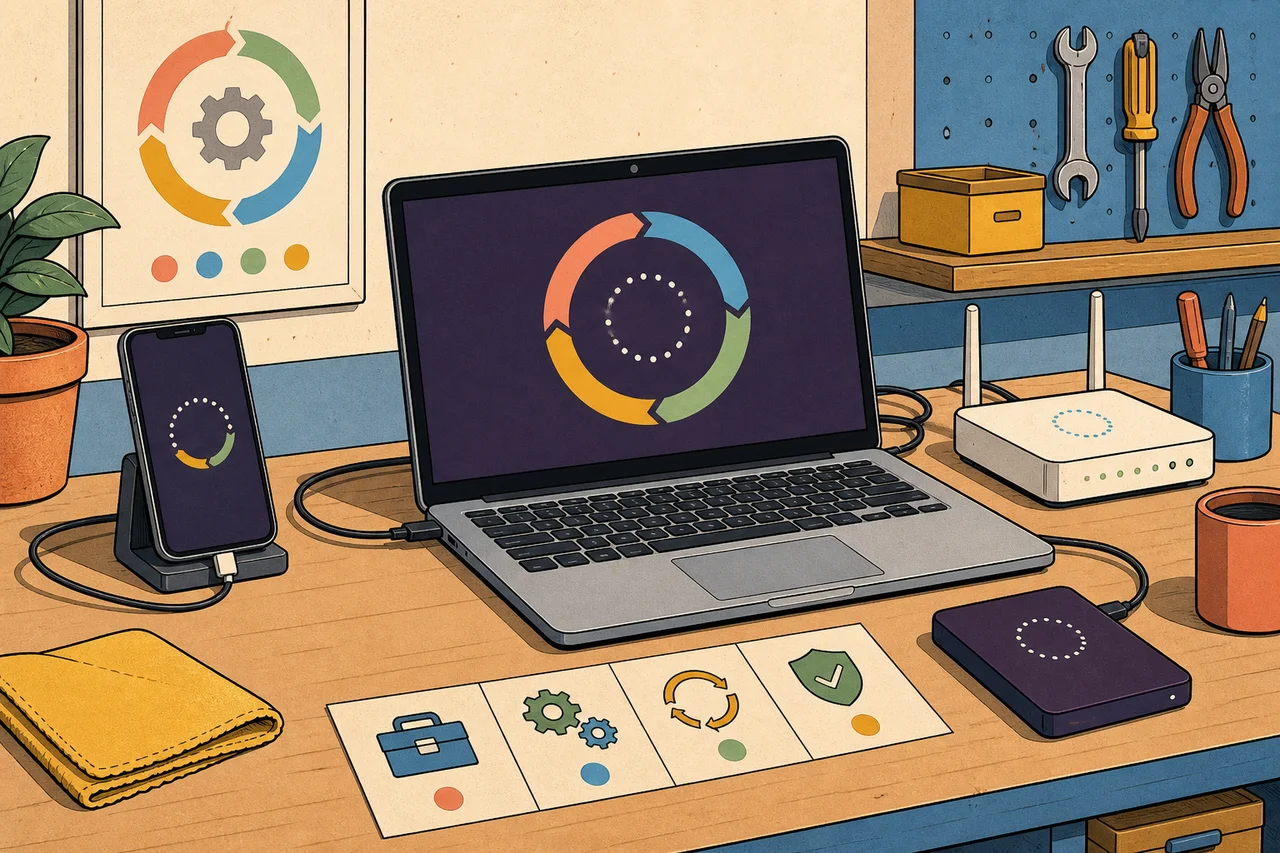
Software updates are preventive maintenance. Vendors use them to correct defects, support changing services and formats, and close known security weaknesses. Delaying everything indefinitely creates risk, but installing every prompt without checking what it is can create a different problem.
A dependable routine answers five questions:
- What product and version is changing?
- Is this a routine update, an urgent security fix, a major upgrade, a driver, or firmware?
- What important data or service could be affected?
- How will you know the update actually completed and the device still works?
- What will you do if it fails?
The amount of preparation should match the consequence. A browser update on a personal laptop is not the same change as router firmware, an accounting application upgrade, or a patch to an internet-facing business server.
First, classify the change
| Change type | Usual approach | Extra caution |
|---|---|---|
| Routine security and quality update | Enable the supported automatic mechanism and restart when required | Verify the installed version, not only the download. |
| Browser or communication application update | Apply promptly and relaunch the application | Long-running applications can hold a downloaded update without activating it. |
| Major operating-system or application version | Check compatibility, storage, backup, recovery, and licensing first | Features, drivers, file formats, and support requirements may change. |
| Device driver | Prefer the operating system or exact device manufacturer | Avoid generic “driver updater” tools and unrelated download sites. |
| Router, printer, firewall, BIOS/UEFI, or other firmware | Follow the exact model and hardware-revision instructions | Stable power and a model-specific recovery path matter; interruption can leave a device unusable. |
| Known exploited or severe internet-facing vulnerability | Use a rapid, owner-assigned response based on vendor and trusted advisory guidance | If immediate patching is impossible, apply approved temporary mitigation, restrict exposure, monitor, and set a near-term remediation deadline. |
An update normally changes the current supported product. An upgrade often moves to a new major version or generation and can have broader compatibility and licensing consequences. Vendors do not use these words consistently, so read the actual release and support information.
The short policy
- Keep supported personal devices and mainstream applications on their vendor-supported automatic update path.
- Restart applications and devices when required; downloaded is not the same as active.
- Use only the operating system, application, device manufacturer, or approved management platform as the update source.
- Back up important data and identify a plausible recovery route before a major version, driver, or firmware change.
- For a business, inventory first, prioritise by exploitation and consequence, pilot where time permits, deploy in stages, and verify the installed version.
- Replace or retire unsupported products. Isolation can reduce exposure temporarily, but it does not recreate vendor support.
Why regular updates matter
Once a vulnerability and its fix are public, defenders and attackers can both study what changed. A system that misses the update may remain exposed to a weakness the vendor has already corrected. CISA’s Known Exploited Vulnerabilities catalogue is particularly useful to organisations because it identifies vulnerabilities with evidence of exploitation in the wild; it is an input to prioritisation, not a substitute for understanding which products you actually run.
Security is not the only reason to update. Services change their authentication, certificates, data formats, and compatibility requirements. A supported application can receive fixes for crashes, data corruption, battery use, accessibility, and hardware compatibility.
Updates do not guarantee security, stability, or faster performance. They are one control alongside supported products, least privilege, strong authentication, appropriate configuration, backups, protective monitoring, and safe user behaviour.
Practical benefits
- Smaller exposure window: fixed vulnerabilities spend less time open.
- Supportability: technicians and vendors can work from a version they still test and document.
- Compatibility: browsers, file formats, applications, drivers, and online services are less likely to drift apart.
- Reliability: corrected defects can reduce crashes and incorrect behaviour.
- Predictable maintenance: frequent small supported changes are usually easier to recover from than a rushed jump across years of missed releases.
- Better evidence: a recorded update state makes incident response and troubleshooting more precise.
The security role—and its limits
Patching removes specific known weaknesses from the affected version. It does not:
- repair a device that is already compromised;
- replace secure configuration or multi-factor authentication;
- protect an unsupported dependency the updater does not manage;
- prove that every device received the update;
- make an unnecessary internet-facing service safe merely because it is current;
- create a backup.
An update dashboard saying “deployment started” or “policy assigned” is not completion evidence. Verification should read back the installed version or patch state and identify devices that were offline, out of storage, unsupported, outside the group, or repeatedly failing.
Remember the less obvious software layers:
- browsers and extensions;
- office, accounting, remote-access, communications, and line-of-business applications;
- phones, tablets, and their applications;
- security agents and backup software;
- printers, routers, switches, firewalls, access points, cameras, and other firmware;
- server applications, hypervisors, databases, runtimes, and third-party libraries;
- cloud and software-as-a-service components for which configuration and client updates may still be your responsibility.
Common risks of outdated software
Known vulnerabilities remain available
Public advisories can give defenders the information needed to prioritise a fix, but they can also help an attacker identify lagging systems. Internet-facing products, browsers, document readers, remote-access tools, identity systems, and vulnerabilities already exploited in the wild deserve particular attention.
Compatibility gradually fails
An application can stop connecting even when nobody deliberately changed it. The service may have retired an old authentication method, certificate chain, API, encryption protocol, or file format.
Support ends
An end-of-support product may receive no ordinary security updates even when its updater says “no updates available”. Check the lifecycle, not just the update screen. The durable choices are to upgrade, replace, or retire it.
If replacement cannot happen immediately, document the owner and date, restrict access and network exposure, remove unnecessary functions, monitor it, and continue patching every still-supported surrounding component. Do not let a temporary exception become an invisible permanent dependency.
Unplanned changes can interrupt work
An update can introduce a regression, require a restart, consume more storage, change a driver, or expose an old application dependency. This is a reason for proportionate preparation and staging, not for permanent delay.
Missed restarts create a false current state
Browsers and operating systems often download in the background but require a relaunch or restart. A user who never closes the application can remain on the old code while believing automatic updates have finished.
A safe update routine for one device
1. Identify the product and support state
Record the device or application, current version, vendor, and whether that version still receives security fixes. For firmware, confirm the exact model and hardware revision. A similarly named model is not close enough.
2. Understand the change
Use the vendor’s release notes, support page, or advisory. Is it a routine security update, a major feature release, a driver, a firmware image, or an emergency fix? Note known compatibility issues and whether a restart is required.
Treat update prompts inside advertisements, unexpected emails, browser pop-ups, or unsolicited support calls as untrusted. Navigate to the established application, operating-system settings, or vendor support site yourself.
3. Protect what matters
Confirm that important files have a recent successful backup and that you know how to retrieve them. For a high-consequence change, identify the product-specific recovery route too:
- a file restore does not rebuild an operating system;
- a restore point is not a complete backup;
- an application uninstall option may be time-limited;
- router configuration export does not necessarily contain its firmware;
- a cloud sync folder can synchronise unwanted deletion and is not automatically an independent backup.
You do not need to perform a destructive restore before every routine update. You do need credible evidence that the necessary data and recovery information exist.
4. Prepare the device
- Save work and close applications where the vendor recommends it.
- Connect a laptop, phone, or tablet to power.
- Use a stable trusted network.
- Confirm sufficient free storage.
- Record encryption recovery information through the approved method before a major system or firmware change.
- For business services, announce the window, dependencies, owner, expected impact, and stop or rollback decision.
5. Install through the authoritative route
Prefer the operating system’s updater, the application’s own updater or official app store, the exact device manufacturer’s support path, or the organisation’s approved management platform.
Do not interrupt a firmware update or remove power while the manufacturer warns that programming is underway. Do not flash a firmware image merely because its filename looks similar.
6. Restart or relaunch
Complete the restart when required. Windows provides restart scheduling and active hours; browsers such as Chrome normally activate a downloaded update when relaunched. A pending restart should be visible in your maintenance record rather than forgotten.
7. Verify
Read back the installed operating-system build, application version, update history, or firmware version. Then check the functions that matter:
- network and internet connection;
- sign-in and multi-factor authentication;
- browser and essential applications;
- printing or connected devices where relevant;
- security and backup agents;
- one harmless business transaction or workflow for a critical application;
- system time, storage, and obvious error notifications.
Keep a record of the version, date, result, restart state, exceptions, and any follow-up. Do not store credentials or recovery secrets in the maintenance note.
Stable device-specific patterns
Windows
Use Windows Update for supported Microsoft updates and the device manufacturer’s supported route for model-specific firmware or drivers when needed. Schedule restarts rather than allowing an indefinite pending state. A message that the device is “up to date” does not mean an unsupported Windows release has regained security support.
Mac, iPhone, and iPad
Use Apple’s Software Update path and current Apple preparation guidance. For a major iOS or iPadOS change, Apple advises backing up first. Confirm power, storage, and the Apple ID or device-management requirements before the window.
Android
Android system, security, Google Play system, manufacturer, and application updates can be separate. The precise menu and support period depend on the device maker. Check the device’s reported Android security update and Google Play system update state; use the manufacturer’s support page for model-specific availability.
Browsers
Browsers are exposed to untrusted web content and should normally update promptly. Chrome and Firefox update automatically by default on common desktop installations, but the new version may not run until the browser relaunches. Preserve important work and complete the relaunch.
Routers, firewalls, printers, and other firmware
Confirm the exact model, revision, current version, target version, configuration backup, vendor instructions, stable power, and recovery route. Check whether the update resets settings or has an intermediate-version requirement. For an internet-facing security device with a known exploited vulnerability, do not wait for the ordinary monthly routine; use the rapid-response process.
A small-business patch cycle
NIST describes enterprise patching as preventive maintenance and a risk-management activity. A small business does not need enterprise bureaucracy, but it does need ownership and evidence.
- Inventory: know supported devices, operating systems, applications, firmware, criticality, owner, and exposure.
- Monitor: follow relevant vendor advisories, management-platform results, vulnerability information, and the CISA KEV catalogue for products you use.
- Prioritise: consider active exploitation, internet exposure, privilege required, business consequence, compensating controls, and vendor severity.
- Prepare: confirm backups, recovery access, dependencies, maintenance window, communication, and a decision-maker.
- Pilot: use a representative low-consequence group where time permits. Include the actual applications and peripherals the wider group relies on.
- Deploy in stages: expand only after the pilot evidence is acceptable. Use an accelerated lane when exploitation or exposure makes delay more dangerous than the normal cycle.
- Verify independently: query installed versions and business function, not only job submission.
- Handle exceptions: record failed, offline, unsupported, or intentionally delayed devices with an owner, risk, mitigation, and next action.
- Review: use failure and recovery evidence to improve the next cycle.
Do not use a pilot as an excuse to defer a known exploited internet-facing weakness for weeks. When the normal test window is too slow, reduce the pilot, apply vendor-approved mitigation, restrict exposure, increase monitoring, and set a rapid decision point.
If an update fails
- Stop repeated blind retries, especially for firmware.
- Preserve the exact error, version, time, power state, free storage, and update source.
- Confirm whether the device is still in an active installation phase before interrupting it.
- Check the vendor’s current status, known issue, recovery, and support guidance from another trusted device if necessary.
- For an ordinary application, determine whether repair, supported rollback, or reinstall preserves its data and profile.
- For an operating system, driver, firmware, encrypted device, or business service, use the documented recovery route or escalate before destructive action.
- If a security patch must be rolled back, record that the vulnerability may be open again and apply approved compensating controls until a corrected update is installed.
Do not factory-reset a device, delete an update cache, remove a business application, disable security controls, or flash firmware as a generic first step. Those actions can destroy evidence or data and may make recovery harder.
One-device checklist
- Product, exact model, current version, and support state identified
- Update type, source, restart, and known issues understood
- Important data backup and appropriate recovery route checked
- Stable power, network, storage, and maintenance window ready
- Update obtained through the vendor or approved management platform
- Required restart or relaunch completed
- Installed version and important functions verified
- Result, exception, or follow-up recorded without secrets
Sources and current instructions
- UK NCSC: keeping devices and software up to date
- UK NCSC: vulnerability management
- NIST SP 800-40 Rev. 4: enterprise patch management planning
- CISA: Known Exploited Vulnerabilities catalogue
- Microsoft Support: Windows Update FAQ
- Apple Support: update iPhone or iPad and prepare a backup
- Google Android Help: system and security update checks
- Google Chrome Help: update and relaunch Chrome
- Mozilla Support: Firefox installation and updates
For any specific product, the manufacturer’s current advisory, lifecycle, compatibility notes, and recovery instructions take precedence over this general routine.