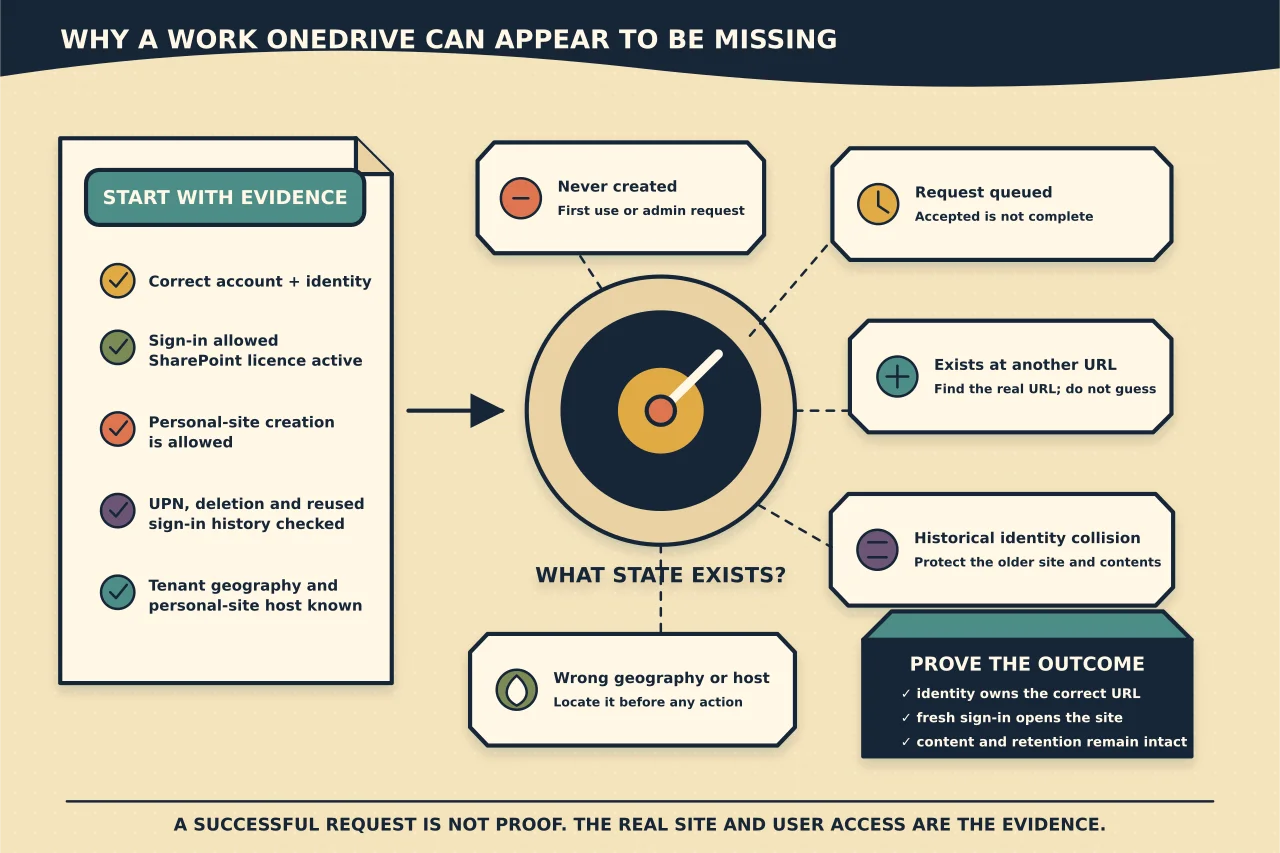
A missing OneDrive is not one problem. It can mean that the site has never been created, creation is queued, the user is not entitled to create it, the site exists under a different URL, or the identity now points at the wrong historical site.
That distinction matters because the tempting fix—run the provisioning command again—can return without error even when it has not changed anything. Microsoft describes Request-SPOPersonalSite as a request to a queue. A later service job creates the site. If the site already exists, the request can be ignored silently.
The useful outcome is therefore not “the command succeeded.” It is:
The correct user can open the correct OneDrive, an administrator can identify its real URL and state, and the result survives a fresh sign-in.
Start by naming the actual symptom
Record which of these you have:
- the user has never opened OneDrive and sees a setup message;
- OneDrive remains on “setting up” for an unreasonable period;
- the Microsoft 365 admin centre cannot show the user’s OneDrive details;
- a guessed OneDrive URL returns 404 or access denied;
- the desktop client signs in but cannot sync because there is no usable site;
- the user’s sign-in name recently changed;
- a deleted account’s sign-in name was reused for a different person; or
- the user is in a different Microsoft 365 data location from the administrator.
Do not collapse these into “OneDrive broken.” The next safe check depends on the state.
Check entitlement before provisioning
Confirm the target identity in Microsoft Entra ID and Microsoft 365:
- The account is the intended person, not a guest, contact, soft-deleted user or newly recreated lookalike.
- Sign-in is allowed. Microsoft’s current provisioning guidance requires the target user to be allowed to sign in.
- A licence is assigned and the SharePoint Online service is enabled within it.
- The user is allowed to create a personal site. Organisations can restrict that permission instead of leaving the default broad group in place.
- The SharePoint user profile exists and is not incorrectly marked as a guest.
- If the tenant uses Multi-Geo, the user’s preferred data location is known.
Fix the failed prerequisite, then allow directory and service changes time to propagate. Repeatedly submitting provisioning requests does not repair a missing licence, blocked identity or denied personal-site permission.
Let normal first use do the simple job
For an ordinary licensed user, ask them to sign in through the organisation’s normal Microsoft 365 entry point and open OneDrive. That first access normally initiates creation if the site does not already exist.
Use administrator pre-provisioning when there is a real operational reason for the site to exist before first use—for example, a planned migration whose destination scan depends on the OneDrive being ready. Do not pre-provision every identity merely because the command exists. Service accounts, shared identities, guests and users who should not have personal storage need deliberate policy, not blanket creation.
Queue a supported pre-provisioning request
Use the current SharePoint Online Management Shell and connect to the tenant’s SharePoint administration endpoint with an appropriately authorised account. The operator needs at least the SharePoint Administrator role and a SharePoint licence.
Connect-SPOService -Url "https://contoso-admin.sharepoint.com"

$users = @(
  "alex.wilson@contoso.com"
  "sam.ngwenya@contoso.com"
)

Request-SPOPersonalSite -UserEmails $users
Microsoft currently limits one request to 200 user sign-ins. Empty entries cause the command to stop, so validate a bulk list before submitting it.
The absence of an error means only that the request was accepted or ignored. It does not prove that either URL is live. For large batches Microsoft warns that provisioning can take multiple days. Build a verification loop around the actual site state; do not build a loop that hammers the request command.
Do not guess the URL
A OneDrive URL is derived from the user’s sign-in name, but historical identity changes can make the obvious URL wrong.
A UPN change can change the OneDrive URL and take hours to propagate across Microsoft 365. Saved links may still point at the earlier location while the sync client is catching up. If a deleted account’s UPN is reused, the new account may receive a suffixed site because the earlier site still exists. Microsoft also documents site-user ID mismatch cases in which a new identity shares an old sign-in value but not the old immutable identity.
Use the SharePoint admin experience, supported PowerShell enumeration, or Microsoft’s OneDrive provisioning diagnostic to find the actual site. Record the returned identity, owner, URL and status. Never repair a URL collision by deleting the older site until its ownership, retention, holds and business data have been resolved.
Treat “stuck at setting up” as a state check
If the site remains at provisioning:
- recheck sign-in state, licence and the SharePoint Online service entitlement;
- verify Create Personal Site permission;
- confirm that a SharePoint user profile exists;
- check whether the profile is incorrectly treated as a guest;
- allow recent identity and licence changes to propagate;
- run Microsoft’s OneDrive provisioning diagnostic and preserve its result; and
- escalate to Microsoft when the profile or backend job remains stuck after the documented waiting period.
Avoid speculative deletion and recreation. A provisioning delay is inconvenient; deleting the wrong user, profile or site creates a data-recovery case.
Handle Multi-Geo deliberately
Request-SPOPersonalSite is not Multi-Geo aware. Run the request against the SharePoint administration endpoint for the user’s intended data location. A request made in the default geography is not evidence that the user’s satellite-geo site was checked.
For a bulk migration, group users by preferred data location, connect to the corresponding geography, submit bounded batches, and verify the returned sites in that same geography.
Prove the repair from the user’s side
Close the case only when you have evidence for all of the following:
- the expected identity owns the discovered OneDrive;
- the URL was obtained from the service rather than guessed;
- the user can open the site in a fresh browser session;
- the user can create a small test file and reopen it, if policy permits;
- the desktop sync client connects to that same organisation and site when sync is required;
- no unexpected suffixed or orphaned site was created;
- any temporary administrator access has been removed; and
- the licence, sign-in or personal-site permission change is recorded.
For migration preparation, add destination readiness to the migration register instead of assuming that “provisioned” means ready for content, permissions and ownership mapping.
Keep neighbouring problems in their own guides
If the site opens but files do not sync, use the SharePoint and OneDrive library-access guide. If the person has left, use the departed-user OneDrive handback guide: that is an authority, retention and ownership problem, not ordinary provisioning. If the issue began after renaming the user, follow the UPN-change and site-user-mismatch branches before creating anything new.
OneDrive provisioning is asynchronous, but diagnosis does not have to be vague. Verify the identity, entitlement, permission, profile, geography and real site URL in that order. The queue is only one step in the middle.