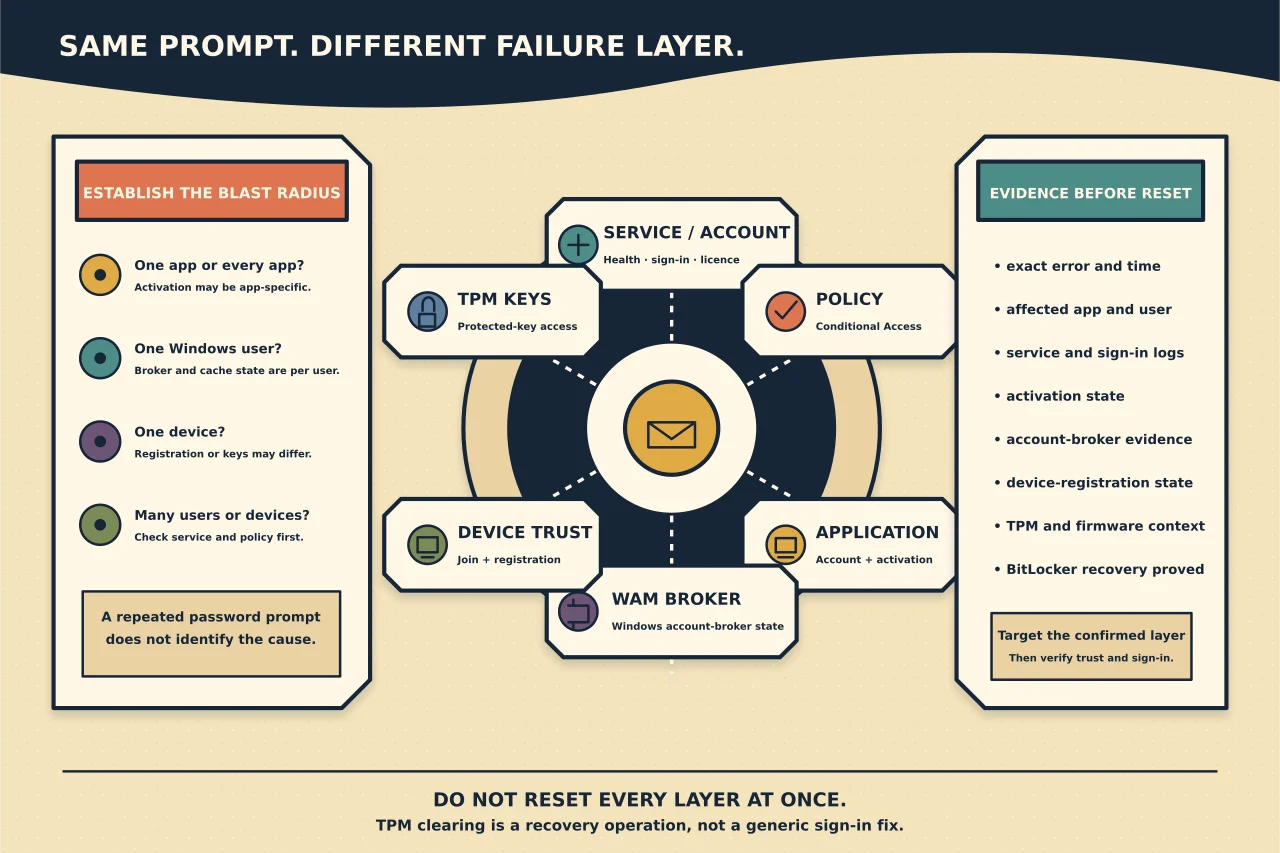
A Microsoft 365 app that repeatedly asks for a password may be reporting an account problem, an activation problem, damaged Windows authentication-broker state, a device-registration problem, Conditional Access, or a TPM-backed key failure.
Those causes can look almost identical. Clearing credentials, disconnecting the work account and resetting the TPM all at once destroys the evidence that distinguishes them—and can create a bigger recovery job.
Establish the blast radius
Ask four quick questions:
- Does the account sign in successfully at the Microsoft 365 web portal?
- Do other Microsoft 365 desktop apps fail on this Windows profile?
- Does the same user work on another managed device?
- Do other users fail on this device or across the organisation?
The pattern narrows the layer:
- one application may point to application/profile state;
- all Office apps for one Windows user may point to activation or WAM state;
- one user across devices may point to account, licence or policy;
- one device across users may point to device registration or Windows state; and
- many users at the same time may indicate a service or policy change.
Record the full error and correlation information, the time, affected app and whether the prompt occurs before or after MFA. Do not post screenshots containing email addresses, tenant IDs or device identifiers publicly.
Check service, account and licence before local resets
Confirm Microsoft service health through the authorised admin route. Verify that the user account is enabled, the sign-in name is correct, the required service licence is assigned and the user can complete the intended authentication method.
Look for recent password, MFA, Conditional Access, device-compliance, tenant-migration or account-renaming changes. A local reinstall cannot correct a blocked sign-in policy.
If web sign-in fails, resolve that identity path first. If web sign-in succeeds but desktop Apps fail, continue with client and device evidence.
Confirm the account context in Windows and Office
Compare:
- the Windows signed-in identity;
- Settings > Accounts > Access work or school connections;
- the account shown under File > Account in an Office app; and
- the account expected by the organisation.
Old, duplicate or personal accounts can send authentication to the wrong context. Do not disconnect a managed work or school account casually: it may affect device management, certificates, single sign-on and access policy.
When an unexpected account is present, establish who enrolled it and what depends on it before removal.
Collect device-registration evidence
Run this as the affected signed-in user unless Microsoft’s specific guidance asks for another context:
dsregcmd /statusRelevant sections include device state, tenant details, user state, single-sign-on state and diagnostics. Interpret them against the intended join type:
- Microsoft Entra joined;
- Microsoft Entra hybrid joined;
- Microsoft Entra registered; or
- not organisation-connected.
AzureAdJoined : NO is not automatically an error on a device that was never meant to be joined. Conversely, a device that should be hybrid joined needs its registration, certificate, service connection point, connectivity and directory object checked through Microsoft’s current hybrid-join guidance.
The output contains identifiers. Redact it before sharing beyond authorised support.
Use current Microsoft troubleshooters
Microsoft now routes common Microsoft 365 sign-in problems through the Get Help troubleshooters. Run the relevant sign-in or activation diagnostic and preserve its findings.
Treat a troubleshooter as a diagnostic participant. Review what it proposes before allowing a consequential change, and test the original sign-in after it completes.
Distinguish WAM from the TPM
Web Account Manager is Windows’ authentication broker for many work and personal account flows. Microsoft documents specific cases in which the Microsoft Entra WAM plug-in package information is missing or damaged and provides a targeted registration command.
Use that fix only when the symptoms and current Microsoft article match. Do not delete broad token-cache directories from an old forum post. WAM state is shared across applications, and aggressive deletion can sign users out or disrupt brokered access.
The Trusted Platform Module protects keys used by Windows Hello, device identity and other security functions. A TPM-related Office error does not prove the physical TPM is broken. It can reflect stale registration, changed hardware/firmware, account mismatch, activation state or protected-key access.
Treat TPM clearing as a recovery operation
Before any TPM clear, establish:
- whether BitLocker or device encryption uses TPM-protected keys;
- that current recovery keys are available and verified;
- the Windows Hello re-enrolment plan;
- device-management and join state;
- VPN, certificate and line-of-business key dependencies;
- physical presence or remote-recovery limitations; and
- the authorised owner of the device-security change.
Then follow current Microsoft and device-management guidance for the confirmed scenario. Do not clear a TPM remotely on a device whose disk-recovery path has not been proved.
Reset activation state only when activation is the layer
Microsoft maintains a current procedure for resetting Microsoft 365 Apps activation state, including different treatment for managed devices that use WAM. Follow the procedure that matches the join and management state.
Before reset, record the installed product, user entitlement and activation error. After reset, sign in with the intended licensed account and confirm the product activates. Removing every saved Windows credential is broader than an Office activation reset and can damage unrelated access.
Verify the repair
Acceptance requires more than the password prompt disappearing once:
- restart the device if the chosen fix requires it;
- sign in as the intended Windows user;
- open the affected Microsoft 365 app;
- confirm the intended account and activated product under File > Account;
- close and reopen the app;
- test access to the required Exchange, SharePoint or OneDrive service;
- confirm device-registration and Conditional Access state still match policy; and
- verify Windows Hello, BitLocker and other protected-key workflows if they were touched.
If the issue returns, use the timing and event evidence to escalate the correct layer. Do not repeat destructive resets as a maintenance routine.
The safest fix is usually the smallest repair that restores the intended identity relationship while leaving device trust and recoverability intact.