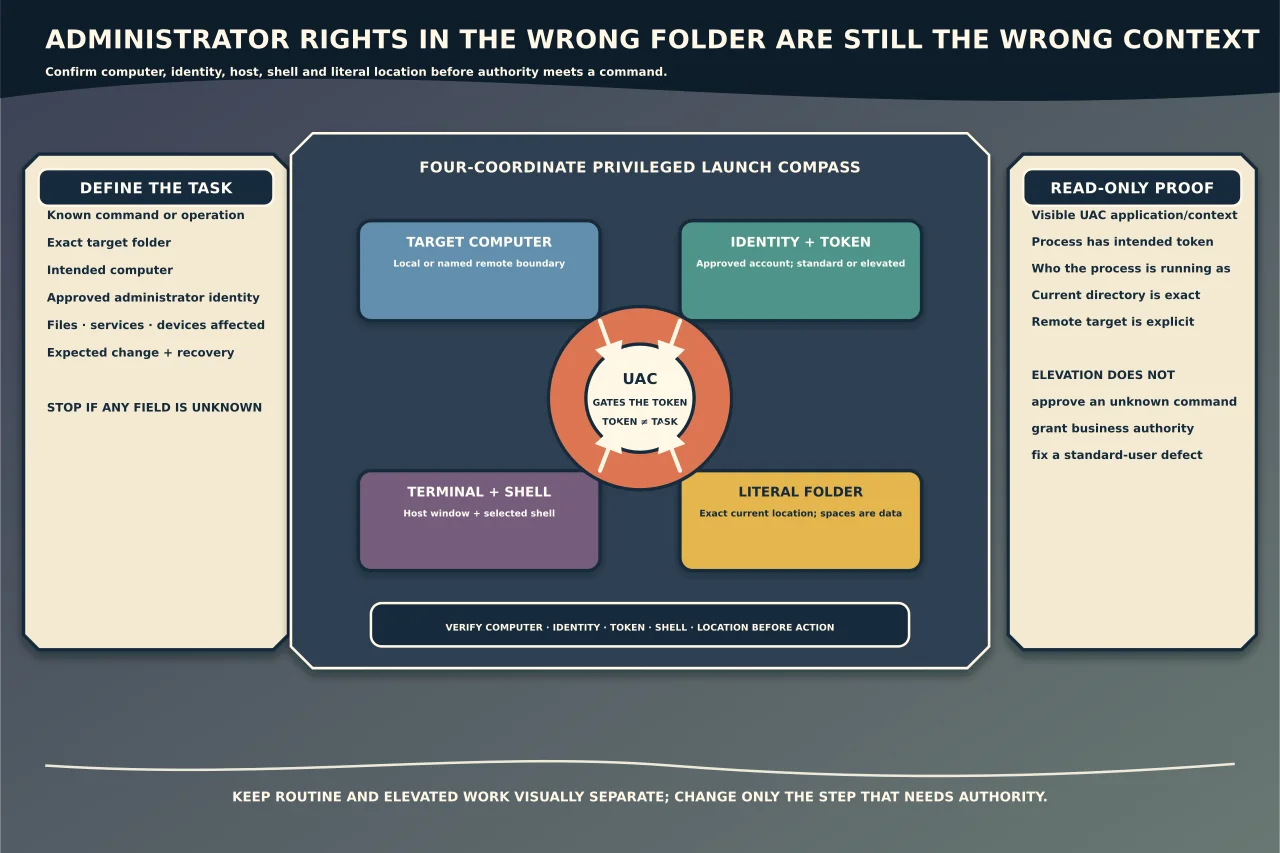
Opening “a terminal” involves four separate choices:
- the host window, such as Windows Terminal;
- the shell, such as PowerShell or Command Prompt;
- the working directory; and
- the security token—standard user or elevated administrator.
Getting three out of four right can still be dangerous. An elevated shell in C:\Windows\System32 is not equivalent to an elevated shell in the application folder you intended.
Safest interactive method
- In File Explorer, navigate to the exact folder.
- Copy the full path from the address bar and check it.
- Open Windows Terminal or PowerShell as administrator from Start.
- Accept the UAC prompt only if the displayed application and publisher/context are expected.
- Change directory using a literal quoted path:
Set-Location -LiteralPath 'C:\Example Folder\Work'- Confirm the result before running anything:
Get-LocationThis method is intentionally boring and visible. Quoting handles spaces; -LiteralPath prevents wildcard characters in a folder name from being interpreted as patterns.
Launch an elevated PowerShell with a working directory
From an existing PowerShell session, you can request a new elevated process:
$targetFolder = 'C:\Example Folder\Work'
Start-Process -FilePath 'powershell.exe' -Verb RunAs -WorkingDirectory $targetFolder
The UAC prompt is the security boundary. The child process is separate; variables and the current directory from the original session do not automatically become its state unless explicitly passed.
If you use PowerShell 7, the executable is normally pwsh.exe; confirm it is installed and approved rather than assuming every machine has it.
Use Windows Terminal’s starting-directory option
Windows Terminal documents -d for a starting directory:
wt.exe -d 'C:\Example Folder\Work'That selects location, not elevation. If the calling process is not elevated, this command does not magically create an administrator token. Terminal’s windowing behaviour can also route a new tab into an existing window according to settings, so confirm the actual tab and directory.
When elevation is required, launch the terminal through the approved UAC path, then set/verify the directory. Combining layers in an opaque shortcut saves seconds but makes the security context easier to misread.
Verify elevation without changing anything
The title bar may say “Administrator”, but use more than decoration. In PowerShell, this read-only check reports whether the current Windows identity is in the local Administrators role for this token:
$identity = [Security.Principal.WindowsIdentity]::GetCurrent()
$principal = [Security.Principal.WindowsPrincipal]::new($identity)
$principal.IsInRole([Security.Principal.WindowsBuiltInRole]::Administrator)
True confirms elevation of this process; it does not confirm that the signed-in account should perform the proposed task.
Also record:
whoami.exe
Get-Location
This makes identity and path explicit. On remote sessions, containers or alternate credentials, capture the target computer too.
Common mistakes
Running cd inside a non-interactive launcher
A command that changes directory in one process does not change another already-open shell. Set the child process’s working directory or open the child and change location there.
Paths with spaces or special characters
Quote the path and prefer -LiteralPath. Never paste a path into a larger command without seeing how the shell parses it.
Using runas.exe and expecting UAC-style elevation
Running as another user and running an elevated token are related but different. Use the organisation’s approved administrative identity and elevation method; do not place passwords on a command line or in a shortcut.
Reusing an already-elevated Terminal window
Windows Terminal may open tabs in an existing window. Treat the whole window as privileged and keep elevated and routine work visually separate where possible.
Administrator rights as a troubleshooting default
If a command should work for a standard user, elevation can hide the actual permission or deployment problem. Reproduce with the intended identity and elevate only the step that genuinely changes protected state.
A 20-second pre-command check
Before a privileged command, say aloud or record:
- Computer: the intended local or remote target;
- Identity: the approved administrator account/token;
- Folder: the literal current directory;
- Command: what it will read or change;
- Scope: the exact files/services/devices affected; and
- Recovery: how to stop or reverse it.
If any field is unknown, stop. The safest elevation workflow is not the cleverest shortcut; it is the one that makes the target obvious before administrator authority is used.