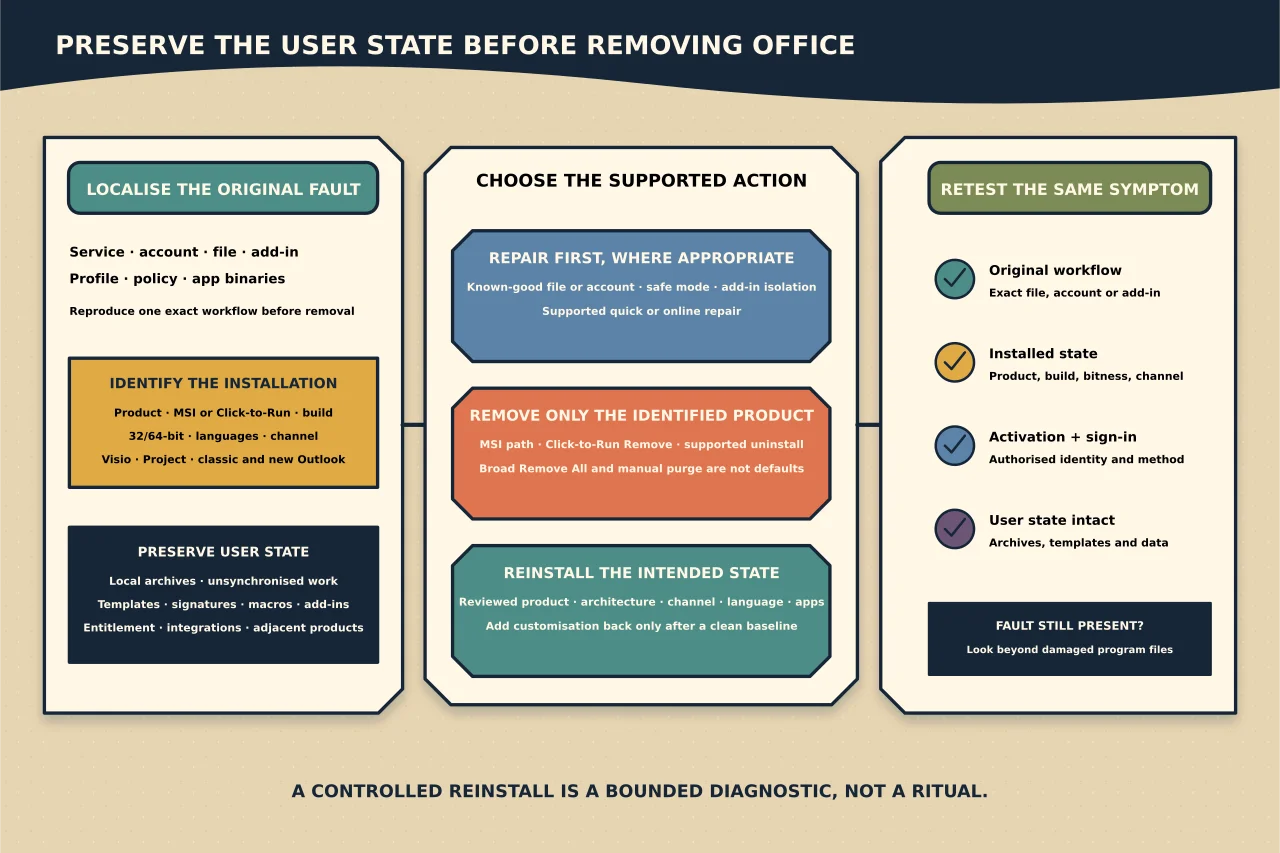
Reinstalling Office can repair damaged program files. It cannot repair the wrong mailbox, a broken Autodiscover path, a corrupt document, an unsupported add-in, a service outage or an incorrect policy.
Before removing anything, prove which layer has failed and preserve the parts a reinstall does not own.
Identify the exact installation
Record:
- Microsoft 365 Apps or perpetual Office product;
- Click-to-Run or Windows Installer installation technology;
- version, build, update channel and 32/64-bit architecture;
- installed Word, Excel, PowerPoint, Access and Outlook applications;
- Visio and Project editions and licences;
- languages and proofing tools;
- classic Outlook and new Outlook presence; and
- the system that normally deploys and updates Apps.
New Outlook and classic Outlook are distinct applications. Removing or reinstalling one is not evidence about the other.
Reproduce the original fault
Write one specific failing workflow: “Word closes when this add-in loads” or “classic Outlook cannot create a profile for a confirmed Exchange Online mailbox.” Capture the error, time, affected account type and whether another device or user reproduces it.
Try the least destructive discriminators first:
- service health and network path;
- one known-good file or account;
- an Office app in safe mode where supported;
- add-ins disabled for diagnosis;
- an Office quick or online repair if appropriate; and
- a second Windows user profile or test device.
If the failure follows the account or tenant to another device, wiping the first device’s Office installation is unlikely to be the root fix.
Preserve what removal may not protect
Inventory and, where necessary, back up:
- local PST archives and their locations;
- unsynchronised or local-only work;
- custom templates, signatures, dictionaries and macros;
- trusted add-ins and their installers/licences;
- application integrations and data sources;
- Outlook profiles and account settings as reference;
- shared-computer activation requirements; and
- proof of entitlement for Visio, Project or perpetual products.
An OST is normally a cache of a server mailbox; it is not a substitute for a backup of local-only data. Confirm the mailbox is healthy and synchronised before removing a profile or cache.
Never copy activation tokens or credentials into the backup record.
Choose the removal mechanism deliberately
Upgrading older MSI Office to Microsoft 365 Apps
Microsoft documents the ODT RemoveMSI element for removing qualifying older Windows Installer Office products during deployment. Review its current prerequisites and use product exclusions if something must remain.
Do not assume it covers every Office-family installation or that all old Visio, Project and language components should disappear.
Removing Click-to-Run products or languages
ODT’s Remove element targets described Click-to-Run products or languages. ExcludeApp changes which applications are present within a product deployment. These operations solve different problems.
Review the current configuration options and test the XML against an inventory. A <Remove All="TRUE"> configuration is broad by design and should not be the default cleanup move.
Repairing an ordinary single device
Use Microsoft’s current installed-app or support/removal workflow for the product. When standard uninstall is broken, use Microsoft’s current troubleshooter or recovery path—not an old third-party cleanup script.
Avoid “manual cleanup” folklore
Deleting every Office-labelled folder, registry branch, credential and scheduled task can remove evidence, damage other Microsoft applications, erase user customisation and create a state the supported installer no longer recognises.
Manual intervention may be warranted for a documented, specific failure after supported tools fail. If so, record each target, establish a recovery path and use current Microsoft guidance for that symptom. Do not turn a one-case workaround into a universal checklist.
Plan the reinstall before uninstalling
Have the following ready:
- current installer or ODT package from Microsoft;
- reviewed configuration for product, architecture, channel, languages and excluded apps;
- licence and activation route;
- network/source access;
- required add-in installers;
- maintenance window and restart plan; and
- acceptance tests for the original fault.
If the device is centrally managed, confirm it will not immediately reinstall a conflicting package or overwrite the chosen channel.
Remove, restart and inspect
Run the approved removal mechanism and capture its result. Restart when required. Then check that the targeted product is gone and that products intended to remain still launch.
Do not treat leftover user data as failed uninstall. Conversely, do not delete local data merely to make a product-directory scan look clean.
If removal fails, collect the relevant logs and diagnose the failure. Repeatedly running different removal tools can make the state less understandable.
Reinstall the intended product
Use the planned product, architecture, channel, language and app set. Record the configuration and installer version. Let the supported installer complete, apply updates from the intended authority and activate with the authorised user or shared-computer method.
Reintroduce add-ins one controlled set at a time if they were implicated. Restoring all customisation before the clean application is tested destroys the value of the clean baseline.
Prove the original problem is fixed
Acceptance should include:
- reopen the exact workflow that failed;
- confirm expected product, version, build, architecture and channel;
- confirm activation and sign-in;
- open, edit and save a representative document;
- validate Outlook mail/calendar/profile behaviour if in scope;
- test required add-ins and line-of-business integrations;
- confirm local archives and custom templates remain accessible; and
- check update behaviour after restart.
If the original fault remains, stop calling the reinstall successful. The clean result is still useful evidence: it points away from damaged program files and toward profile, data, identity, policy, service or integration causes.
Retain only useful evidence
Keep the before-state inventory, preservation record, approved removal/reinstall method, logs, resulting product state and acceptance outcome. Remove temporary copies of user data when their purpose is complete.
A controlled reinstall is not a ritual. It is a bounded experiment whose value depends on preserving data and testing the same symptom on both sides.