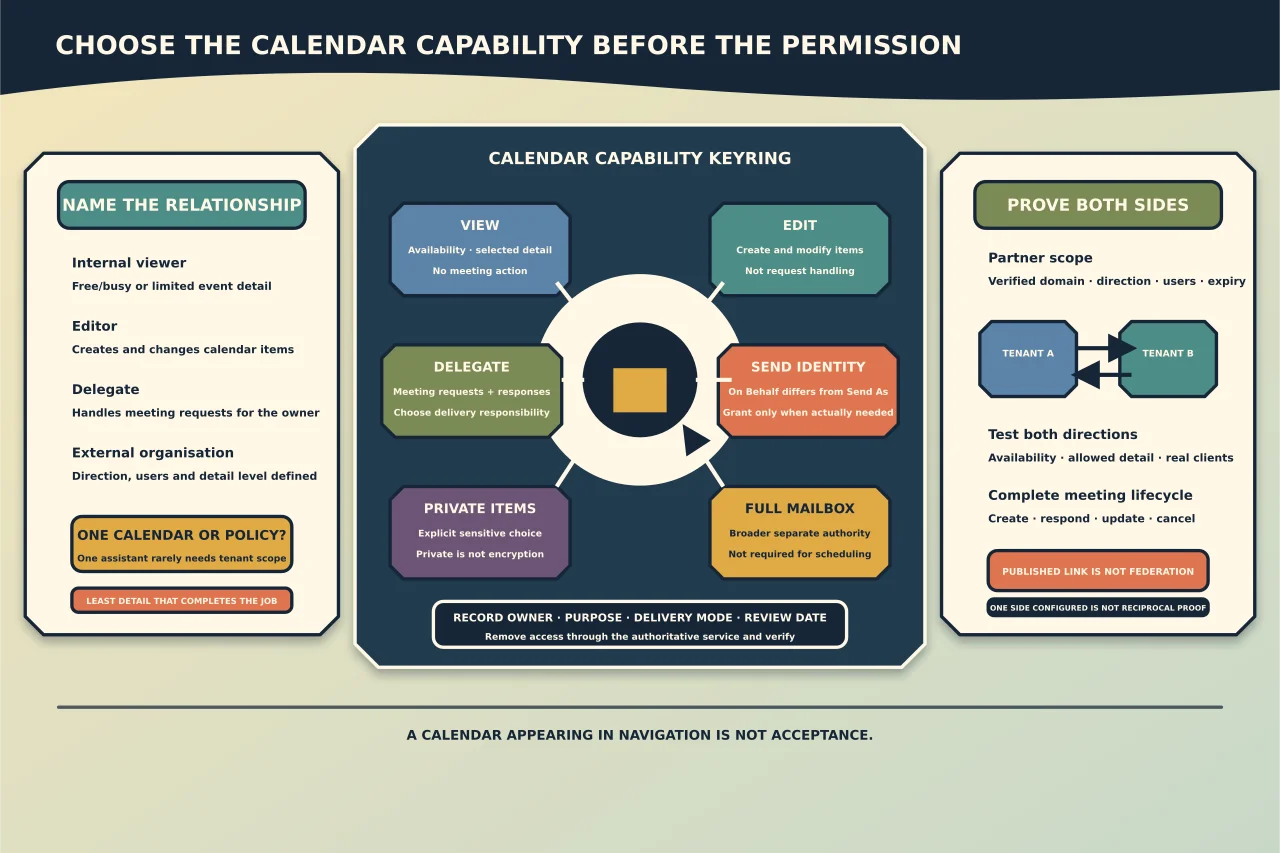
“Share my calendar” can mean at least four different things: show availability, reveal event details, let somebody edit events, or appoint a delegate to manage meeting requests.
Choose the outcome before the permission.
Start with the relationship
Identify whether the other person is:
- an internal colleague who needs free/busy only;
- a team member who needs event details;
- an editor who maintains a shared calendar;
- a delegate who acts for the calendar owner; or
- somebody in another organisation who needs limited interoperability.
Also decide whether the requirement applies to one calendar, one mailbox or a whole partner relationship. A tenant-wide sharing configuration is disproportionate for one assistant.
Distinguish the permission models
Availability and detail sharing
View permissions can expose only busy/free status, titles/locations or fuller non-private event details, depending on client and policy. Use the least detail that completes the scheduling job.
Editor access
An editor can create or modify calendar items within the granted scope. Editing does not automatically mean receiving and responding to meeting requests on behalf of the owner.
Delegate access
A delegate is more than an editor. Delegates can manage meeting requests and responses on behalf of the owner according to the configured delivery behaviour. In classic Outlook, delegate configuration can also involve Send on Behalf and permissions to other mailbox folders.
Send As and full mailbox access
These are separate administrative permissions. Send As makes a message appear from the owner; Send on Behalf identifies the delegate. Full mailbox access is broader than calendar delegation. Do not grant either simply because a person needs to schedule meetings.
Treat private-item access as sensitive
By default, people with ordinary sharing permissions generally do not see the details of items marked Private. A delegate can be explicitly allowed to view private items.
In classic delegate configuration, Microsoft warns that this private-item access can affect multiple Exchange folders, not only one calendar. Review the current client behaviour and the owner’s expectation before enabling it.
“Private” is a visibility aid within the permission model, not an encryption or absolute administrative boundary.
Choose how meeting requests are delivered
For a delegate, decide whether invitations and responses go:
- only to the delegate;
- to the delegate with a copy to the owner; or
- to both with response capability.
Ambiguous delivery causes duplicate responses, missed invitations and meetings that appear to update unpredictably. Name who is responsible for acting and test that exact mode.
Avoid multiple delegates responding independently unless the operating process handles conflicts.
Cross-organisation sharing is a service design
Exchange Online organisation relationships can support free/busy sharing with a defined external organisation. Sharing policy and individual invitations govern different parts of external sharing.
Before enabling a relationship, agree:
- partner domains and verified administrative contact;
- direction of sharing;
- availability-only or detail level;
- which internal users are in scope;
- authentication/federation prerequisites;
- incident and termination process; and
- expiry or periodic review.
Test from both tenants. One side’s successful configuration does not prove reciprocal visibility.
For non-Exchange platforms, establish actual interoperability. A published internet calendar may be read-only, cache slowly and expose a durable URL. It is not equivalent to authenticated, near-real-time free/busy.
Account for client differences
New Outlook, classic Outlook, Outlook on the web, mobile clients and third-party calendars can surface sharing and delegation differently. Some clients cache calendars or fail to expose every administrative setting.
Use the supported client that owns the configuration step, then test the clients used by owner and delegate. Do not assume a permission is absent merely because one client does not display it.
Test a complete meeting lifecycle
With synthetic events:
- viewer checks availability and allowed detail;
- editor creates and edits an event;
- delegate creates a meeting on behalf of the owner;
- attendee accepts, proposes a change or declines;
- owner/delegate processes responses according to the delivery choice;
- delegate updates and cancels the meeting;
- private-event visibility is tested explicitly; and
- access is removed and verified.
Check the visible organiser/sender identity and audit trail where relevant. A calendar merely appearing in the navigation pane is not acceptance.
Review and remove access
Calendar permissions expose working patterns, locations and relationships. Review them when roles change, assistants leave, partnerships end or sensitive work begins.
Record owner, recipient/delegate, permission, private-item choice, meeting-delivery behaviour, purpose, approval and review date. Remove access through the authoritative service and verify the calendar no longer updates or permits action.
The right calendar-sharing design gives another person exactly the scheduling capability they need without quietly turning it into mailbox-wide authority.