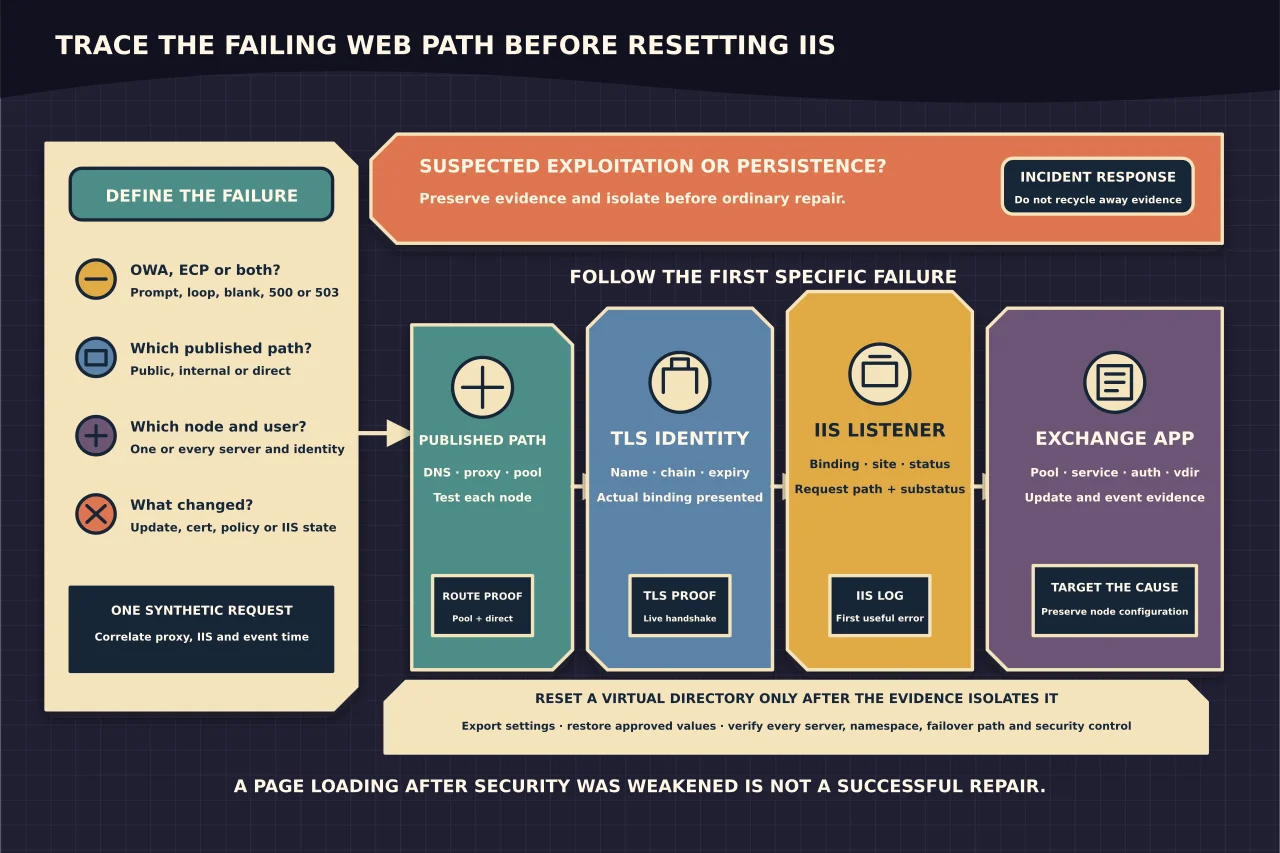
Outlook on the web and the Exchange admin centre share parts of the Exchange/IIS platform, but a failure can exist in only one application, on one server, or only through the published load-balanced URL.
Start by mapping the smallest failing path.
Contain security incidents first
If the server may be actively exploited, has unexpected web files, suspicious processes, malicious authentication or an emergency Microsoft mitigation, stop ordinary repair. Preserve evidence, isolate through the incident plan and follow current Microsoft security guidance.
Restarting IIS or recreating a virtual directory can destroy evidence and does not remove persistence.
Define the failure precisely
Record:
- OWA, ECP or both;
- HTTP status and substatus;
- internal/public URL;
- through load balancer/proxy or direct server;
- one server or every node;
- one user or all users;
- authentication prompt, blank page, redirect loop or application error; and
- time and recent CU/SU, certificate, policy or IIS change.
Avoid screenshots containing internal names, user addresses or stack traces in public tickets.
Test the layers separately
DNS and load balancer
Confirm the namespace resolves to the intended endpoint. Check load-balancer health, pool membership and persistence/routing design. Test each Exchange server through an approved direct path so one failed node cannot hide behind an intermittently healthy pool.
TLS and certificate
Verify the live certificate, hostname, chain, expiry and TLS negotiation. A browser reaching IIS does not prove it reached the intended Exchange server or certificate binding.
IIS listener and static response
Confirm the site is started, binding is correct and the server answers. Use IIS logs to capture status/substatus and request path. A 503 points toward unavailable application/service state; a 500 requires application/update/event evidence.
Exchange application pools and services
Check relevant Exchange services and IIS application pools across the failed node. Record stopped/crashing state and events before restarting. If a pool stops again, investigate its failure rather than scheduling repeated recycling.
Authentication and virtual-directory configuration
Compare OWA/ECP authentication, URLs and Extended Protection/current security configuration with the intended supported design. Do not enable every authentication method to make a prompt disappear.
Correlate logs by time
Use one synthetic request and correlate:
- reverse proxy/load balancer event;
- IIS access and failed-request evidence;
- Windows Application/System events;
- Exchange setup/update logs;
- certificate/TLS observation; and
- service/app-pool state.
The same HTTP status can come from different layers. The first server to report a specific failure is more useful than the final browser page.
Check update installation quality
Microsoft documents a specific OWA/ECP HTTP 500 or missing-assembly case after an Exchange security update was manually installed without required elevation. Compare the exact symptom and setup logs with the current Microsoft article.
If it matches, use Microsoft’s targeted repair, including elevated update reinstallation and documented configuration/file repair where necessary. Do not extrapolate that remedy to every post-update web failure.
Also confirm the CU/SU combination is supported and Health Checker does not identify an incomplete or unsafe state.
Preserve configuration before repair
Export current OWA/ECP virtual-directory properties, authentication, URLs, custom themes/branding, web.config-supported customisation, bindings and proxy/load-balancer settings.
Keep a record per server. Inconsistent nodes are often the cause, and a single aggregate export can hide them.
Do not hand-edit Exchange web files from another server to “make them match.” Use supported setup/update or Exchange configuration procedures.
Use the smallest repair
Depending on evidence, repair may mean:
- restore one service or app pool after its cause is fixed;
- correct a certificate/binding or load-balancer pool;
- reinstall/repair the applicable update as Microsoft documents;
- correct supported authentication/URL configuration; or
- repair a specific damaged configuration/file set.
Recycle IIS only with an understood user impact and evidence need. It is an action, not a root cause.
Reset a virtual directory only as a last bounded step
Microsoft provides a supported reset path for an OWA virtual directory, which deletes and recreates it with defaults and can lose custom settings. Use it only when evidence isolates the virtual directory and smaller supported repair has failed.
Before reset:
- export settings and customisation;
- confirm the correct server/site/virtual directory;
- record commands and default differences for the Exchange version;
- plan certificate/authentication/URL restoration;
- account for load balancer health checks; and
- define rollback/recovery.
After recreation, reapply only approved settings and compare with another known-good same-version node where appropriate.
Verify every path
Test:
- OWA and ECP directly on every server through an approved diagnostic path;
- internal and external published namespaces;
- load-balancer failover;
- authorised user and administrator sign-in;
- logout and reauthentication;
- mail/calendar access in OWA;
- an administrative read-only action in ECP; and
- Health Checker and event/IIS logs after repeated requests.
Confirm security settings remain intact. A page loading after authentication was weakened is not a successful repair.
Close with the failed layer, root cause, exact change and before/after evidence. “IIS reset fixed it” leaves the incident waiting to recur.