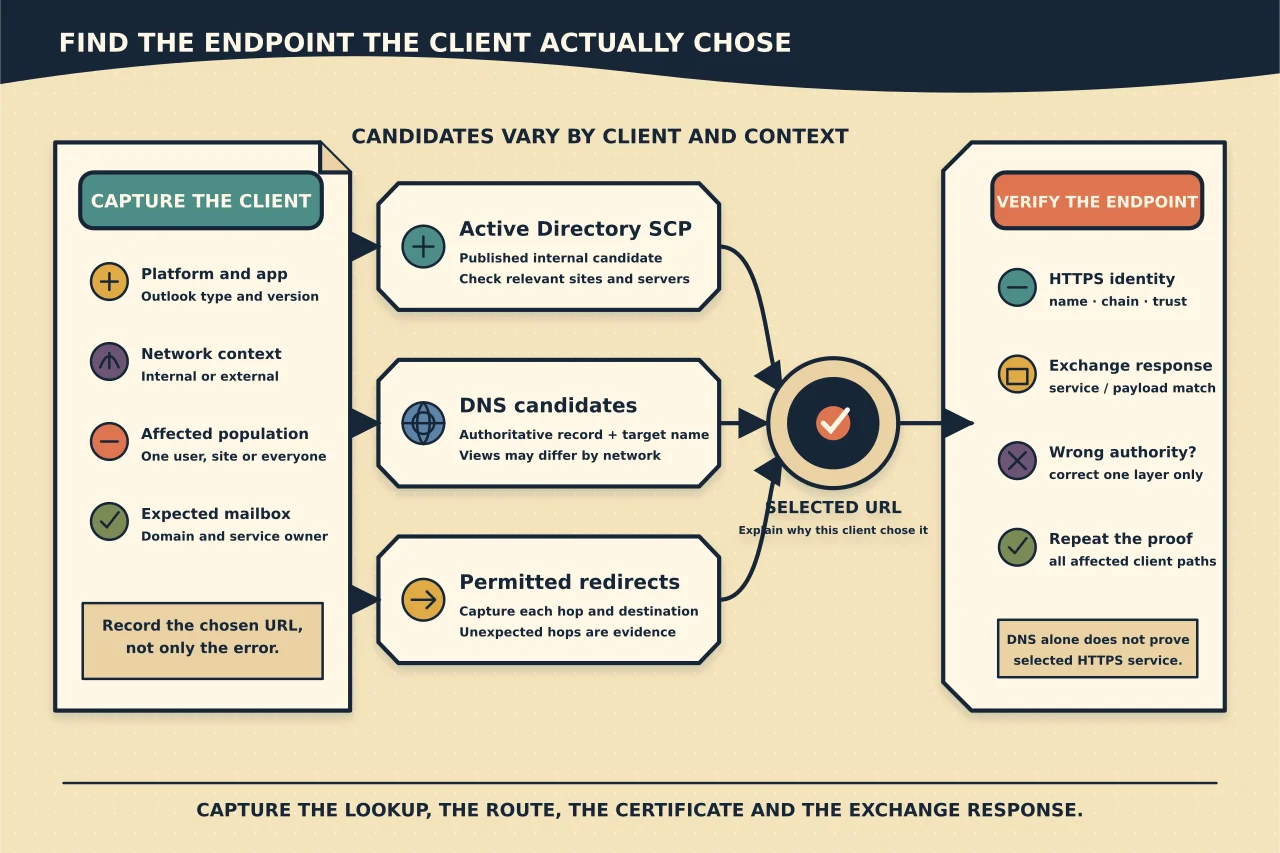
Autodiscover is not one DNS record. An Exchange client builds or receives candidate endpoints, tries them in an order determined by its platform and context, follows permitted redirects, and expects the selected HTTPS identity to be trustworthy.
The fastest diagnosis asks: which endpoint did this client choose, and why?
Define the affected population
Record whether failure affects:
- domain-joined clients on the internal network;
- non-domain devices internally;
- external clients;
- one SMTP domain or every domain;
- classic Outlook, mobile, EWS applications or all clients; and
- newly configured profiles or established ones.
An internal-only prompt suggests a different candidate path from an external-only failure. One existing Outlook profile may also be using cached information, so compare with a clean test account/device.
Inventory the intended service
Document the intended Autodiscover namespace and every Exchange server or load-balanced endpoint that can answer it. Collect:
- configured Autodiscover service connection point URLs;
- internal/external URLs for related Exchange virtual directories;
- internal and public DNS records;
- load balancer, reverse proxy and NAT path;
- certificate subject and SAN names presented at each endpoint; and
- coexistence/hybrid servers that may still publish discovery information.
Do not change the certificate to match an accidental hostname. Decide the intended namespace first.
Understand the main candidate sources
Domain-joined Outlook clients can query Active Directory service connection points. External and other clients can derive HTTPS candidates from the mailbox’s SMTP domain and use supported redirects or other discovery mechanisms.
Consequently:
- correct public DNS does not neutralise a stale internal SCP;
- correct SCP data does not repair external DNS;
- a working HTTPS page does not prove the response is valid Autodiscover data; and
- a valid certificate on one Exchange server does not prove every load-balanced node presents it.
Capture what the client actually does
Use the current Microsoft client diagnostic, Remote Connectivity Analyzer or supported Outlook Autodiscover test appropriate to the scenario. Preserve the candidate endpoint, redirect, HTTP/TLS result and returned mailbox platform.
Compare a failing and working path. Redact mailbox addresses, internal hosts, certificate details and response data before sharing.
Do not begin by adding Exclude... registry values. Excluding a method can hide the broken candidate, alter supported discovery order and create a fragile dependency on a local workaround.
Check Active Directory SCPs
Enumerate Autodiscover SCP values for all current and residual Exchange servers. Verify each URL:
- uses the intended HTTPS namespace;
- resolves correctly from the relevant AD sites/networks;
- reaches a healthy Client Access service;
- is covered by the presented certificate; and
- belongs to a supported, active server path.
An old Exchange server may remain in Active Directory after an incomplete retirement and continue attracting domain-joined clients. Do not delete its objects manually; complete supported decommissioning or correct the published configuration through Exchange tools.
Check DNS and redirects
For each email domain, inspect internal and external resolution for the supported Autodiscover names or redirect method in the design. Look for split-DNS differences, stale CNAME/A records, wildcard behaviour and proxy/CDN interception.
If a redirect is used, confirm the target is expected and trusted. An unexpected Autodiscover redirect is a security signal, not a dialog users should be trained to accept.
Verify HTTPS and certificate identity
From each affected path, confirm:
- the client reaches the intended IP/load balancer;
- TLS negotiation succeeds;
- the certificate is valid, in date and trusted;
- the hostname appears in the certificate;
- the complete chain is presented; and
- every backend or load-balanced node behaves consistently.
Certificate errors can be caused by name mismatch, missing intermediate chain, expiry, wrong binding or a proxy presenting its own certificate. Replace/bind the correct certificate; do not disable certificate validation.
Validate the Exchange response
A 200 response from /autodiscover/autodiscover.xml is not enough. Verify the request receives the expected authenticated Autodiscover response or redirect for the test mailbox and that it describes the intended mailbox location/services.
Check Exchange/IIS health and logs around the test time. Authentication failures, application-pool problems and proxying errors can exist behind healthy DNS and TLS.
Correct one authority at a time
Choose the layer contradicted by evidence:
- stale SCP → correct the Exchange-published SCP or retire the old server properly;
- wrong internal/public DNS → update the authoritative zone with planned TTL/rollback;
- wrong certificate/binding → deploy and assign the correct certificate across the service path;
- wrong proxy/load balancer target → correct health probe, pool or routing;
- unexpected client policy → fix the controlling policy after impact review.
Preserve before-state and rollback. Avoid simultaneous DNS, SCP, URL and certificate changes unless the architecture demands an atomic cutover and all values are prevalidated.
Prove every client path
After correction, test:
- domain-joined internal Outlook;
- external Outlook;
- a clean/new profile discovery;
- any supported mobile or application path;
- each accepted SMTP domain;
- load-balancer failover; and
- certificate presentation on every node.
Then verify Outlook connects to the expected mailbox, downloads the address book where applicable, and stops prompting after close/reopen.
Autodiscover becomes manageable when you stop treating it as magic and follow the chosen endpoint through directory publication, DNS, HTTPS and Exchange response.