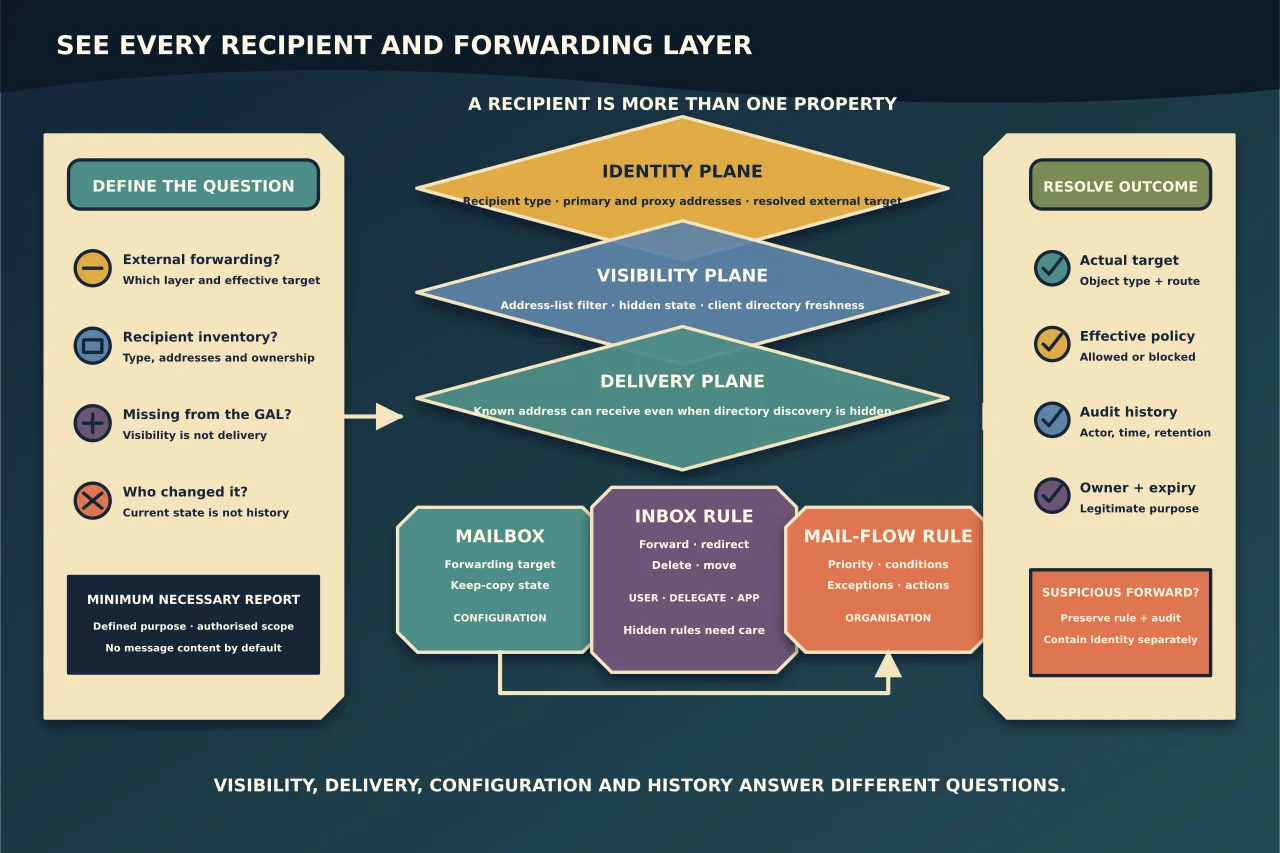
An Exchange Online report that lists only ForwardingSmtpAddress is not a forwarding audit. A report that lists only mailboxes is not a recipient inventory. And a recipient hidden from the global address list can still receive mail.
Start by defining the question and then inspect the layers that can answer it.
Choose the reporting outcome
Common outcomes include:
- find all automatic forwarding to external recipients;
- identify who receives a departed user’s mail;
- inventory every mail-enabled recipient and address;
- find objects hidden from address lists;
- explain why a recipient is missing from the GAL; or
- prove who changed a forwarding rule.
These are different reports with different privacy and permission needs. Do not export every property merely because PowerShell can.
Understand the recipient types
Exchange Online recipients include user and shared mailboxes, groups, resources, mail contacts, mail users, public-folder recipients and other mail-enabled objects.
A mail contact points to an external address but appears in organisational address lists. A mail user combines an external target with a directory user. A group may distribute mail, grant access, or provide collaboration resources depending on its type.
For each report row, include RecipientTypeDetails rather than inferring type from a name or email address.
Separate addresses, visibility and delivery
A recipient can have a primary SMTP address plus additional proxy addresses. Hiding it from address lists changes discovery; it does not stop delivery to a known address.
Similarly, an address list is a filtered view of recipients, not the authority for whether an object exists. If somebody is missing from the GAL, verify:
- the object exists and is mail enabled;
HiddenFromAddressListsEnabledor equivalent visibility state;- address-list recipient filters;
- whether the client is using a stale offline address book; and
- whether another lookup-dependent service is affected.
Do not unhide a sensitive or system recipient merely to fix one user’s autocomplete.
Inspect all forwarding layers
Mailbox forwarding
Exchange mailbox settings can forward to an internal recipient object or an external SMTP address, optionally retaining a copy in the original mailbox. Report the enabled target and keep-copy state.
Inbox rules
Users, delegates, applications or attackers can create rules that forward, redirect, delete or move messages. Inspect current rules with the authorised Exchange tools and include enabled state plus relevant actions.
Some rules are hidden or require specific administrative inspection. Use Microsoft’s current incident guidance when compromise is suspected rather than assuming the normal client view is complete.
Mail-flow rules
Organisation-wide transport rules act while messages are in transit and can redirect, add recipients or route mail. Review rule state, priority, conditions, exceptions and actions.
Application and delegate behaviour
An application with mailbox access or a delegate may copy or send message data without appearing as a simple forwarding property. If the security question is data exfiltration, forwarding reports are only one evidence source.
Classify internal and external destinations carefully
Do not classify a target as internal merely because its visible address uses an accepted domain. A mail contact or mail user can have an internal-looking proxy and an external target.
Resolve the target recipient object and inspect its type and external address. Also consider hybrid and partner routing. Define what “external” means for the report and record it.
Check the controlling outbound policy
Outbound anti-spam policies control automatic external forwarding performed by mailbox forwarding and inbox rules. Microsoft advises an explicit On or Off decision because the historical Automatic - System-controlled behaviour can differ among organisations.
Report the effective policy for the affected user or group, not only the default policy. A configured forward that is blocked by policy is still important configuration evidence, even if delivery does not currently occur.
Add audit evidence when the question is “who”
Current configuration shows what exists now. Microsoft Purview audit can help identify creation, modification or deletion of inbox and transport rules, subject to licensing, permissions and retention.
Search a precise UTC time range and relevant operations. Preserve the search criteria and export time. If the event is older than retained audit data, state that the evidence is unavailable; do not conclude the change never occurred.
Build a minimal, useful report
A forwarding review can include:
| Field | Purpose |
|---|---|
| Recipient | Stable mailbox identity |
| Recipient type | Avoid mailbox/contact/group confusion |
| Forwarding layer | Mailbox, inbox rule or transport rule |
| Target | Resolved destination |
| Internal/external | Based on resolved object and route |
| Keep copy | Mailbox-forwarding behaviour |
| Enabled/effective | Configuration and policy result |
| Owner/approval | Business legitimacy |
| Created/modified evidence | Audit result where available |
| Review/expiry | Removal control |
Keep message content, unrelated attributes and full rule bodies out unless the investigation requires them.
Investigate suspicious forwarding
Unexpected external forwarding can indicate account compromise. Preserve current rule and audit evidence before removal where incident procedure permits. Review sign-ins, MFA changes, application consent, delegates and mailbox access; contain the identity through the authorised response process.
Deleting the rule stops one path but does not prove the account is safe.
Verify a legitimate change
For an approved forward:
- test an ordinary synthetic message;
- confirm delivery to the intended target;
- confirm original-mailbox delivery if a copy is required;
- test external-forwarding policy behaviour;
- inspect message trace and headers;
- confirm replies do not expose an unintended identity; and
- verify expiry/removal when the business need ends.
For address-list changes, test both address discovery and direct delivery, then allow for documented client directory-refresh behaviour.
The useful report is the one that answers a precise ownership or risk question. Breadth without layer awareness produces confident gaps.