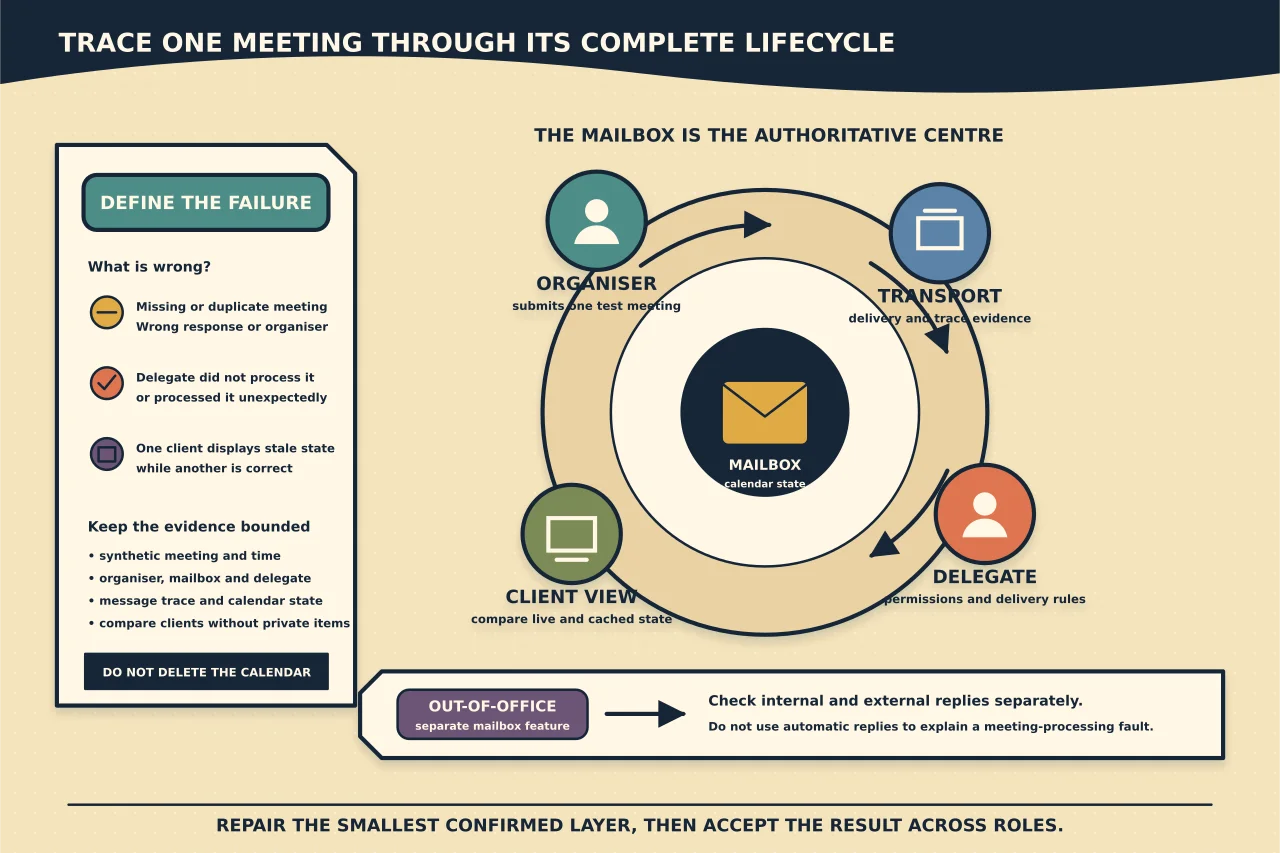
Calendar problems are message-flow problems, mailbox-item problems and permission problems at the same time. A meeting request travels through Exchange, updates calendar state, may be redirected to a delegate, and is then rendered by one or more clients.
Do not start by deleting the calendar or recreating a profile. Follow one synthetic meeting through its lifecycle.
Describe the exact failure
Examples:
- the owner never sees meeting requests but the delegate does;
- both owner and delegate respond, creating confusion;
- attendee responses update tracking but do not appear in Inbox;
- meetings are duplicated or missing on one client;
- a delegate cannot edit or send on behalf;
- internal senders receive an automatic reply but external senders do not; or
- no automatic reply is generated even though the UI says it is on.
Record owner, delegate, organiser, attendee, UTC timestamps, clients and whether the behaviour reproduces on Outlook on the web. Use synthetic subjects when testing.
Establish the authoritative mailbox state
Verify the mailbox exists, is healthy and has the expected type. Inspect server-side calendar folder permissions, delegates, Send on Behalf/Send As where relevant, meeting-message delivery choice, forwarding, inbox rules and automatic-reply configuration.
Do not treat these as one “delegate permission.” A person may be able to edit calendar items yet not receive meeting requests, or be able to send on behalf without reading the Inbox.
Export the before-state before repair. Permission surgery without a record can remove intentional access.
Clarify who is supposed to process meetings
Exchange/Outlook delegate settings can route requests and responses to:
- delegate only;
- delegate with an informational copy to the owner; or
- both owner and delegate with response capability.
Compare configured delivery with the operating agreement. If both can respond, establish who owns the action. Many “duplicate” or “missing” reports are an undocumented workflow behaving as configured.
Use the fewest practical delegates while diagnosing and do not let multiple clients or assistants independently process the same request.
Trace one meeting lifecycle
Create a new synthetic meeting and record its internet message ID. Then:
- organiser sends it;
- owner/delegate receives it according to configured delivery;
- attendee responds;
- organiser’s tracking updates;
- organiser changes time/details;
- attendee accepts the update; and
- organiser cancels it.
Use message trace to see transport delivery and compare server-visible calendar state through a web client. A transport Delivered result does not prove the client put the item where the user expected.
If meeting requests or responses appear in Deleted Items while calendar tracking updates correctly, inspect inbox rules and Microsoft’s documented meeting-message handling before recreating anything.
Compare clients and cached state
Outlook on the web is a useful comparison because it reads service state without the same local classic-Outlook cache/profile. If web is correct and one desktop client is wrong, focus on that client, its cache, add-ins and sharing model.
If every client shows the same incorrect item, investigate mailbox/server state. Avoid editing the same meeting from multiple clients during diagnosis.
Microsoft’s CalCheck can examine calendar settings and items for known issues in supported classic-Outlook scenarios. Review its output; do not automatically delete every flagged item.
Diagnose delegate failures by capability
- Cannot see details: inspect calendar folder permission and private-item choice.
- Cannot edit: confirm Editor/delegate permission on the correct primary calendar.
- Cannot receive requests: inspect delegate meeting-delivery configuration and mail flow.
- Cannot send on behalf: confirm delegate relationship/Send on Behalf and correct From selection.
- Cannot Send As: this is a separate administrator-granted permission.
- Works in one client only: compare client support, calendar presence and cached sharing model.
Remove/re-add a delegate only after preserving and reconciling these layers. Re-adding may hide which permission was wrong.
Diagnose automatic replies separately
Read back automatic-reply state, schedule, internal message and external audience/message from Exchange—not only from the client that configured it. Confirm current UTC/local timing and mailbox timezone.
An automatic reply is generated when a message reaches the mailbox processing path. Microsoft documents cases where mailbox forwarding without retaining a copy, or a transport rule that redirects the message away, means no automatic reply is generated by design.
Also check:
- external automatic replies are enabled for the intended audience;
- mail-flow rules do not suppress or redirect the message;
- remote-domain/policy configuration permits the behaviour;
- the sender has not already received the one-time response expected for that automatic-reply period; and
- the mailbox, not a client-only rule, owns the configuration.
Do not repeatedly toggle out-of-office to force responses; that can confuse the test and recipients.
Protect private items and message data
Test private-event visibility explicitly with a synthetic private item. If a delegate can see private details, determine whether that was intentionally granted. Do not use a real confidential meeting as the test.
Calendar logs and diagnostic packages can expose subjects, attendees, locations and working patterns. Limit collection, redact exports and use an authorised support route.
Repair the smallest confirmed layer
Possible evidence-led corrections include:
- align delegate delivery with the agreed workflow;
- correct the specific folder or send permission;
- remove an unintended inbox rule while preserving incident evidence;
- correct forwarding/redirect behaviour that bypasses the mailbox;
- repair one corrupt item after supported diagnostic confirmation;
- refresh/re-add one shared calendar in the affected client; or
- correct automatic-reply schedule/audience.
Do not reset every delegate, permission and item together.
Accept the repair across roles
Repeat the full synthetic lifecycle as organiser, owner, delegate and attendee. Verify the expected clients, identities, delivery destinations, tracking state, private visibility and automatic replies. Close/reopen clients and allow only documented propagation time.
Record the actual cause and final permission/delivery state. “Rebuilt delegate access” is not enough for the next incident.
Calendar behaviour becomes predictable when responsibilities and permission layers are explicit—and when one meeting is traced instead of many calendars being reset.