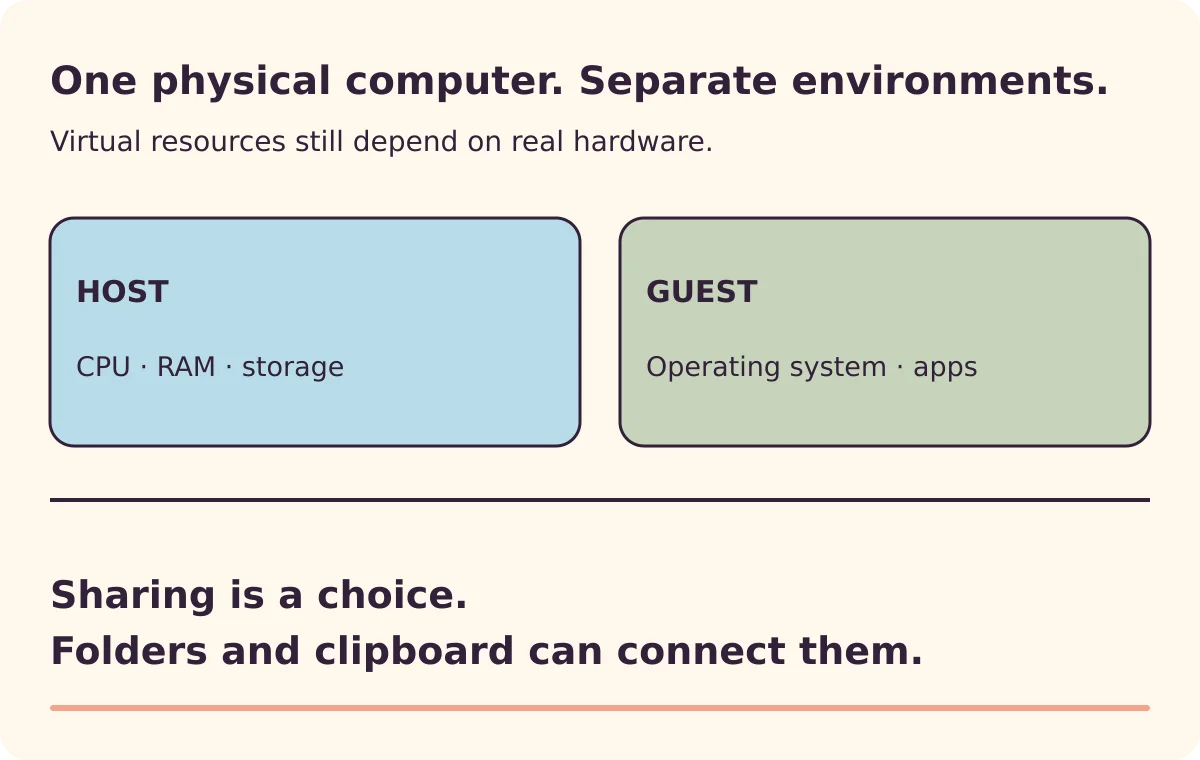
A virtual machine, usually shortened to VM, is a software-defined computer that runs an operating system and applications using resources supplied by a physical computer.
For someone learning technology, its appeal is straightforward: you can create a separate computing environment without buying a separate machine. That is useful for exploring another operating system, learning administration or keeping a particular software environment together.
Meet the host and the guest
The physical computer providing the resources is the host. The operating system running inside the VM is the guest. A layer of software called a hypervisor manages the virtual environment.
The guest sees virtual hardware: processors, memory, disks and network devices. Those resources ultimately depend on real hardware. Creating several virtual processors does not manufacture extra physical processing capacity.
Microsoft’s VM introduction describes the relationship and how VMs can run locally or in a provider’s infrastructure.
Think of a hypothetical laptop running its usual desktop while a Linux desktop appears in a separate window. You can learn your way around Linux while keeping the laptop’s normal environment. Both still compete for the laptop’s available resources.
Four words you will encounter
| Term | What it means for you |
|---|---|
| Host | The computer supplying resources |
| Guest | The operating system inside the VM |
| Virtual disk | Storage presented to the guest, often backed by files on the host |
| Snapshot or checkpoint | A recorded state you may be able to return to, subject to the product’s behaviour |
The terms describe relationships. They do not tell you which product or machine will support your exact combination.
For example, processor architecture matters. An Arm-based computer and an Intel/AMD computer do not automatically support the same guest operating systems. Oracle’s VirtualBox documentation provides a specific host-and-guest compatibility table; other products have their own rules.
Choose a VM because it fits a task
A local learning VM can be a useful choice when you want to explore an operating system or practise configuration without replacing your everyday installation.
A VM can also keep a software environment together for a particular project. That may help with compatibility, but it does not make an unsupported operating system secure or remove licensing requirements.
A cloud VM gives you a computer in a provider’s infrastructure. It introduces provider access, ongoing costs and remote administration. If your only aim is to understand a Linux desktop, those extra decisions may be unnecessary.
Before selecting software, answer three questions:
- What do I want to learn or run?
- Does my host support the required guest and virtualisation product?
- Can I spare the memory, storage and attention needed to maintain another operating system?
If the task works well in an ordinary application, a VM may add complexity without adding value.
Understand what is shared
A VM provides separation, but features can deliberately connect it to the host. Shared folders, clipboard integration and network access change what can pass between the environments.
Oracle’s security guide explains these connections. A folder shared with a guest exposes that folder through the guest environment; the convenience has consequences.
For a first learning environment, enable only the sharing you actually need. Do not treat a VM as permission to open suspicious attachments or run unknown malware. Such work requires specialist containment beyond the scope of a beginner setup.
Also keep track of where you save work. A document created inside the guest may live only in its virtual disk. Closing the VM window does not move that document into your normal Documents folder.
A snapshot is useful, but it is not your only recovery copy
Imagine taking a snapshot before a practice configuration change. If the exercise goes badly, returning to that state can save time.
The trade-off is that later changes can be lost when you restore. Save anything you need to retain before doing so. Oracle documents this behaviour in its snapshot instructions.
A snapshot stored with the VM on the same physical drive cannot protect you if that drive is lost. Keep important work in a separate, recoverable backup. Do not manage snapshot files manually as though each were a complete independent computer.
Start with a small learning outcome
“Explore a Linux desktop and create a document” is a better first goal than recreating a whole business network. Use an official operating-system image, follow the chosen virtualisation product’s current compatibility instructions, and record what you created.
When you can explain which machine is the host, where your guest’s files live and what happens if you restore a snapshot, you have the foundation for more advanced work.
If you already administer Hyper-V and need operational commands, our Hyper-V management guide is the next level.