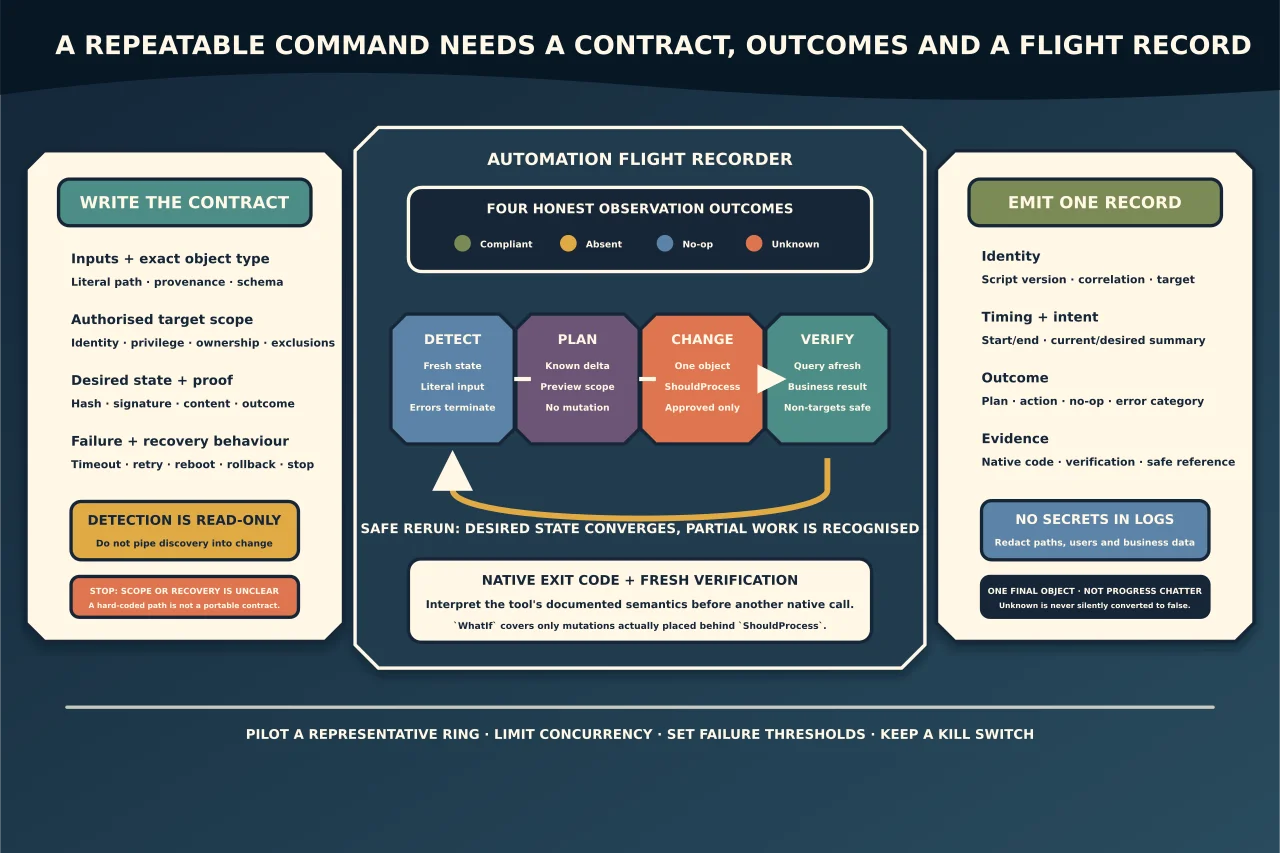
A script becomes operational automation when another person can predict its scope, interpret every outcome and run it again safely.
The hard part is rarely the command. It is handling the wrong path, missing permissions, ambiguous exit codes, partial success, retries and evidence.
Define the contract first
Write down:
- required inputs and types;
- authorised target scope;
- read-only detection method;
- desired state;
- mutation and dependencies;
- success, no-op, not-applicable and failure outcomes;
- privilege and execution identity;
- timeout/retry/reboot behaviour;
- logs and sensitive-data rules; and
- rollback/stop conditions.
If C:\Temp is hard-coded because it worked once, the script does not yet have a portable contract.
Validate literal paths and object type
Use explicit parameters and -LiteralPath when a path must not interpret wildcard characters:
param(
  [Parameter(Mandatory)]
  [string]$InputFile
)

if (-not (Test-Path -LiteralPath $InputFile -PathType Leaf)) {
  throw "Required input file was not found as a file."
}

$item = Get-Item -LiteralPath $InputFile -ErrorAction Stop
Test-Path answers whether a path exists under the selected provider/type. It does not prove content, version, signature, readability by the eventual service or business suitability.
Check the right property:
- exact size/hash for package identity;
- publisher signature for trust evidence;
- version metadata where authoritative;
- expected owner/ACL where access matters; and
- parse/schema validation for configuration/data.
Distinguish four outcomes
Every detection/action should report:
- Compliant/success — desired outcome verified.
- Not applicable/no-op — endpoint intentionally requires no change.
- Non-compliant/absent — observation succeeded and found a known undesired state.
- Unknown/error — observation itself failed or evidence is insufficient.
Never turn access denied, timeout or parse failure into false. That makes unhealthy endpoints look clean.
Make errors terminate where correctness requires it
PowerShell has terminating and non-terminating errors. try/catch only handles terminating errors, so critical cmdlets often need -ErrorAction Stop:
try {
  $item = Get-Item -LiteralPath $InputFile -ErrorAction Stop
} catch {
  Write-Error "Unable to inspect required input: $($_.Exception.Message)"
  exit 20
}
Choose documented exit codes for the calling platform. Avoid catch { } blocks that swallow failure and return zero.
Check native command exit codes
Native tools do not necessarily create PowerShell errors for non-zero exits. Capture output appropriately and inspect $LASTEXITCODE immediately after the native command, before another native program changes it.
Do not assume non-zero always means failure or zero always means full success; use the tool’s current documentation. Some installers use success-with-reboot codes, and some utilities report partial results distinctly.
Include the native exit code and verification result in structured output.
Separate detection, plan and action
Organise the script into functions or phases:
Get-CurrentStateGet-RequiredChangeInvoke-ChangeTest-DesiredState
Detection should not mutate. The plan should be reviewable. The action should target one explicit object. Verification should query the authoritative state afresh rather than reusing the action’s return value.
Design for convergence and reruns
An idempotent automation checks whether the desired state already exists and does nothing when it does. It also copes with a previous partial attempt.
For each step ask:
- Can it create duplicates?
- Does overwrite destroy user/admin changes?
- What if the process stops halfway?
- Can a retry detect and resume or safely roll back?
- Is there a correlation marker/version proving this script owns the state?
Do not call a script idempotent because it uses Test-Path; the desired state may include content/version/permissions, not merely existence.
Use ShouldProcess honestly
Advanced PowerShell functions can support -WhatIf and -Confirm with SupportsShouldProcess, but only if each mutation is placed behind $PSCmdlet.ShouldProcess(...).
WhatIf does not simulate external commands automatically and cannot predict service/application side effects. State its coverage. Keep preview output explicit: target, operation and reason.
Keep secrets out of code and logs
Use the deployment platform’s protected secret/credential mechanism. Do not place passwords/tokens in:
- source code;
- command-line arguments visible to process inventory;
- custom attributes;
- transcript/log output; or
- returned error objects.
Redact paths, usernames and business data in shared diagnostics. Prefer correlation IDs and structured categories over dumping whole configuration files.
Emit machine-readable and human-usable results
A useful result includes:
- script/version and correlation ID;
- target identity;
- start/end timestamps;
- current/desired state summary;
- plan/action/no-op;
- outcome category;
- native/application exit code;
- verification result;
- reboot/user-impact state; and
- safe diagnostic reference.
Write one final summary object. Progress chatter should not be the API contract.
Stage and observe
Lint/review and use safe sample inputs. Then deploy through bounded rings with concurrency, maintenance windows, failure thresholds and a kill switch. Preview target membership independently of the script.
After a pilot, verify both:
- intended targets reached the real desired state; and
- non-targets and existing correct configurations were unchanged.
Monitor longer than the immediate run when updates, services, scheduled tasks or user sessions are involved.
Preserve the operational record
Version the script, dependencies and runbook. Record who approved target/query and package/hash, deployment start/stop, outcome totals, exceptions and rollback.
The test of good technician automation is not fewer clicks. It is whether a failure becomes an accurate, contained exception instead of a false green result or fleet-wide surprise.