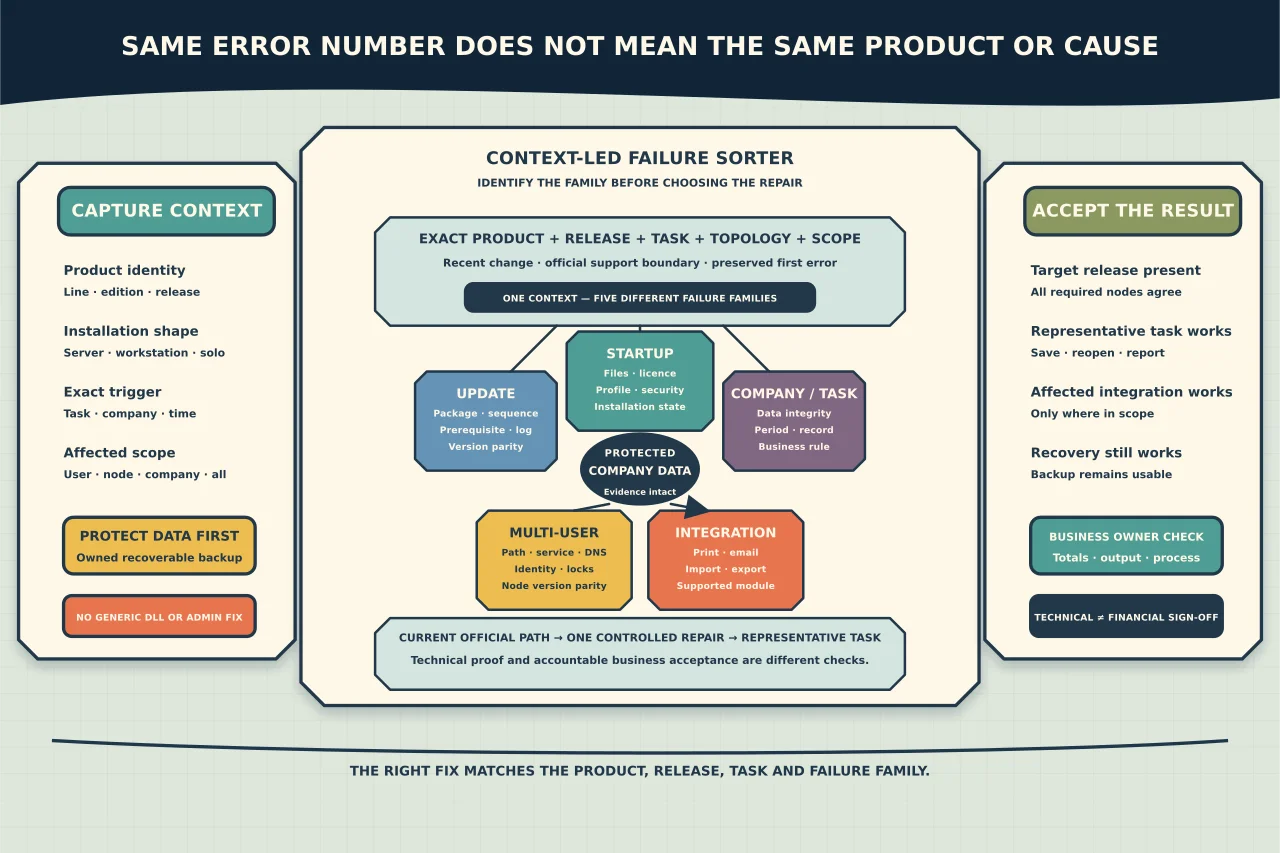
“Runtime error 91” or “Pastel update failed” is not enough to choose a fix. Sage products reuse familiar branding across accounting, payroll and cloud/on-premises lines, and the same Visual Basic-style number can arise from different code paths and releases.
Protect the company data and identify the exact context before changing Windows or the application.
Capture the identity card
Record:
- exact product and edition;
- installed version, update/build and country/legislative release where applicable;
- server/workstation/stand-alone topology;
- Windows edition/build/architecture;
- data engine/prerequisite versions shown by current Sage requirements;
- company/database path and storage type without sharing it publicly;
- user/task/report/process that triggers the issue;
- exact error text/number/screenshot and time;
- all users or one user/company/workstation; and
- recent Sage, Windows, security, printer, server/path or regional-setting change.
Do not assume an old article for “Pastel” applies to the current product.
Protect business data before repair
Use the product’s supported company backup under an accountable accounting/payroll owner. Also preserve the server/data/application configuration required for recovery and record:
- backup time and included companies/periods;
- application version needed to restore/open it;
- encryption/password/licence dependencies;
- independent protected destination;
- current all-user shutdown/consistency requirements; and
- proportionate restore/recovery evidence.
A copied company folder may be incomplete or inconsistent in a multi-user/database environment. A VM snapshot is not the only backup.
Payroll/accounting data is sensitive. Do not upload a company database or diagnostic bundle to a public forum/file service. Use Sage’s authorised support channel and the organisation’s secure transfer process.
Determine the failure family
Update/installation
The patch/full installer will not apply, rolls back, requests an earlier source, or completes but leaves the wrong build. Preserve official package source/hash/signature, installer log, exit/error, prior version and reboot state.
Application startup
The program fails before company selection. Focus on application files, exact prerequisites, licensing/sign-in, user profile, endpoint security and installation state.
One company or transaction
The application opens but a specific company, period, report or record triggers the error. Treat data integrity/business logic as distinct from reinstalling application binaries.
Multi-user/server path
One or all workstations fail to locate/open data, while stand-alone behaviour differs. Map share/path, data service/engine, DNS/network, permissions under the intended identity, locks/sessions and version consistency.
Output/integration
Printing, email, bank manager, import/export or third-party module fails. Diagnose that integration and its supported version rather than rebuilding the core application first.
Check scope as evidence
- All users, all companies: server/service/update/licensing/environment likely deserves priority.
- One workstation, all companies: local install/prerequisite/profile/security/path issue.
- All users, one company/task: company data/configuration or workflow-specific issue.
- One user only: effective permissions/profile/settings without assuming “make admin”.
- Immediately after update: package sequence, version parity, prerequisite and current release guidance.
These are hypotheses, not verdicts. Confirm with logs and official Sage information.
Use the current Sage path
Locate the official Sage South Africa product page/support portal for the exact line and release. Verify:
- current/latest or required intermediate release;
- supported Windows/server/multi-user environment;
- required prerequisites and architecture;
- update order and whether a full installer is required;
- backup/all-user/downtime instructions;
- release-specific known issues and fixes; and
- registration/Sage account/licensing steps.
Current Sage sources show why this must be contextual: a contemporary Payroll update may introduce product-specific sign-in/legislative requirements, while a current Runtime Error 91 article identifies particular Payroll contexts. Neither should be generalised to every runtime 91 in every Sage/Pastel product.
Diagnose prerequisites without package roulette
Sage publishes prerequisite downloads for particular products. Microsoft states that Visual C++ runtime architecture/version must match what the application build requires and directs application users to the vendor for the correct repair.
Do not install every Visual C++/.NET/data-engine version found online, copy DLL/OCX files from another machine, run generic regsvr32 commands or remove shared runtimes. These actions can affect other applications and obscure the original failure.
Record installed prerequisite versions/architecture and compare with the current exact Sage requirement. Use official signed packages and vendor-supported repair.
Treat permissions and regional settings narrowly
Some current Sage guidance ties particular errors to regional or company settings. Apply that only when exact product/version/error/task matches and the business owner accepts the consequence.
Do not grant every user local administrator or Full Control over broad folders/shares. Identify the application/service identity, exact required data/config/temp path and current ACL/effective denial. Apply the narrow vendor-supported permission and verify unintended users remain denied.
Regional setting changes can alter date/number/currency interpretation across applications. Record current state and scope, and confirm Sage’s exact required format before change.
Update in a controlled sequence
- Confirm current and target release from official Sage sources.
- Verify package publisher/signature/hash and prerequisites.
- Ensure all required users/services are out according to the procedure.
- Complete/verify the protected company backup.
- Capture configuration/licence/registration state.
- Apply the exact supported patch/full installer under the intended identity.
- Preserve installer/application logs and reboot state.
- Confirm server and every workstation version where multi-user parity is required.
- Open a controlled company/task and validate before broad use.
Do not repeatedly layer patches after the first failure. Preserve it and determine whether the correct prerequisite/base build/full installer is missing.
Validate business outcomes with the owner
Confirm:
- exact target version/release on all required nodes;
- company opens under intended standard roles;
- representative processing, save/reopen and reports work;
- printing/email/integrations work where affected;
- multi-user concurrency/path/data service is healthy;
- backup still completes and can be recovered;
- no unexpected security/permission exclusion remains; and
- accountant/payroll owner accepts totals/output/process.
Technical staff should not certify tax, payroll or accounting correctness. They can prove system/version/workflow evidence; the accountable business professional validates the financial/legislative outcome.
Escalate with a clean evidence pack
Provide Sage/support with product/edition/build, OS/topology, exact error/time/task, scope matrix, recent change, current backup confirmation, installer/application log references and safe reproduction steps. Remove company/personal/credential data unless the authorised secure support process specifically requires it.
That is more useful—and safer—than a registry screenshot plus an error number from a different decade.