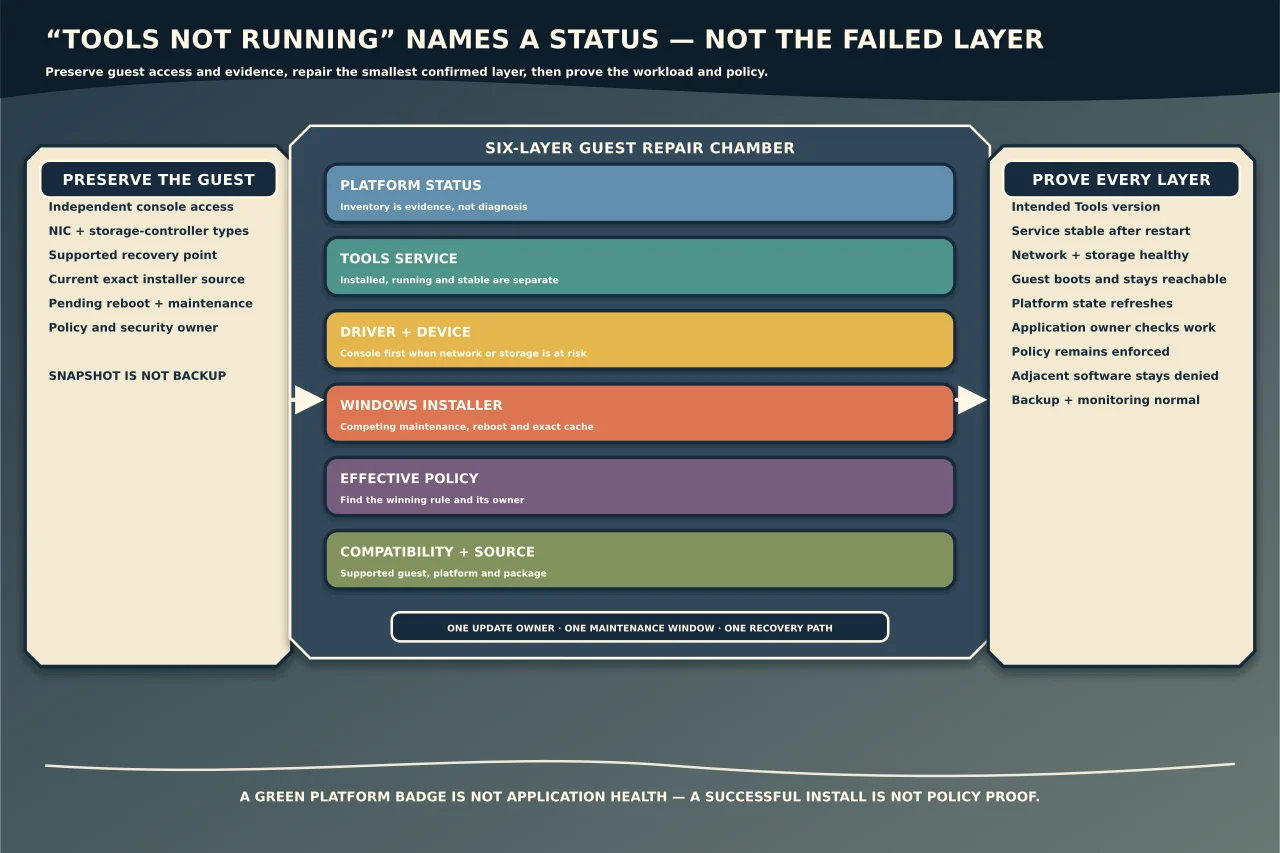
“VMware Tools is not running” is a status, not a diagnosis.
The guest may be powered off, the service may be stopped, the installation may be damaged, vCenter may have stale information, Windows may be waiting for a reboot, or policy may have correctly blocked the installer. Treating all of those as “reinstall Tools” can remove a working network driver and leave the server less manageable than before.
What VMware Tools provides
VMware Tools is a guest package containing services and drivers that improve interaction with the virtual platform. Depending on guest and version, it supports time or status exchange, graceful operations, guest information and optimised virtual devices.
The guest can sometimes run without Tools, but platform features and drivers may be reduced. Tools health does not prove the application is healthy, and an application can work while vCenter reports Tools unavailable.
Define the symptom precisely
Record:
- Windows version and support state;
- vSphere/ESXi context and VM virtual hardware version;
- installed VMware Tools version and vCenter status;
- whether the guest service is installed and running;
- whether VMXNET3, PVSCSI or other VMware devices are healthy;
- console, network and administrative access available;
- the exact install/upgrade/repair action and error;
- timestamps and relevant vCenter, VMware Tools, MSI and Windows events;
- pending Windows updates and restart state;
- effective application-control/Installer policy; and
- recent changes by vSphere, Windows Update, endpoint management or software deployment.
Preserve logs before retrying the installer. Repeated attempts can overwrite useful context and create competing operations.
Separate the failure layers
vCenter status only
If the guest is starting, confirm it finished booting and that vCenter-to-host management is healthy. Compare the installed service/process state inside Windows. A stale status after a management interruption is different from a missing package.
Service failure
If Tools is installed but its service will not run, inspect its service state, executable path, dependencies and events. Do not start with MSI cleanup when the actual error is a guest filesystem, account, security-product or service failure.
Driver or device failure
If network or storage disappeared during an upgrade, use the VM console and inspect Device Manager and the installer/Windows Update history. Do not uninstall blindly when the guest depends on the affected virtual driver for remote access or boot storage.
Installer failure
Windows Installer may report a generic code such as 1603 while its verbose log identifies the failing action. Capture the exact Tools installer, command context, MSI log and Application event evidence.
Policy denial
Software Restriction Policy, AppLocker, Windows Installer policy or another application-control product may block the package. The correct response is to identify the winning rule and its owner—not disable every policy on the guest.
Compatibility or prerequisite failure
VMware Tools and vSphere have independent lifecycles. Select a Tools release supported by the guest OS and platform, and review its release notes and prerequisites. “Newest file found online” is not a compatibility decision.
Preserve a recovery path
Before repair:
- confirm the VM console works independently of guest networking;
- record NIC and storage-controller types;
- obtain a current, supported recovery point according to workload policy;
- understand whether a snapshot is being used temporarily and ensure it is not mistaken for the backup;
- schedule a reboot and application outage if required;
- keep the current exact-version installer/source where authorised; and
- identify who owns Group Policy, application control and endpoint security.
For a critical server, ask what happens if the VMXNET3 driver disappears or the guest no longer boots. If the only answer is “remote back in,” the repair is not ready.
Use an evidence-first repair sequence
1. Finish competing Windows maintenance
Check whether Windows Update, another MSI operation or a reboot is pending. Broadcom documents cases where Windows update activity and automatic Tools upgrade collide, leaving missing components. Complete the approved Windows maintenance and reboot before stacking another Tools upgrade.
2. Confirm the supported Tools source
Use the vSphere-mounted installer or an official standalone package selected for the guest’s compatibility. Verify its version and provenance. Do not borrow an MSI cache file from another VM unless Broadcom’s exact-version procedure confirms it is the correct package.
3. Capture verbose Windows Installer evidence
For an authorised manual attempt, use Windows Installer’s supported logging option with the exact package and store the log in the protected case record. A generic pattern is:
msiexec.exe /i "<authoritative VMware Tools MSI>" /L*V "<protected log path>"This is diagnostic syntax, not a complete silent-production deployment. Reboot and feature options must match the supported Broadcom procedure and maintenance plan.
Review the first meaningful failure, not only the final return code. Correlate it with Windows Application, AppLocker/SRP, endpoint-security and Windows Update events.
4. Determine the effective policy
Use Group Policy Results or gpresult to identify the settings actually applied to the computer and user. A local policy may be overridden by a domain GPO, and AppLocker/SRP may enforce a separate rule collection for MSI or executable content.
For Software Restriction Policy, Microsoft recommends using the event log to identify the disallowed program and rule. For AppLocker, inspect the applicable MSI/script and executable event channels and the winning rule.
Do not change a local setting and call the problem fixed when the domain will reapply the authoritative policy.
5. Make the smallest approved policy correction
If the package is supported, trusted and meant to install, the policy owner should create or adjust the narrow rule at the authoritative source. Prefer a publisher/version-aware rule or otherwise governed allow method appropriate to the organisation over disabling Windows Installer or application control for all software.
Test the expected allow and confirm unrelated software remains restricted. Remove time-bounded exceptions after installation if that is the design.
6. Use normal repair or reinstall
If the installed package can repair, run the supported repair from an elevated administrative context. VMware Tools 11.2.5 and later require elevation for modify/repair operations; ordinary group membership does not guarantee the MSI UI elevated itself.
If repair cannot locate its cached MSI, use Broadcom’s procedure with the exact matching version or perform a supported uninstall/reinstall. Do not clean %windir%\Installer, delete VMware driver services or remove registry trees from a generic checklist. Those steps can make rollback and other packages fail and should be reserved for version-specific vendor direction after normal repair paths are exhausted.
7. Reboot through the maintenance plan
Windows Tools updates commonly need a guest restart to finalise drivers and services. Suppressing a reboot delays completion; it does not prove the update succeeded. Coordinate application shutdown and confirm the expected reboot rather than allowing overlapping automation to choose the timing.
Diagnose who triggered an unexpected upgrade
The vSphere Tools upgrade policy is only one possible initiator. Windows Update, WSUS, endpoint management or a software-deployment system can deliver drivers or packages inside the guest.
Compare:
- vCenter task/event history;
- VM configuration upgrade policy;
- VMware logs;
- Windows Installer events and user context;
- Windows Update history; and
- endpoint-management deployment records.
A Tools version newer than the installer bundled on the host can be evidence that the guest or management system initiated the update. Fix the real authority rather than repeatedly changing the vSphere checkbox.
Verify repair across every layer
Installation
- the intended supported Tools version is installed;
- repair/installation logs show completion rather than rollback;
- no unresolved reboot or MSI operation remains; and
- the Tools service starts consistently.
Devices and guest
- network and storage adapters use the intended supported drivers;
- the guest boots cleanly and retains connectivity;
- time behaviour matches the approved design; and
- Device Manager and relevant events show no new failures.
Platform
- vCenter reports current guest/Tools state after a reasonable refresh;
- graceful shutdown/restart and guest information work where expected;
- snapshots/consolidation and backup jobs are normal; and
- no automatic upgrade policy will repeat the collision unexpectedly.
Application and policy
- the workload owner completes the defining business check;
- the effective application-control policy remains enforced;
- the VMware Tools allowance is no broader than intended; and
- monitoring sees the guest and service.
Leave a maintainable upgrade policy
Document the supported Tools channel/version policy, whether upgrades are driven by vSphere or guest management, reboot ownership, maintenance windows, application-control rule owner and rollback path. Avoid two independent automation systems racing to update the same package.
The best repair restores more than a green Tools badge. It leaves the guest bootable and connected, the application healthy, the security policy intact, and future upgrades owned by one clear process.