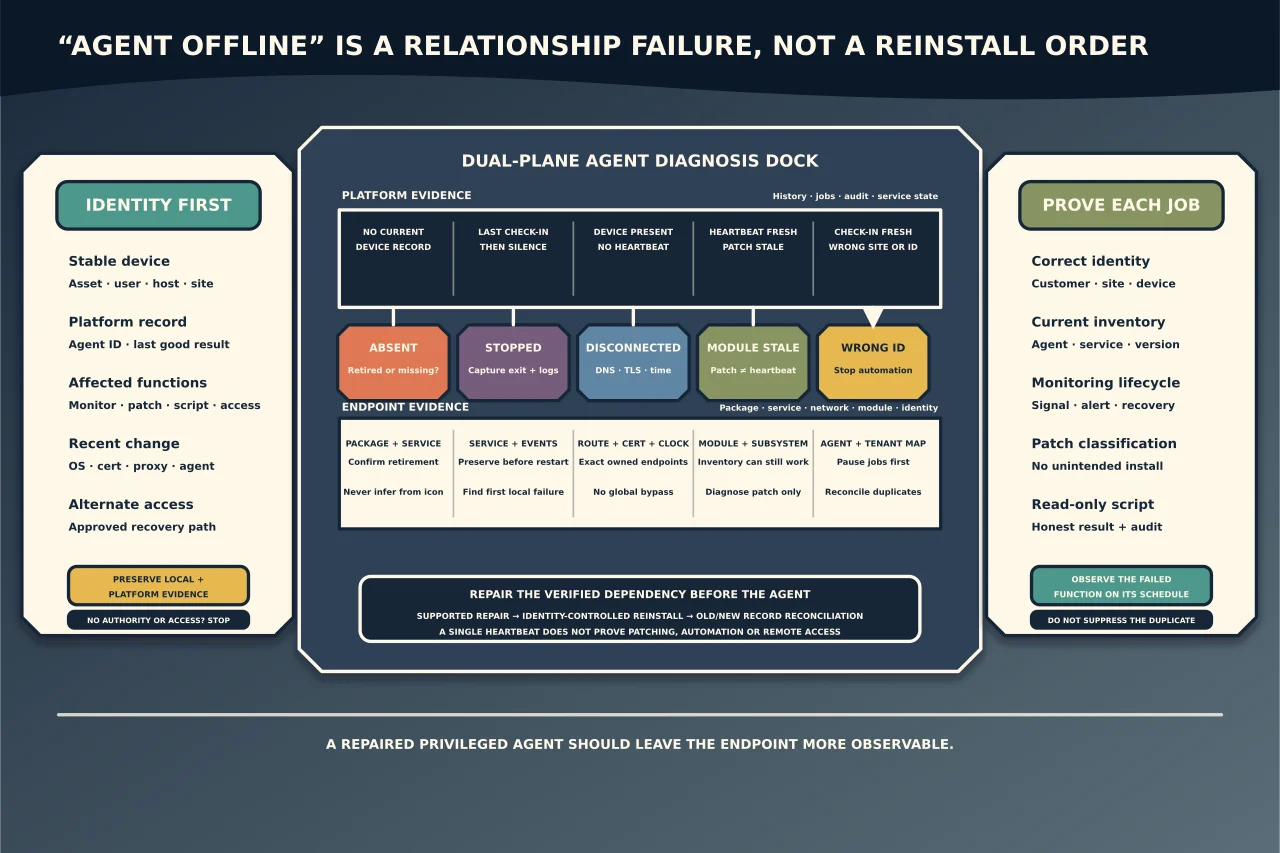
“Agent offline” is a relationship failure between endpoint and platform. Reinstalling immediately can erase the clues, create a second device record or leave two privileged components.
Classify the failure first.
Confirm identity and impact
Record:
- customer/site/device and stable asset identity;
- source platform agent/device ID;
- last successful check-in, inventory and job result;
- endpoint local time/uptime/network context;
- affected functions: monitoring, patch, script, remote access or all;
- recent OS, certificate, proxy, security or agent changes; and
- alternate approved access if the agent is unusable.
A stale dashboard can differ from the endpoint. Conversely, a running local service can be unable to authenticate or upload.
Classify the layer
Agent absent
No installed package/service/files by supported detection, and platform mapping may be historical. Confirm it was not intentionally retired or replaced.
Installed but service/process stopped
Capture service state, exit codes, Application/System and agent logs before restart.
Running but disconnected
Check DNS, route/proxy, TLS/certificate/time, platform service status and security/network policy for the exact vendor endpoints. Do not allow all outbound traffic or disable TLS inspection globally.
Connected but function stale
Inventory/check-in works while patching or one module fails. Diagnose the module, Windows Update/product patch engine, policy and job evidence separately.
Duplicate/wrong tenant or site
The endpoint checks in, but under the wrong customer/site or creates a new object. Stop automation until identity is reconciled.
Preserve local evidence
Using the vendor’s current documentation, capture:
- installed product/version/publisher/signature;
- service name/state/configuration and process;
- agent ID/tenant/site mapping without exposing tokens;
- logs around last good/current failure;
- installer/upgrade history and MSI logs;
- local certificate/time/proxy/DNS evidence;
- application-control/EDR detections; and
- pending reboot/update state.
Do not paste logs or enrollment tokens into an open ticket. Agent logs can reveal customer topology and remote-management secrets.
Verify platform-side evidence
Check audit/configuration history for:
- device deletion/merge/site moves;
- token/package rotation;
- agent version policy;
- platform incident or endpoint changes;
- blocked/quarantined status;
- jobs targeting the device; and
- admin/API activity.
Use independent platform/security logs where available. A compromised RMM cannot be the only authority about its own health.
Repair the verified dependency first
Possible causes include endpoint clock drift, invalid proxy authentication, failed certificate trust, service-account permissions, locked files, insufficient disk, incomplete agent upgrade, product patch subsystem failure or security control block.
Correct the narrow owned dependency. If application control blocks a changed agent binary, verify official package/signature/hash and update the approved rule; do not disable EDR/application control.
If Windows Update itself is unhealthy, follow current Microsoft/vendor patch-engine diagnosis. Reinstalling the RMM wrapper may not repair the underlying update service.
Prefer supported repair
Use vendor repair/health tooling for the installed exact version where available. Record command/identity/time/exit/log and verify afterward.
A service restart can confirm transient state but may erase timing; capture evidence first. Repeated restarts that temporarily restore check-in indicate an unresolved recurrence.
Reinstall with identity control
Before reinstall:
- ensure alternate access/recovery;
- record device/agent/site identity and custom assignments;
- export required history/audit reference;
- obtain the official current package for the correct tenant/site;
- verify publisher signature/hash;
- understand tamper/uninstall protection;
- define whether reinstall reuses or creates an ID;
- pause policies that could run immediately; and
- set duplicate reconciliation and rollback.
Use vendor-supported uninstall/cleanup. Do not delete services, drivers, registry keys, certificates or directories generically. Reboot only when the current procedure/state requires it and business owner approves.
After install, reconcile any old/new records before enabling automation. Do not leave two objects with separate alert/patch histories.
Verify more than check-in
Confirm:
- correct customer/site/device identity and current timestamp;
- expected agent/service/version;
- inventory refresh;
- a safe monitoring signal and alert lifecycle;
- patch scan/classification with no unintended approval/install;
- a bounded read-only script and honest exit reporting;
- remote access controls/audit where in scope;
- security monitoring still sees the agent; and
- offline/reinstall/duplicate alerts are resolved, not suppressed.
Observe across at least the normal schedule needed for the failed function. A single heartbeat cannot prove patching or automation works.
Close with cause and prevention
Record the first failed layer, evidence, correction, device-ID reconciliation, security-control changes, monitoring improvements and any fleet-wide exposure.
If the cause could affect other endpoints, use read-only detection and staged remediation—not a blanket reinstall. A repaired privileged agent should leave the environment more observable, not merely green again.