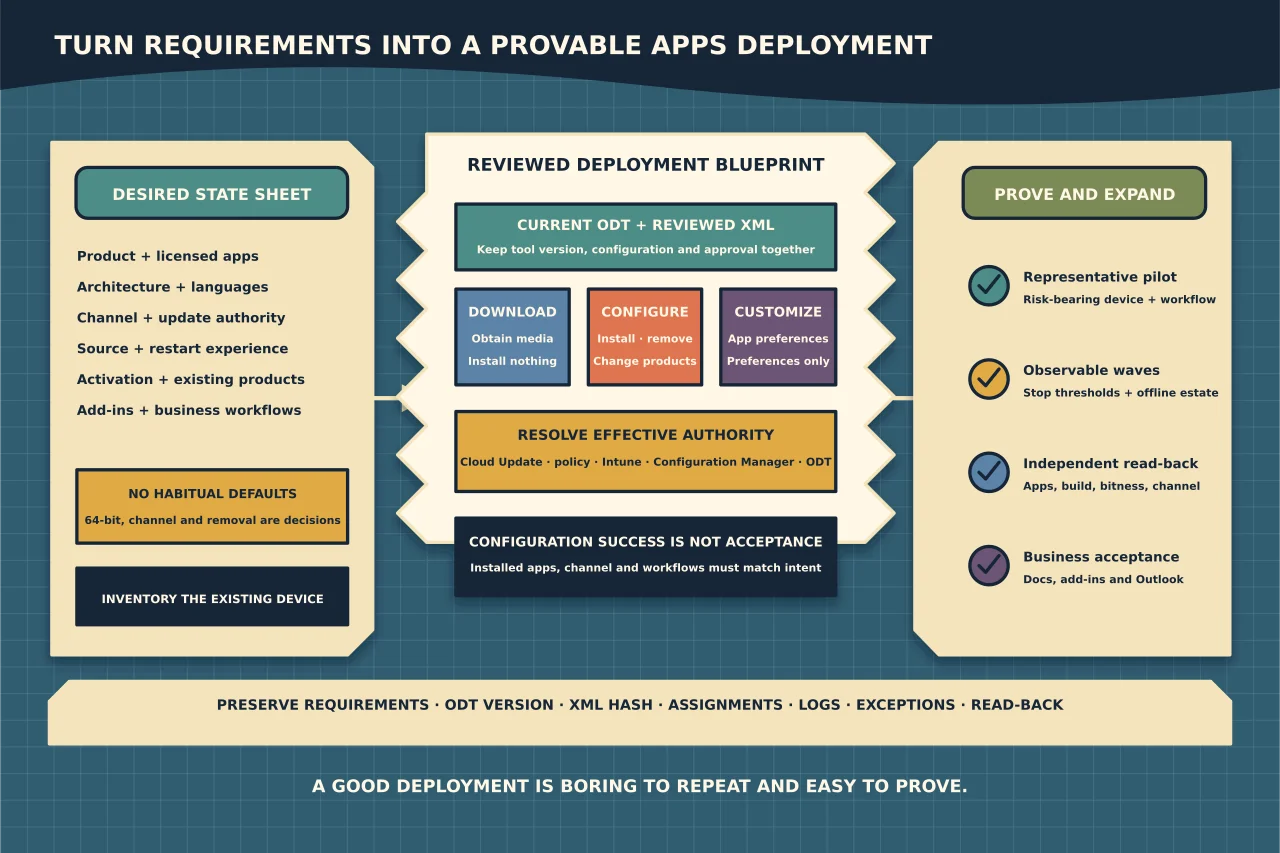
The Office Deployment Tool is simple: one executable reads one XML file. The decisions encoded in that XML are not simple.
A reliable deployment begins with a requirements sheet, produces a reviewable configuration, proves it on a representative device, and then rolls out in controlled waves.
Define the desired state
Before opening the Office Customization Tool or editing XML, record:
- subscription or volume-licensed product;
- required applications;
- classic Outlook and new Outlook expectations;
- Visio and Project licensing;
- 32-bit or 64-bit architecture;
- languages and proofing tools;
- update channel and update authority;
- Microsoft CDN or local source;
- user-interface and restart expectations;
- shared-computer or virtual-desktop activation needs;
- existing Office products to retain or remove; and
- add-ins and line-of-business integrations to test.
Do not choose 64-bit, Current Channel or “remove everything” by habit. Each can be right, but each affects compatibility or change cadence.
Start with current tooling
Download the current ODT from Microsoft’s official source. The package provides setup.exe; your configuration defines the operation.
Microsoft recommends the Office Customization Tool for generating configurations. That reduces syntax mistakes, but the exported XML is still a proposed change. Review it against the requirements before running it.
Keep the ODT version, XML and approval together. An unexplained setup.exe beside a file called configuration.xml is not maintainable deployment evidence.
Understand the operating modes
setup.exe /download configuration.xmldownloads the products and languages described by the configuration.setup.exe /configure configuration.xmlinstalls, removes or changes the described products.setup.exe /customize configuration.xmlapplies supported application preferences without performing the same product deployment operation.
Use an elevated Command Prompt where the action requires local administrator rights. Do not double-click the XML or assume /download installs anything.
A deliberately small example
This synthetic example expresses intent; it is not a universal recommendation:
<Configuration>
  <Add OfficeClientEdition="64" Channel="MonthlyEnterprise">
    <Product ID="O365ProPlusRetail">
      <Language ID="en-us" />
      <ExcludeApp ID="Access" />
    </Product>
  </Add>
  <Updates Enabled="TRUE" Channel="MonthlyEnterprise" />
  <Display Level="None" AcceptEULA="TRUE" />
</Configuration>
Before using it, check the current allowed product, application and channel identifiers. Confirm that the licence matches the product ID, Access is genuinely unwanted, 64-bit is compatible, English is sufficient, and another policy does not own the update channel.
If you need new Outlook excluded or included, use Microsoft’s current OutlookForWindows guidance and test the resulting coexistence with classic Outlook. Product behaviour in this area continues to change.
Decide cloud versus local source
The default cloud source is usually operationally simpler. A local source can help constrained sites or tightly controlled deployments, but it creates responsibility for downloading the exact products, channels and languages and keeping the content current.
When using a share, test computer-account or deployment-context access—not only access from an administrator’s desktop. Confirm available space, bandwidth, permissions and what happens when the source is unavailable.
Do not embed credentials in a path or deployment script.
Resolve management precedence
An ODT configuration is not necessarily the effective update authority. Group Policy, Cloud Update, Intune or Configuration Manager can control the channel or source. Microsoft documents precedence among these mechanisms.
Record one owner for each effective setting. If a policy controls updates, do not fight it with repeated ODT executions. Change the approved policy or correct the device’s management membership.
Inventory the existing device
Before /configure, record:
- installed Office-family products and install technologies;
- Visio, Project and language packs;
- architecture;
- Outlook data files and profiles;
- templates, macros and add-ins;
- shared-computer activation or licensing context; and
- current channel, version and update authority.
If older MSI-based Office products must be removed during upgrade, review Microsoft’s RemoveMSI behaviour and exclusions. If Click-to-Run products must be removed, use the correct Remove design. These are not interchangeable.
Validate the configuration without broad rollout
Check that the XML is well formed and readable. Use /download if the design requires local media, then confirm expected Office data was obtained. Keep free disk space and source-path errors visible.
Apply /configure first to a disposable or representative pilot device. A good pilot includes the add-ins, architecture, language and user workflow most likely to expose a problem—not only a clean virtual machine.
Capture ODT logs and the process exit state. If the user interface is hidden, make sure monitoring still distinguishes running, completed and failed deployment.
Verify the installed result
“Products configured successfully” means the ODT operation completed. It does not prove business acceptance.
Open an Office app and confirm:
- expected applications are present and excluded ones are absent;
- product and activation state are correct;
- version, build, architecture and channel match intent;
- updates come from the intended authority;
- all required languages and proofing tools work;
- Outlook can open the required client and profile;
- key add-ins load without errors; and
- a representative document can open, edit, save and print or export as required.
Restart where the deployment or integrations require it, then repeat the critical checks.
Roll out in observable waves
Move from pilot to a small early group, then broader rings. Define:
- success and stop thresholds;
- deployment deadline and user communication;
- network and service-desk monitoring;
- rollback or remediation route;
- treatment of offline devices; and
- final coverage reporting.
Avoid pinning an old build indefinitely to prevent change. A deployment system should keep devices within the supported channel window while giving the organisation enough staged evidence to catch compatibility problems.
Preserve the deployment record
Retain the approved requirements, current ODT version, XML hash, deployment assignments, logs, exceptions and read-back results. Do not retain product keys or user data in general-purpose logs.
A good ODT deployment is boring to repeat: the inputs are deliberate, the authority is clear, and the result can be proved on any affected device.