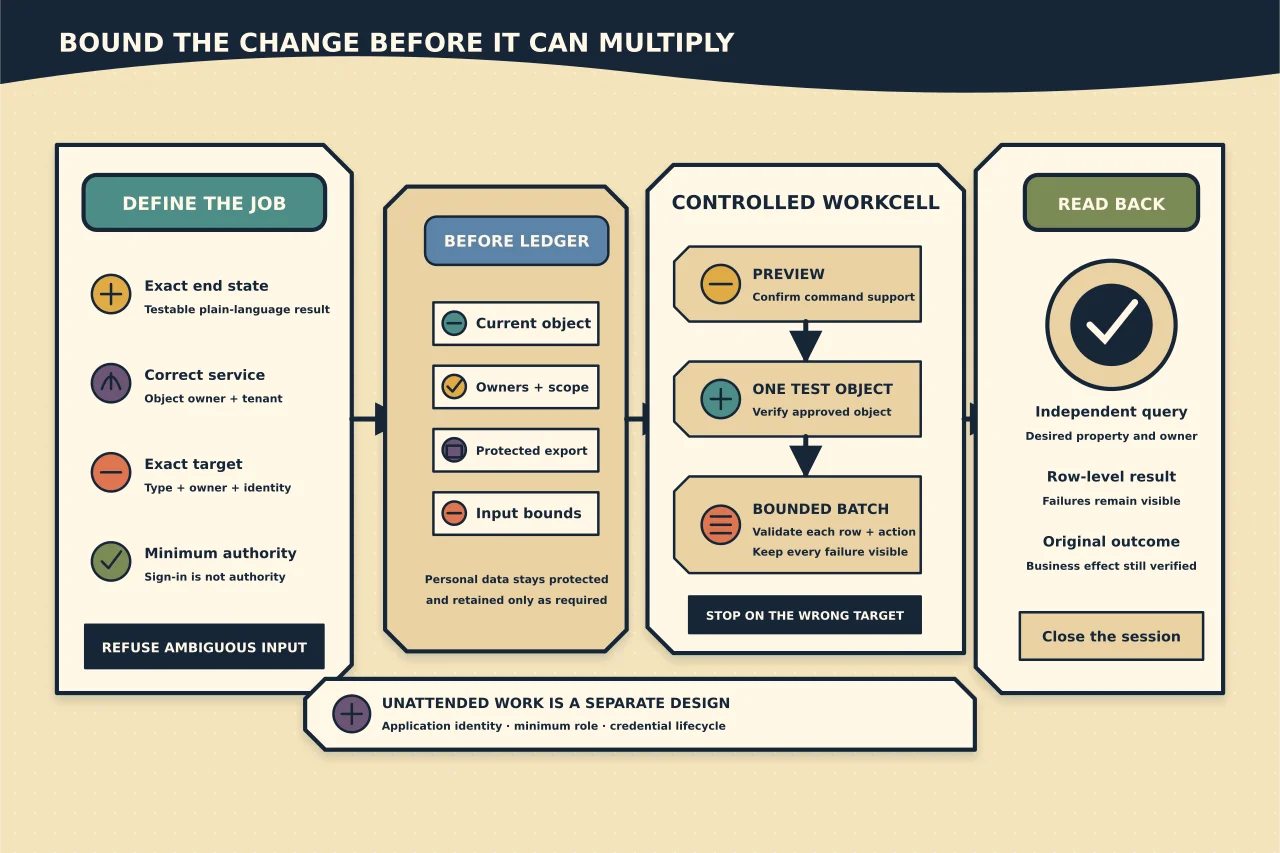
PowerShell is useful in Microsoft 365 when the job is repetitive, evidence matters, or the admin centre hides a setting you need. It is also an efficient way to make the same mistake hundreds of times.
The safe pattern is not “connect and paste a command.” It is:
- define the exact change;
- authenticate as the right kind of identity;
- prove the session has only the required authority;
- export the starting state;
- preview and bound the input;
- change one test object;
- run the controlled batch; and
- read the result back independently.
Start with the job, not the module
Write the desired end state in plain language. For example: “Add these ten verified addresses to this distribution group” is testable. “Fix the mailing list” is not.
Identify the service that owns the object. Exchange Online manages mailboxes, mail contacts, distribution groups and mail flow. Microsoft Entra ID manages directory identities and roles. SharePoint, Teams, Intune and other services have separate administration surfaces. A successful Exchange connection does not grant every Microsoft 365 permission.
For a person doing an attended job, use interactive sign-in with modern authentication. Do not put the person’s password in a script, scheduled task or unattended secret store.
Install and import the current Exchange Online module according to Microsoft’s live instructions, then connect with an explicit user principal name when that helps prevent tenant confusion:
Connect-ExchangeOnline -UserPrincipalName admin@example.comTreat the sign-in result as authentication, not proof of authority. Exchange role-based access control still decides which cmdlets, parameters and recipients the session can manage.
Confirm the target before changing it
A good script refuses ambiguity. Resolve the intended object and inspect the identifying fields you will rely on:
$groupAddress = 'field-team@example.com'
$group = Get-DistributionGroup -Identity $groupAddress -ErrorAction Stop
$group | Format-List DisplayName,PrimarySmtpAddress,RecipientTypeDetails,ManagedBy
If the result is missing, duplicated, the wrong type or owned by the wrong team, stop. Do not make the lookup looser until something happens to match.
For a batch, load a deliberately small file and validate its schema before making changes:
$rows = Import-Csv -Path '.\membership-change.csv'

if (-not $rows -or $rows.Count -gt 50) {
    throw 'Input is empty or exceeds the approved batch size.'
}

$requiredColumns = 'Group','Member','Action'
$missing = $requiredColumns | Where-Object { $_ -notin $rows[0].PSObject.Properties.Name }
if ($missing) {
    throw "Missing columns: $($missing -join ', ')"
}
The value 50 is an example guardrail, not a Microsoft limit. Set the bound to the approved change.
Export evidence before mutation
Capture enough starting state to support review or rollback. For a group-membership change, that normally means the group identity, owners and existing members. For a recipient change, capture the relevant current properties.
$stamp = Get-Date -Format 'yyyyMMdd-HHmmss'
Get-DistributionGroupMember -Identity $groupAddress -ResultSize Unlimited |
    Select-Object DisplayName,PrimarySmtpAddress,RecipientType |
    Export-Csv ".\before-$stamp.csv" -NoTypeInformation
Protect these exports: they can contain personal data and internal addresses. Keep them only as long as the operational or audit need requires.
Preview where the cmdlet supports it
Many modifying cmdlets support PowerShell’s common -WhatIf parameter, but not every command or remote implementation behaves identically. Check the current command help instead of assuming:
Get-Help Add-DistributionGroupMember -FullThen preview one known-safe row:
Add-DistributionGroupMember -Identity 'field-team@example.com' -Member 'alex@example.com' -WhatIf-WhatIf is a preview, not a test suite. It cannot prove that downstream mail flow, ownership or business intent is correct.
Make one controlled change first
Run the operation for one approved object. Use -ErrorAction Stop so a failure becomes catchable, and log a result for every row:
$results = foreach ($row in $rows) {
    try {
        if ($row.Action -eq 'Add') {
            $parameters = @{
                Identity = $row.Group
                Member = $row.Member
                ErrorAction = 'Stop'
            }
            Add-DistributionGroupMember @parameters
        }
        elseif ($row.Action -eq 'Remove') {
            $parameters = @{
                Identity = $row.Group
                Member = $row.Member
                Confirm = $false
                ErrorAction = 'Stop'
            }
            Remove-DistributionGroupMember @parameters
        }
        else {
            throw "Unsupported action: $($row.Action)"
        }

        [pscustomobject]@{ Group=$row.Group; Member=$row.Member; Action=$row.Action; Result='Submitted'; Detail='' }
    }
    catch {
        [pscustomobject]@{ Group=$row.Group; Member=$row.Member; Action=$row.Action; Result='Failed'; Detail=$_.Exception.Message }
    }
}

$results | Export-Csv ".\results-$stamp.csv" -NoTypeInformation
This is a pattern, not a drop-in universal script. Validate addresses, object types, duplicate rows, ownership and the exact cmdlet parameters for your task. A deliberate confirmation policy is better than sprinkling -Confirm:$false through copied code.
Read the result back
Do not treat “the command returned no error” as proof. Query the authoritative service again and compare the observed state with the approved input:
$observed = Get-DistributionGroupMember -Identity $groupAddress -ResultSize Unlimited |
    Select-Object -ExpandProperty PrimarySmtpAddress

$observed | Sort-Object | Set-Content ".\after-$stamp.txt"
For higher-risk changes, use a second session or operator for the read-back. Where the outcome is mail flow, perform an end-to-end message test and inspect headers or message trace rather than checking only the configuration screen.
Use app-only authentication only for unattended work
A scheduled process needs a workload identity, not a human identity whose password never expires. Microsoft’s Exchange Online app-only model uses a Microsoft Entra application and service principal plus a supported credential such as a certificate or managed identity. The application must also receive the required Exchange authority.
That design has two separate questions:
- Can this workload authenticate? The application, tenant, certificate or managed identity establish identity.
- What may it do? Microsoft Entra assignment and Exchange RBAC determine commands, parameters and scope.
Do not grant broad application access merely to avoid investigating the required cmdlets. Use Microsoft’s permission lookup, choose the narrowest workable RBAC design, protect certificate private keys, monitor sign-ins and actions, and define credential rotation and application retirement before production use.
A typical certificate connection identifies the organisation, application and certificate thumbprint:
$connection = @{
    Organization = 'example.onmicrosoft.com'
    AppId = '00000000-0000-0000-0000-000000000000'
    CertificateThumbprint = '0000000000000000000000000000000000000000'
}
Connect-ExchangeOnline @connection
Those values are placeholders. Never publish a real tenant ID, application ID or certificate detail merely because it is not a password.
Finish the session and retain useful evidence
Disconnect when the job is complete:
Disconnect-ExchangeOnline -Confirm:$falseKeep the approved input, script version, operator or workload identity, timestamps, per-object results, independent read-back and any errors that need follow-up. Do not retain unnecessary message content, credentials or indefinite exports of the directory.
PowerShell earns its place when it makes administration repeatable and reviewable. Speed is a benefit only after the target, permissions, evidence and stop conditions are explicit.