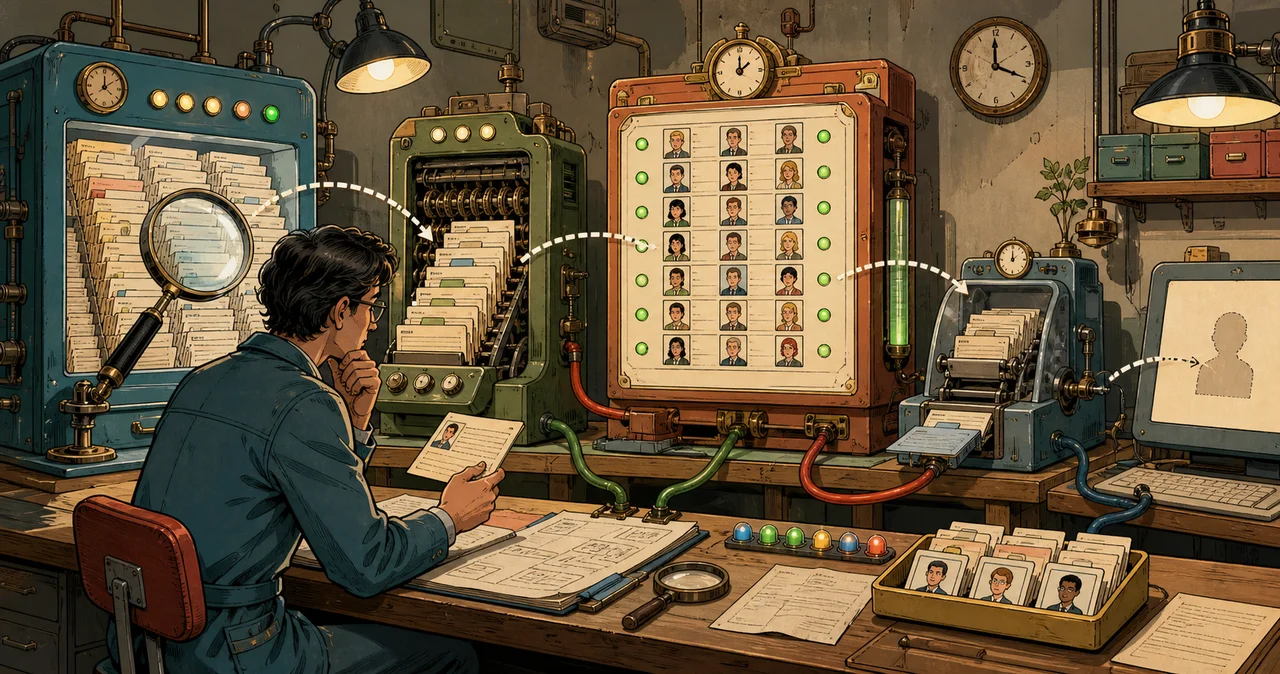
An Outlook user says, “Search is broken.” Another says, “The new employee still isn’t in the address book.” A third sees an old email address every time they type a recipient.
Those reports can look like one Outlook problem. They can involve at least five different systems.
The fastest safe diagnosis starts by naming the missing thing and the place where it should appear. Do not begin by rebuilding Windows Search, deleting an Outlook profile, clearing every suggested recipient, or downloading address-book files at random.
Prove whether the failure is message search, synchronisation, the live organisational directory, an offline snapshot, a personal contact, or suggestion history. Then change only the layer that failed.
The short diagnostic path
- identify the exact Outlook client, version, account, mailbox, device, and connection state;
- write down one specific expected message or recipient and when it was created or changed;
- reproduce the search with its exact words, filters, folder, mailbox, date range, and result scope;
- compare the same account in Outlook on the web and, where appropriate, another supported client;
- decide whether the missing object is mail, a directory recipient, a personal contact, or an autocomplete suggestion;
- inspect sync, indexing, OAB, directory, service-health, and policy evidence for that branch;
- apply the smallest reversible correction supported by the evidence; and
- verify both the original case and a known-good control case.
If the comparison is not recorded, a successful retry may be coincidence rather than a diagnosis.
First identify the Outlook you are using
“Outlook” can mean:
- new Outlook for Windows;
- classic Outlook for Windows;
- Outlook on the web;
- Outlook for Mac;
- Outlook for iOS or Android;
- Outlook.com; or
- a different mail application using an Exchange, IMAP, or POP account.
The search and offline behaviour are not interchangeable. Microsoft’s current Outlook search troubleshooting guidance explicitly separates new Outlook and classic Outlook instructions. Its current new versus classic Outlook feature comparison also shows that address-book and offline features continue to change.
Capture:
- client name and whether it is new or classic Outlook;
- About or version/build information;
- operating system and current updates;
- account type and whether the affected mailbox is Exchange Online, on-premises Exchange, Outlook.com, IMAP, or POP;
- primary, shared, delegated, archive, or public-folder location;
- online, connected, disconnected, or work-offline state;
- Cached Exchange Mode and mail-sync window where applicable;
- whether the problem affects one user, one device, one mailbox, or many; and
- the first known time and last known working time.
Do not send screenshots containing unrelated message subjects, recipient addresses, account names, tenant identifiers, or personal details. Record only the evidence required for the case.
Name the missing object
Use one sentence:
“In [client and scope], searching for [redacted exact criteria] should return [message or recipient created/changed at time], but [actual result] occurs.”
Then classify it.
| What is missing or wrong? | Likely system to inspect first |
|---|---|
| An email, attachment, appointment, task, or message content | Outlook message search, search scope, sync/cache, server search, or local index |
| A new user, room, group, shared mailbox, or changed directory property | Exchange recipient object, address-list membership, live GAL, then OAB freshness |
| A person saved by the user | Personal Contacts or People data and its account/sync state |
| An old address shown while typing To, Cc, or Bcc | Suggested recipients, communication-derived contacts, or classic nickname cache depending on account/client |
| A recipient visible in one list but not another | Address-list filter, GAL/OAB contents, hidden-from-address-list state, scope, or client freshness |
| Search works in web but not desktop | Client scope, cached content, local indexing, add-in, profile, or device branch |
| Search fails in web and desktop for many users | Service health, server-side search, policy, mailbox, or tenant branch |
This single classification prevents an unnecessary index rebuild when the missing item is actually a directory recipient—or a directory change when the real problem is an old autocomplete entry.
Capture a minimal reproducible case
For a message, record:
- mailbox and folder;
- approximate received or sent time;
- sender or recipient in redacted form;
- a distinctive but safely redacted subject or phrase;
- whether the item opens by browsing to it;
- whether it is in the primary mailbox, shared mailbox, online archive, Deleted Items, or Recoverable Items;
- search words and operators;
- active search scope and filters;
- whether the item falls inside the locally cached mail window; and
- which other client can or cannot find it.
For a recipient, record:
- recipient type: user, contact, group, room, shared mailbox, or mail user;
- stable object identifier where authorised;
- expected name and address in redacted form;
- property that changed and authoritative change time;
- whether the object is mail-enabled;
- hidden-from-address-list and address-list membership state;
- what the live directory shows in Outlook on the web or an authorised administrative view;
- what classic Outlook’s downloaded address book shows; and
- whether the old result is actually a suggestion or personal contact.
Use one affected case and one known-good control. “Nobody appears” and “one renamed room is stale” are very different incidents.
Test the search before repairing it
Start with the normal search interface. Microsoft’s current Outlook search guide documents scopes, filters, keywords, operators, and prefix matching.
Check:
- spelling and the client language;
- Current Folder, Current Mailbox, All Mailboxes, All Folders, or All Outlook Items scope;
- active date, sender, attachment, unread, category, or folder filters;
- whether Deleted Items is included;
- whether the expected item sits in an online archive or auto-expanded archive area;
- whether the client limits older or very broad result sets;
- whether multi-account search is supported in that client; and
- whether the search term is too broad to expose older results.
Browse to the expected item if possible. If the item exists and opens but search does not return it, that is search evidence. If it is not present in the folder at all, first diagnose synchronisation, permissions, retention, deletion, movement, or the wrong mailbox.
Do not call an item “missing” solely because one broad search did not show it.
Compare web and desktop deliberately
For a Microsoft 365 mailbox, Outlook on the web is a useful comparison because it does not use the same local Windows index, Outlook profile, OST cache, or Mac Spotlight state as a desktop client.
Use the same mailbox, item, words, folder, filters, and approximate time.
- Web finds it and one desktop does not: investigate the desktop client, local cache, local index, scope, profile, or device.
- No client finds it but browsing reaches it: investigate shared search scope, server search, policy, archive limitations, or service health.
- No client contains the item: investigate sync, move, deletion, retention, permissions, or the wrong mailbox before search.
- Several users fail at the same time: inspect current Microsoft 365 service health before resetting endpoints.
The comparison is not absolute proof of a Microsoft service fault or a healthy server. It narrows the boundary.
Diagnose new Outlook search
New Outlook is not simply classic Outlook with a different colour scheme. Use its own controls and current support path.
Microsoft’s search troubleshooting page currently documents:
- Search settings and default scope;
- filters for narrowing broad searches;
- separate account searches where multi-account search is unsupported;
- Deleted Items inclusion;
- the offline mail window for older locally available content; and
- online archive search behaviour and limitations.
Before deeper action:
- confirm the intended account and folder;
- remove unexpected filters;
- narrow the search enough to avoid result truncation;
- verify whether older mail is inside the configured offline range;
- compare the item in Outlook on the web; and
- check service health and current known issues.
Do not apply classic Outlook Windows Search registry, indexing-location, OST, or profile instructions to new Outlook merely because both run on Windows.
Diagnose classic Outlook on Windows
Classic Outlook can use locally cached mailbox data and Windows Search. That creates several observable checkpoints.
Confirm the item is cached
Cached Exchange Mode can keep only a selected period of mail on the device. An older message may exist on the server but fall outside the local window used by the desktop experience.
Verify the configured download range, connection state, mailbox type, archive location, and whether “Click here to view more” or an online result changes the outcome. Increasing the range consumes disk, network, and indexing time; it is a capacity decision, not a harmless diagnostic checkbox.
Read indexing status
Microsoft’s current classic-Outlook guidance describes Search Tools and Indexing Status. Record:
- remaining item count;
- whether it decreases over time;
- how long it has been stationary;
- Windows Search service state;
- available disk and memory;
- recent Office, Windows, profile, mailbox, or data-file changes; and
- relevant Windows Search or application errors.
An index that is still processing is not necessarily broken. Windows can throttle indexing during active use, low power, low disk space, or resource pressure. Microsoft’s Windows Search performance guidance explains these states and why waiting with adequate power and resources can be the correct action.
Confirm the indexed locations and search scope
Verify that Microsoft Outlook and the required data stores are included before rebuilding anything. A complete index of the wrong locations will still omit the result.
Treat rebuild as a later action
Microsoft publishes a supported search-catalog rebuild procedure. Rebuilding can take a long time and makes results incomplete while it runs. Use it only after:
- the expected item exists locally;
- the correct locations and scope are selected;
- indexing is stalled or demonstrably inconsistent;
- available disk, service state, and recent changes are understood;
- the user understands the temporary impact; and
- you have recorded pre-change evidence and a verification case.
Do not chain reindexing, Office repair, profile recreation, and OST deletion together. If search works afterward, you will not know which action mattered, and you may create a longer outage than the original fault.
Diagnose Outlook for Mac separately
Outlook for Mac has a different search path. Microsoft’s current Mac search troubleshooting guidance identifies Spotlight indexing, profile location and naming, privacy exclusions, new-profile or imported-data indexing, and corrupted index state as possible causes.
Before using Mac-specific repair steps:
- confirm the exact Outlook for Mac build and macOS version;
- compare the item in Outlook on the web;
- confirm the message exists in the Mac client;
- allow recent imports, account additions, or profile changes time to index;
- inspect Spotlight privacy and profile-path evidence; and
- preserve any local-only data before profile work.
Windows Search service checks and Windows index rebuilds do not apply to this branch.
Understand GAL, address lists, and OAB
The Global Address List is an organisational directory view of mail-enabled recipients. Other address lists can present filtered subsets. An Offline Address Book is a downloadable collection of address lists used by supported Outlook cached-mode scenarios when offline and to reduce live directory lookups.
Microsoft’s Exchange Online address-list guidance explains that recipient filters determine list membership and that large online lists increasingly require a search rather than unlimited browsing. Not seeing every user while scrolling is therefore not proof that the object is absent.
Microsoft’s current Exchange Online OAB guidance states that OABs are generated on a service schedule and documents classic Outlook’s download control. That published generation interval is not an end-to-end freshness promise. A directory change may need to pass through:
- authoritative user or recipient data;
- mail-enablement and Exchange recipient processing;
- GAL or address-list filter membership;
- OAB generation;
- client OAB download;
- client reopening or refresh behaviour; and
- the exact lookup surface the user is viewing.
Record timestamps at each observable stage instead of saying “wait a day” or “it updates every eight hours” as if either guarantees the user’s result.
Decide whether the directory or snapshot is stale
Use this sequence for a new or changed recipient.
Check the authoritative recipient
Verify the expected name, primary address, aliases, recipient type, mail-enablement, hidden-from-address-list state, and relevant address-list properties in the approved administrative surface.
If the object itself is wrong, downloading the OAB cannot repair it.
Check a live directory view
Search for the recipient in Outlook on the web or another supported online directory view. Type a narrowing query rather than browsing a large address list.
- If the live view is wrong, remain on the directory or service branch.
- If the live view is correct and classic cached Outlook is stale, investigate the OAB/client branch.
Check address-list membership
Custom lists and GALs use recipient filters. A user can be correctly mail-enabled yet excluded because a required Company, Department, custom attribute, recipient type, or other filter property does not match.
Do not edit the list filter to include one person until you understand the intended population. Correct the recipient property if the object is wrong; correct the filter only if the list design is wrong.
Check the OAB and download evidence
In the supported classic Outlook path, record the selected OAB, last download evidence, connection state, delta versus full download behaviour, and errors. Microsoft’s guidance documents cases where a full download occurs automatically, such as a missing local OAB or version mismatch.
Forcing repeated full downloads on many clients can create load and bandwidth without correcting a server-side directory problem. Test one representative client after the service-side stage is proven.
Separate recipient suggestions from the directory
The names shown while typing in To, Cc, and Bcc can come from more than the GAL. Microsoft’s current suggested-recipient guidance explains that suggestions can use personal contacts, organisational contacts, previously used addresses, and—depending on account and client—Microsoft Search or an Auto-Complete list.
That means:
- an old address in suggestions does not prove the GAL is stale;
- removing one suggestion does not change the directory recipient;
- editing a directory object does not necessarily erase communication-derived history immediately;
- clearing all discovered contacts can affect suggestions across several Microsoft 365 experiences; and
- classic Exchange Online, on-premises Exchange, POP, and IMAP accounts can differ.
Diagnose one entry first:
- open the organisational address book or People view directly;
- compare the live directory address;
- check personal contacts for a duplicate;
- inspect the suggestion’s displayed address carefully before sending;
- remove or correct the individual stale suggestion through the supported client path where available; and
- retest after reopening the compose window.
Do not clear the whole autocomplete or discovered-contact history unless the scope and impact are understood and the user has accepted the loss of useful ranking and history.
Use the smallest corrective action
| Evidence | Smallest reasonable next action |
|---|---|
| Wrong scope or filter | Correct the search scope or remove the filter; repeat the exact query |
| Item outside local mail window but present in web | Use online/web search or deliberately adjust the offline window with capacity approval |
| Classic Outlook indexing is progressing | Leave the device powered and allow completion; monitor the remaining count |
| Correct locations but a demonstrably stalled classic index | Use the supported Windows Search diagnostic path; rebuild only with recorded impact and verification |
| Search fails across users and clients | Review Microsoft 365 service health and tenant evidence; avoid endpoint resets |
| Live directory wrong | Correct recipient or list data through the authorised directory process; wait for observed processing |
| Live directory correct but classic OAB stale | Validate OAB generation/download path on one representative client; perform one supported download if justified |
| Personal contact wrong | Correct or remove that contact in its owning account |
| One suggestion wrong | Remove or correct that individual suggestion where supported |
| Mac item exists but Spotlight is incomplete | Follow the current Mac-specific indexing path; do not use Windows instructions |
Escalate before a profile reset, OST recreation, broad suggestion reset, registry change, large cache expansion, tenant-wide address-list change, or mass OAB download.
Verify the correction
A credible verification includes:
- the original failing message or recipient;
- a known-good control;
- the exact client, build, account, mailbox, scope, and filters;
- expected and actual result after the change;
- index, sync, directory, OAB, or suggestion evidence relevant to the branch;
- time from authoritative change to each observed stage;
- another client or web comparison;
- no new missing results or wrong recipients in a representative sample; and
- any temporary setting or access returned to normal.
For directory freshness, test both discovery and use: can the user find the recipient, open the correct details, resolve the address, and send to the intended object without an old suggestion winning?
For message search, confirm the expected item, nearby dates, a different folder, an attachment case, and a deliberately absent term. A search returning one item after a reset is not enough.
Build an escalation pack
Provide:
- impact, affected users and devices, and first known time;
- client names, versions, operating systems, account and mailbox types;
- redacted reproducible message or recipient case;
- search words, scope, filters, and connection state;
- web versus desktop versus second-device result matrix;
- sync window, index status trend, disk/resource state, and recent changes for classic Windows;
- Spotlight/profile evidence for Mac;
- authoritative recipient, address-list, live GAL, OAB generation/download, and suggestion evidence for directory cases;
- current service-health incidents or message-centre references where authorised;
- every action already taken and its measured result; and
- the next proposed change, impact, rollback or containment, and acceptance test.
Keep message content, addresses, tenant identifiers, usernames, local paths, and screenshots redacted unless the secure support process genuinely requires them.
The rule that saves the most time
Never reset a broad system to fix an unnamed symptom.
Identify the client. Name the object. Prove the source. Compare web and desktop. Distinguish live data from a local snapshot and suggestion history. Then repair the smallest failed layer.
That approach may feel slower than “rebuild the index and create a new profile.” It is usually faster than waiting through both operations only to discover that the recipient was hidden from address lists—or that the old address came from autocomplete all along.