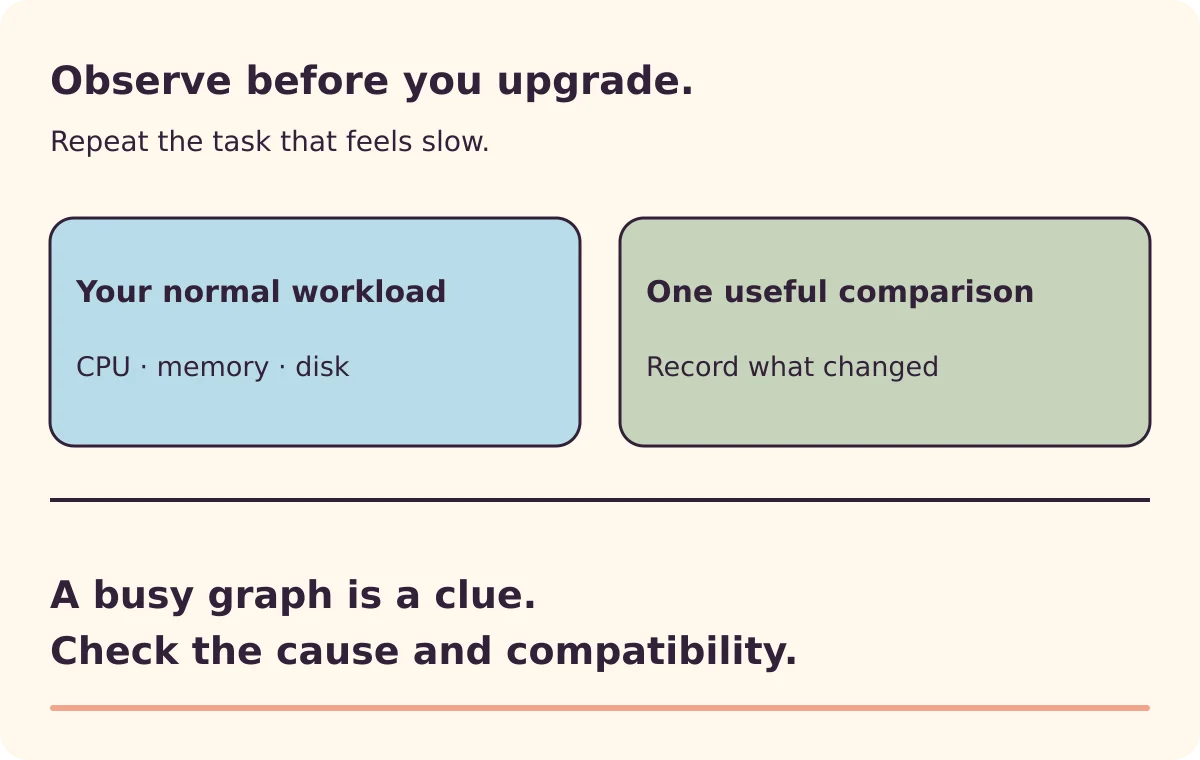
A slow computer does not automatically need more memory. The delay might come from storage, a busy application, background work or something outside the computer altogether.
Before buying RAM, gather a short record of what happens during the work that feels slow. That gives you a better question to take to a technician or supplier, and may save you buying a part that cannot address the problem.
This guide uses Windows 11’s built-in Task Manager. It does not require opening the computer, installing a cleaner or changing memory settings.
Name the delay
Choose one repeatable action: switching between your normal applications, opening a particular project, or joining a call while working on a document.
“Everything is slow” is difficult to compare. “The spreadsheet takes a long time to become responsive when I switch back from the browser” is a useful starting point.
Keep the distinction between memory and storage in mind. RAM supports active work; storage holds your files and installed software. For the background, see our computer-hardware explainer. This guide focuses on observing the problem rather than choosing a specification.
Watch the workload you actually use
Save your work, then press Ctrl + Shift + Esc to open Task Manager. Look at Processes and Performance, paying attention to CPU, Memory and Disk while you repeat the slow action.
Microsoft’s performance guidance recommends observing these resources and recognises several possible causes of slowness. A single busy reading is a clue, not an upgrade diagnosis.
Write down what you notice:
| Observation | Your record |
|---|---|
| Task that feels slow | The actual action, not just the application name |
| Other work open | Applications, browser workload and calls |
| Memory reading during the delay | Whether it stays high or briefly rises |
| CPU and disk behaviour | Which is busy at the same time |
| Application involved | Whether one process stands out |
| Repeatability | Whether the same pattern appears again |
Avoid a universal percentage rule. Different applications and workloads use resources differently, and a short burst can be normal.
Make one simple comparison
Close an application you do not need, using its normal exit control after saving its work. Repeat the original action.
If responsiveness improves, record exactly what you closed. This supports investigating the combined workload. It does not prove that buying RAM is the only answer: that application may also have been consuming CPU, disk or network resources.
Do not end unfamiliar system processes or disable security software for the comparison.
An illustrative observation might be:
Switching to my large spreadsheet is slow while the video editor and browser are open. After saving and closing the video editor, switching is noticeably quicker. Memory use is also lower.
That is enough to start a useful investigation. It is not a benchmark or a promise that a particular upgrade will produce the same improvement.
Interpret the pattern without jumping to a purchase
| Pattern you can repeat | Useful next question |
|---|---|
| Memory remains heavily used during the delay, and reducing your normal workload helps | Would more supported memory make this workload fit more comfortably? |
| One application dominates CPU use | Is that task expected to be demanding, or is the application misbehaving? |
| Disk activity stays busy during the delay | Is storage, background work or memory pressure contributing? |
| Only an online service is slow while local work is responsive | Does the problem belong to the connection or service? |
| Slowness comes with crashes or errors | Does the fault need diagnosis before any upgrade? |
These are investigation paths. Several can apply at once. If the evidence is confusing, take the notes to someone who can inspect the machine rather than buying from the most striking graph.
Our Windows performance and crash diagnosis guide covers the more technical investigation.
Check the exact machine before buying anything
Record the full computer model and configuration. Find its manufacturer’s upgrade or service documentation and check whether memory is replaceable, the supported module type and capacity, and the available slots.
Do not infer upgradeability from a similar-looking laptop. Dell’s upgrade guidance explicitly notes that some components can be soldered to the board. For another brand, use that manufacturer’s documentation.
Ask a supplier a precise question: “This is my model and workload. These are the repeated observations. What compatible change addresses that limitation?”
Keep your before-upgrade notes. If you later make an upgrade, repeat the same work and compare responsiveness. The worthwhile result is an improvement in the task you care about, not simply a larger number in the specification.