An extension that cannot be removed is frustrating. A browser message saying “managed by your organisation” on a personal computer can be alarming. Neither symptom, by itself, proves malware.
Chrome and Edge deliberately support policies that install extensions silently and prevent users from disabling or removing them. Businesses, schools, security products and parental-management tools use those controls legitimately. Unwanted software can abuse similar mechanisms for persistence.
The right investigation begins with ownership and evidence—not deleting every policy key you can find.
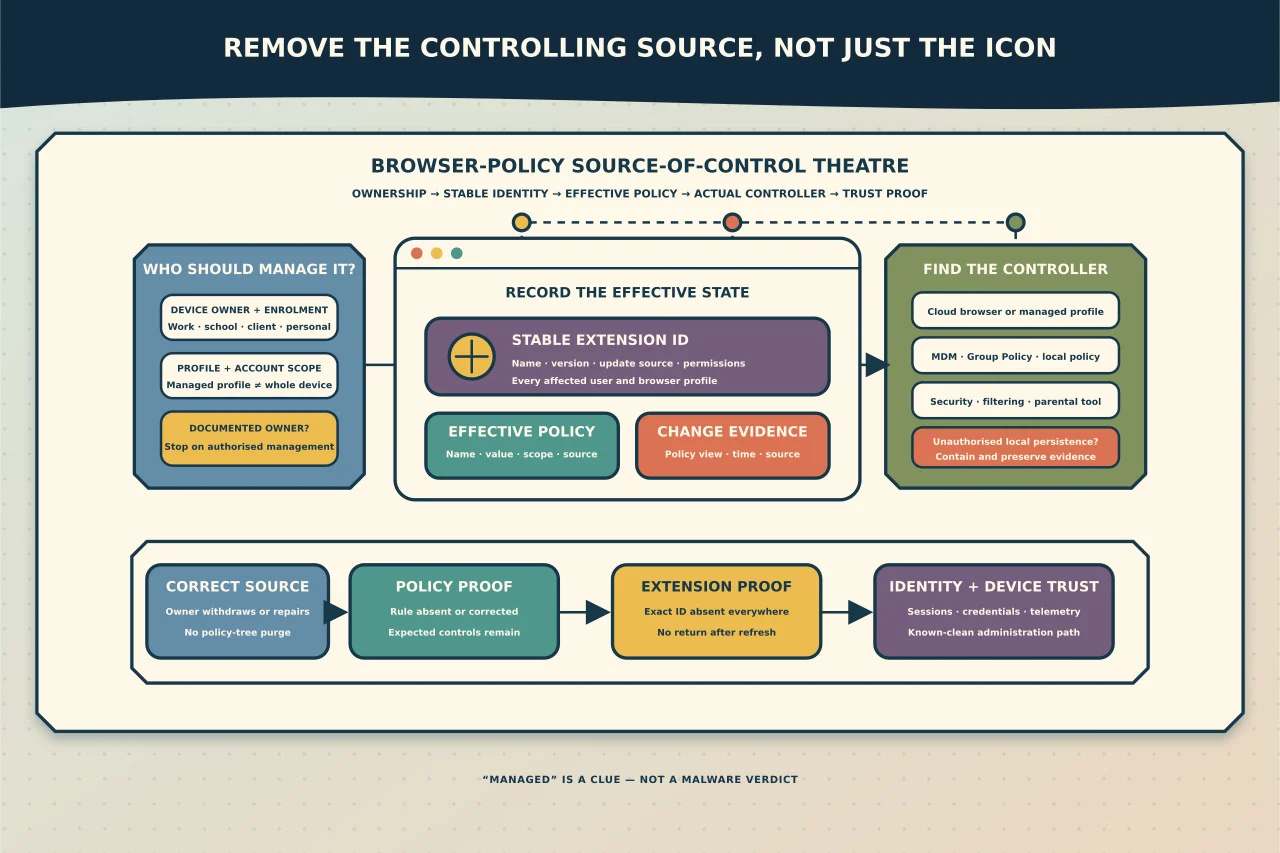
First establish who should manage the browser
Ask four questions:
- Is the device owned or enrolled by an employer, school or client?
- Is the browser profile signed into a managed work or school account?
- Is management software, endpoint protection or parental control intentionally installed?
- Does the extension have a documented business owner and purpose?
On an organisation-owned device, stop before changing policy and contact its administrator. Removing a legitimate extension could break authentication, data protection, web filtering or compliance. The same applies to a personally owned device enrolled for work: determine exactly which device and profile controls were accepted.
On a purely personal device with no intended management, an unknown force-installed extension or unexplained policy deserves investigation. It is evidence of persistence, not yet proof of who created it or what it did.
Record the effective state
Do not rely only on the extensions screen. Record:
- browser name and exact version;
- affected Windows user and browser profile;
- the extension’s stable ID, displayed name, version and update source;
- permissions and site access;
- whether it is installed, force-installed, blocked or merely recommended;
- the effective policy name, value, scope and reported source; and
- device enrolment, domain/work-account connection and relevant management software.
In Edge, use the browser’s policy and extension diagnostic pages; Chrome provides equivalent policy and extension pages. Refresh the policy view and capture it before making changes. An extension ID is more reliable than the displayed name or icon, which publishers can change.
Pay particular attention to ExtensionSettings. Microsoft and Google document that this consolidated control can override older extension allow, block and force-install policies. Checking only ExtensionInstallForcelist can therefore miss the effective rule.
Identify the controlling layer
Extension policy may come from several places:
- cloud browser management or a signed-in managed profile;
- mobile-device or endpoint management;
- Active Directory Group Policy;
- supported local machine or user policy;
- security, filtering or parental-control software; or
- unauthorised software writing policy locally.
Determine whether the effective rule is device- or user-scoped and whether it returns after a policy refresh, sign-in or reboot. Check the corresponding management console or resultant policy through an authorised administrator. Do not infer that a local registry entry is the origin: it may be the delivered result of a legitimate central policy and will simply return.
If the policy is unexpected, preserve its values, extension ID, timestamps where available, associated installer/software and relevant security alerts before removal. Look for the same ID or policy across other managed devices. One browser symptom can reveal a wider software deployment or account problem.
Assess the extension without trusting its listing
Establish the publisher and intended function through an authoritative catalogue or internal approval record. Review requested permissions and actual site access. Broad access—such as reading and changing data on many websites—is not automatically malicious, but it substantially increases the consequence of a compromised or unwanted extension.
Consider what the affected profile accessed while the extension was present: email, password manager, banking, administration consoles or customer systems. If credential or session exposure is plausible, treat identity response as part of the incident. Removing the extension does not invalidate a stolen password, token or session.
Do not visit sensitive sites from the affected profile to “see what happens.” Preserve necessary evidence and use a clean device for administration.
Remove the source, then the extension
Use the authoritative management path:
- An organisation administrator withdraws or corrects the extension assignment in browser management, MDM or Group Policy.
- If a legitimate product created the rule, use its supported configuration or uninstall path and confirm whether other security controls depend on it.
- If unauthorised local software created it, contain the device, preserve incident evidence and remove that software through a trusted security response.
- Refresh policy and verify that the effective rule is absent or corrected.
- Confirm that the browser removes the previously force-installed extension, or remove it normally once the enforcing policy no longer applies.
Microsoft and Google both document that users cannot remove a force-installed extension through the ordinary interface. Repeatedly deleting the extension directory or reinstalling the browser treats the symptom; the policy can reinstall it.
Avoid scripts that erase entire Chrome/Edge policy trees, reset all Group Policy, seize registry permissions or disable browser management. They can destroy legitimate configuration, hide evidence and leave the persistence source untouched.
Verify the whole trust boundary
After remediation, verify more than the missing icon:
- the relevant browser policy page no longer reports the unwanted rule;
- the exact extension ID is absent from every affected profile;
- the rule does not return after policy refresh, restart and sign-in;
- expected legitimate policies still apply;
- startup items, scheduled tasks, installed applications and management agents have an owner;
- browser search, proxy, homepage, notification and site-permission settings are expected; and
- endpoint and identity telemetry shows no continuing suspicious activity.
If the extension could access credentials or sessions, use a known-clean device to revoke affected sessions and rotate exposed credentials in a prioritised order. Review mailbox, identity and administrative audit records where appropriate.
When a browser reset helps
A supported browser reset can clear unwanted user settings and disable ordinary extensions, but it is not a substitute for policy correction. It may also remove useful preferences while leaving cloud/device management intact. Use it only after documenting the state and understanding what will be lost.
Reinstallation has the same limitation. If the browser returns to “managed” with the same extension, that is strong evidence that an upstream policy or local persistence mechanism remains.
The durable fix is simple in principle: identify the extension by stable ID, establish the effective controlling source, correct that source through the authorised owner, and then prove both browser and identity trust. Anything less risks a temporary disappearance rather than removal.