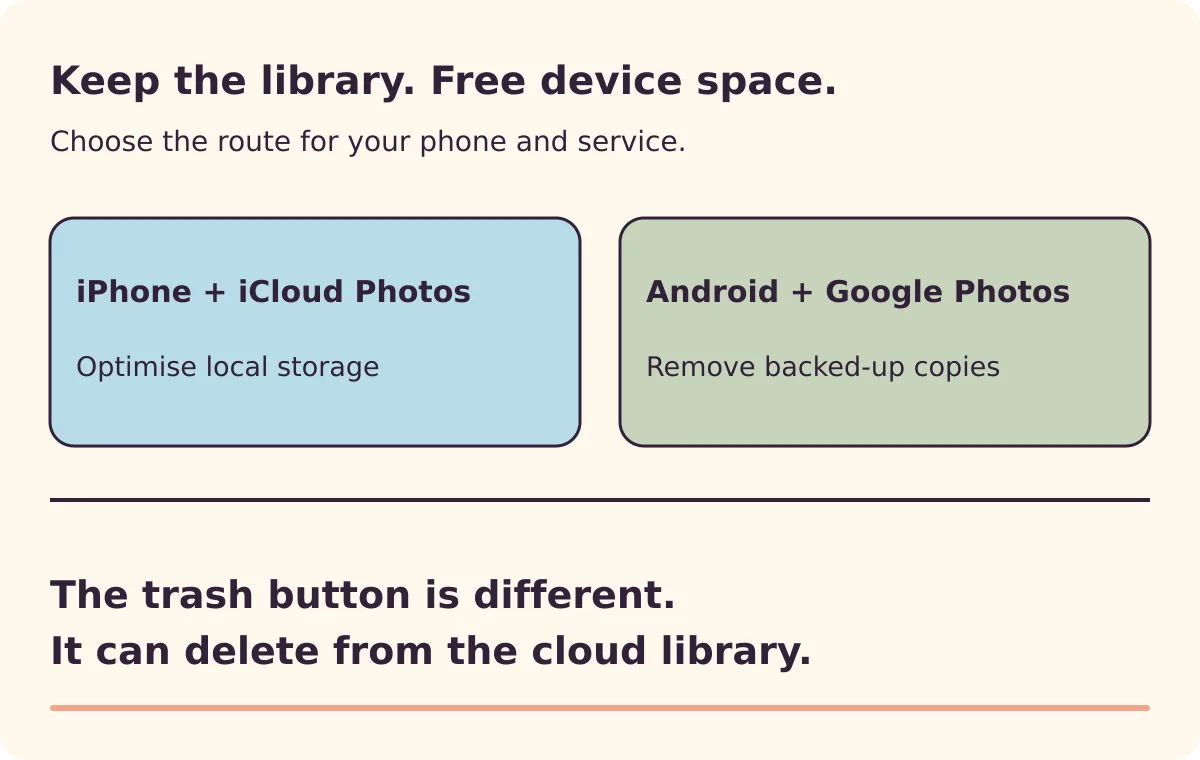
A full phone and a full cloud account are different problems. Before removing photos, decide which storage you are trying to free and which copy you intend to keep.
The two common routes in this guide work differently: iCloud Photos on an iPhone can optimise local storage, while Google Photos on Android has a feature for removing backed-up device copies. Neither should be confused with the ordinary trash button.
If you use several photo services on the same phone, first establish how they interact. In particular, do not apply the Android instructions below to an iPhone that also uses iCloud Photos.
Check which storage is full
On an iPhone, device storage is shown under Settings → General → iPhone Storage. Your iCloud usage is shown separately under your name in Settings, then iCloud. Apple’s storage guide explains the difference.
On Android, inspect the phone’s storage settings and the storage information for the Google Account used by Photos. Names vary by device.
| The problem | What you are trying to do |
|---|---|
| Phone storage is full, cloud library has space | Reduce the amount kept locally while retaining the library |
| Cloud storage is full | Review the cloud account’s capacity or content; removing only local copies will not solve it |
| Uploads are incomplete or paused | Establish and complete the intended copy before cleanup |
| You cannot identify the account holding the photos | Resolve account ownership before removing anything |
Do not buy more cloud capacity simply because the phone reports low device storage. First identify which limit you have reached.
Confirm where the photos actually exist
Seeing a thumbnail in a photo app is not enough. Google explains that its app can show items stored on the device even when they are not backed up to the selected account. Check the backup details.
For Google Photos, confirm the correct account, the overall backup status and coverage of relevant device folders. Camera photos and images saved by another application may have different coverage. Google’s backup checks explain what to inspect.
As an additional practical check, open the intended cloud library in a browser and inspect several recent and older items, including a video. This can expose an account mix-up; a small sample does not prove the entire collection is complete.
For irreplaceable pictures, keep an independent copy you can open before undertaking a large cleanup. A synchronised library should not be your only protection against an accidental library deletion.
On iPhone with iCloud Photos: use storage optimisation
If iCloud Photos is already your intended library, check that syncing has completed. Then inspect Settings → your name → iCloud → Photos and the Optimize iPhone Storage option.
Optimisation keeps full-resolution originals in iCloud while allowing smaller versions on the phone. It manages device storage rather than asking you to delete the pictures you want to keep. The amount freed is managed by the system, so do not promise yourself an immediate fixed saving. Apple describes the setting and storage behaviour.
If you are not already using iCloud Photos, enabling it is a separate decision about uploading and managing your library. Pause the cleanup until you have made that decision and verified the resulting copies.
The ordinary delete action has a different meaning: with iCloud Photos, deletion propagates to other devices using that library. Apple’s deletion guidance is explicit about this. Deleting a picture is not a way to keep its cloud original while removing only the phone’s version.
On Android with Google Photos: use Free up space
After confirming the intended account and completed backups, open Google Photos, select your account picture and choose Free up space on this device. Read the amount and action before confirming.
This removes device copies that Photos identifies as backed up. Those items remain accessible through the cloud library, but removed local copies will no longer be available in the same way through an offline connection or the phone’s built-in gallery. Google’s Android instructions describe those consequences.
Keep local copies of anything you need during travel without internet access. Do not assume a visible thumbnail means the full item is still downloaded.
Avoid selecting photos and tapping the ordinary trash button instead. Google’s deletion instructions describe how that can remove items from the backed-up library and devices with backup enabled.
Verify the outcome before doing more
Recheck device storage. Open the cloud library and confirm that your important items remain accessible. Restore or download a needed item using the service’s supported controls if you require a local copy.
If pictures appear missing, stop further cleanup and inspect the correct account and the service’s recovery options. Do not empty trash or Recently Deleted while investigating. Recovery periods and eligibility vary, so treat them as a possible recovery route rather than a backup guarantee.
The successful outcome is specific: the phone has more usable space, the intended library remains intact, and you understand which pictures need an internet connection to open fully.